
Image Text Editor
Upload a graphic, name the exact wording to change, and create an updated version you can compare with the original.


Drag an image here or click to upload












Explore image transformation styles
Explore a range of image transformations and find the look that fits your idea.
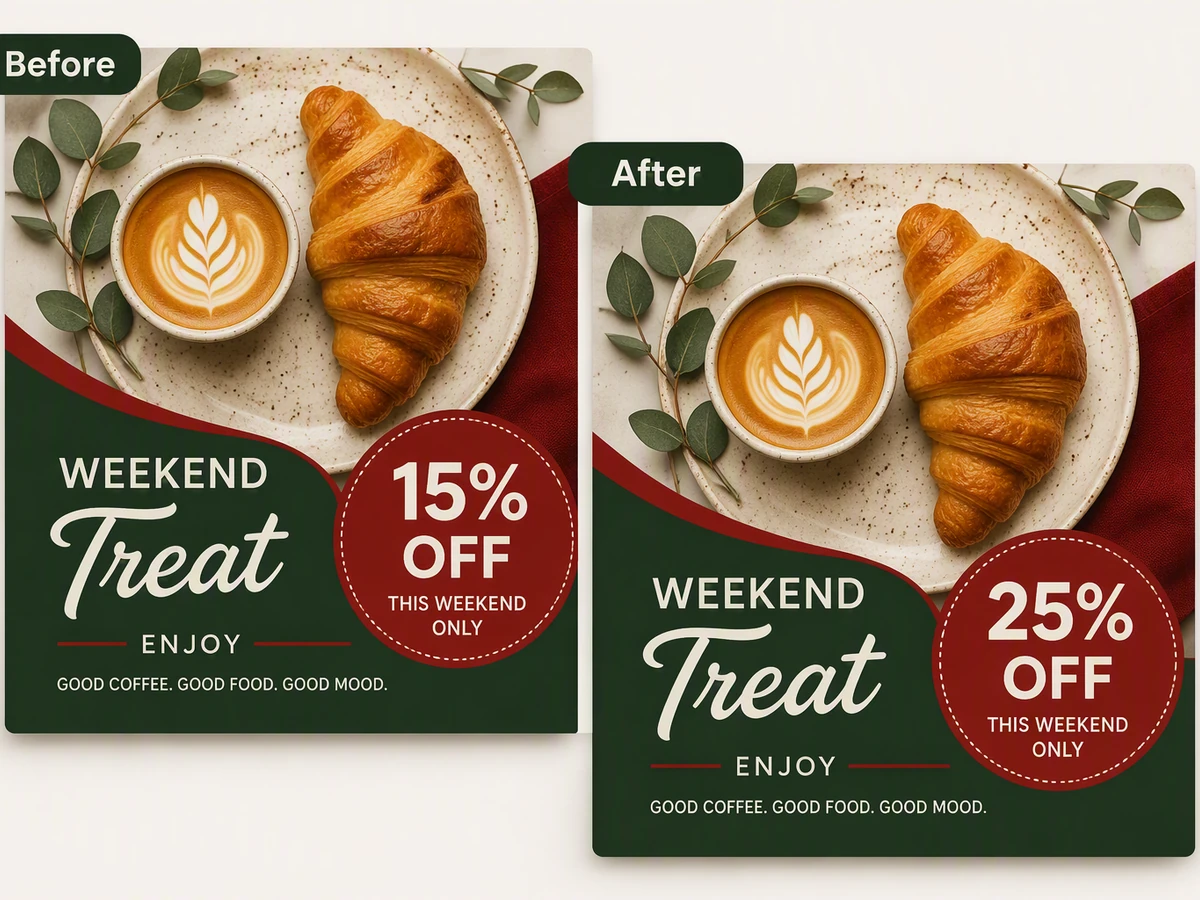
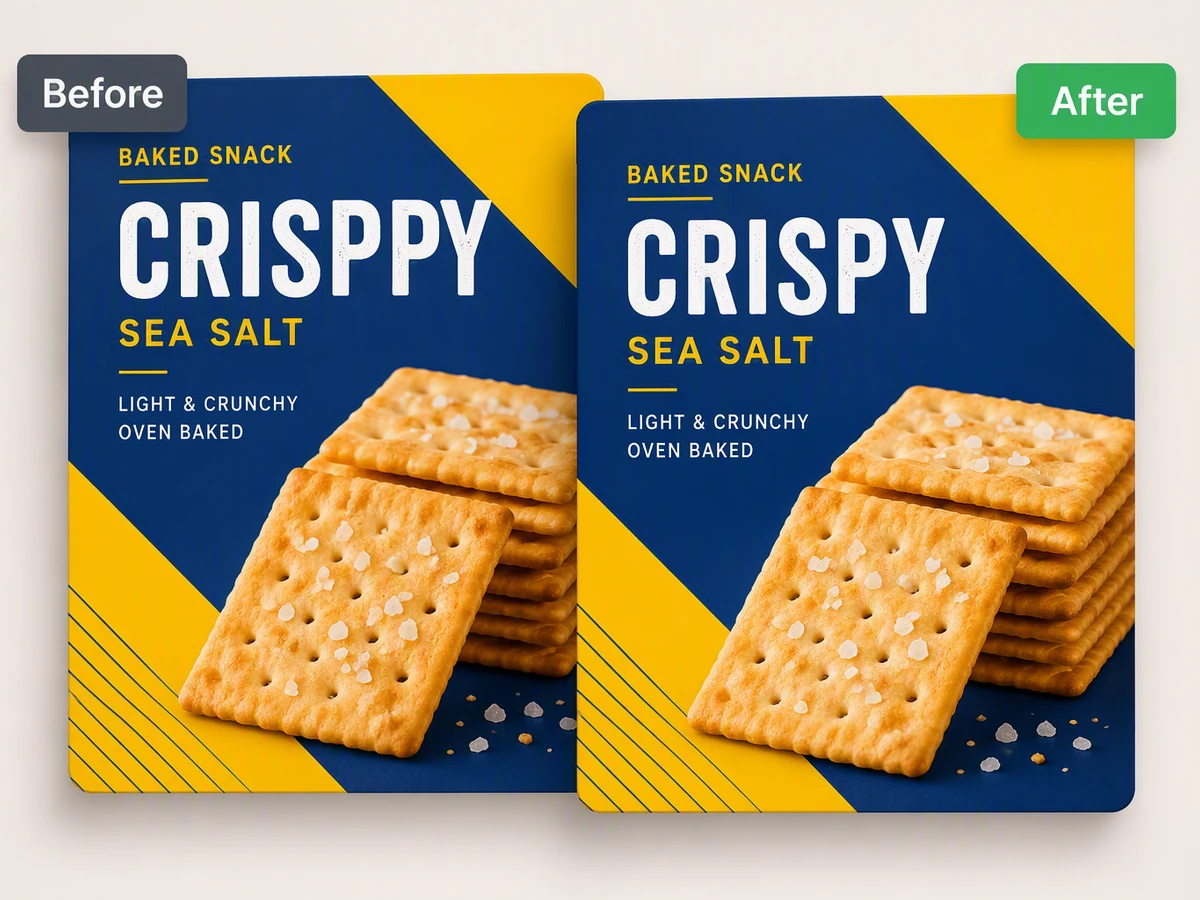
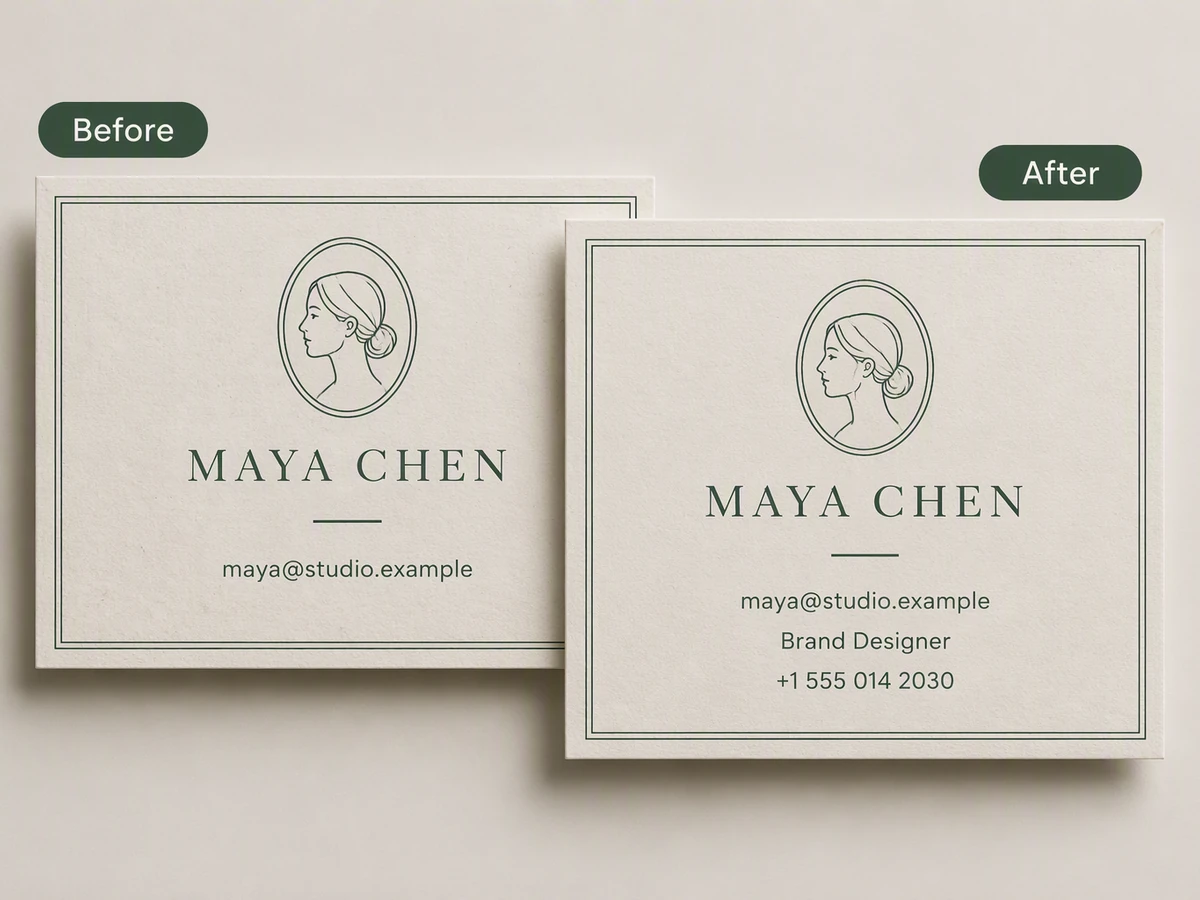
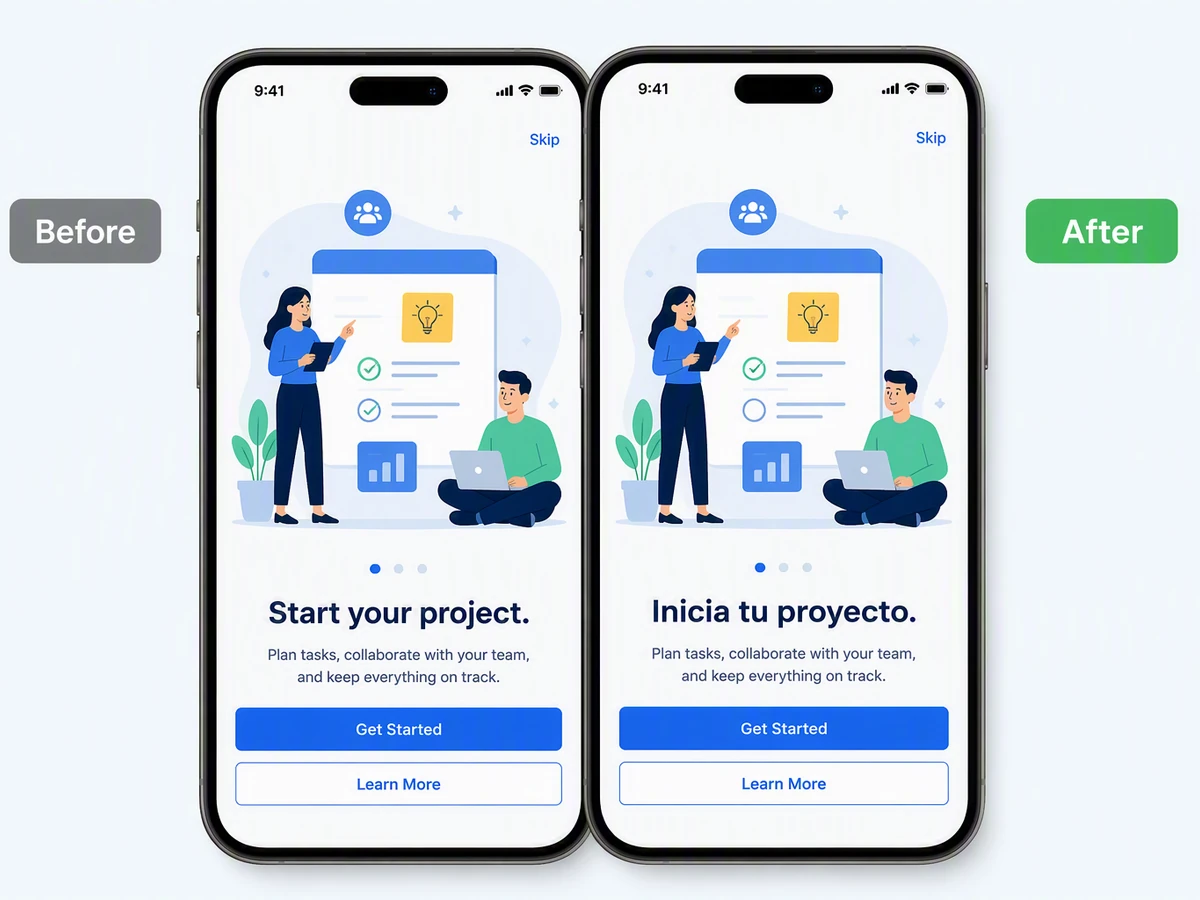
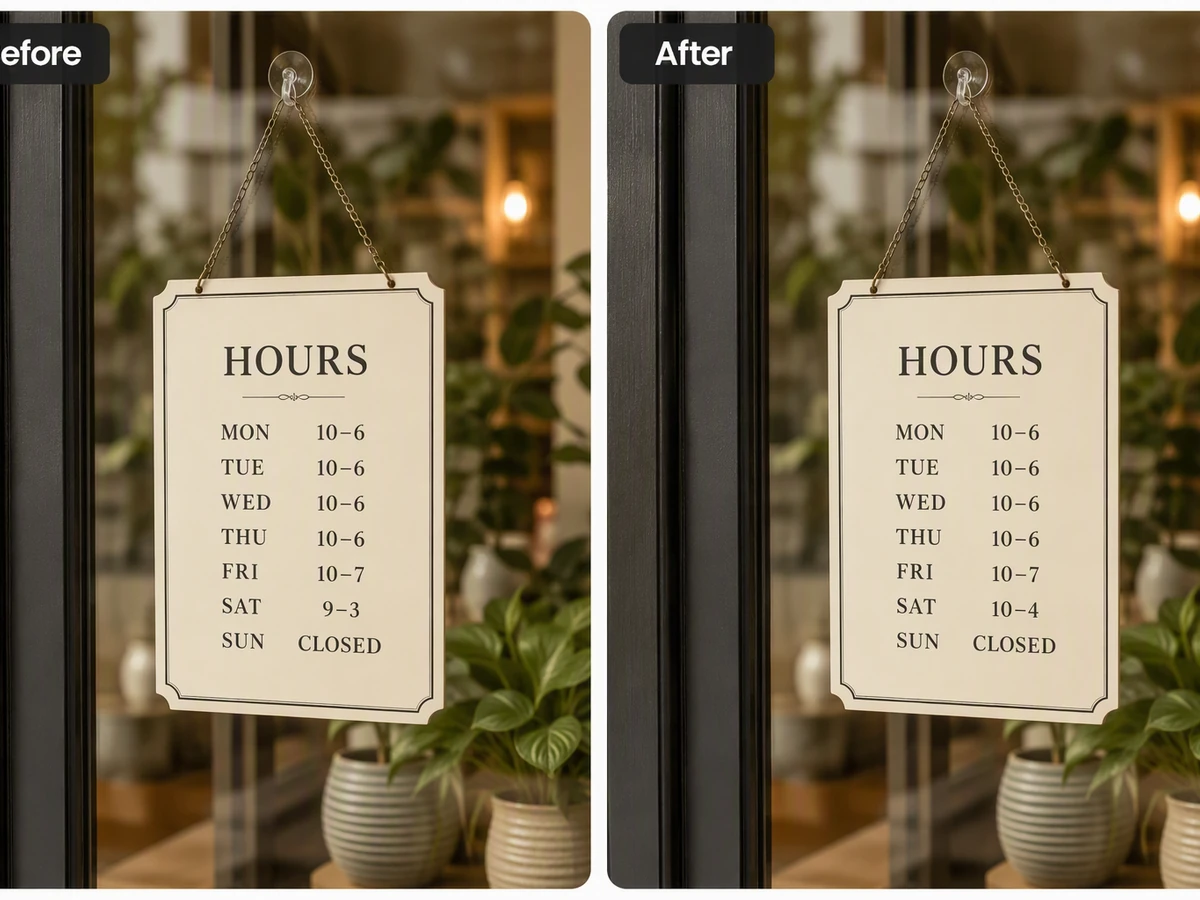
How an Image Text Editor Handles Finished Graphics
When the layered source is missing, describe the smallest useful change and provide the flattened image as context. Ottermind can carry that brief into a visual workflow and keep the original, instructions, and revisions together. To edit text in image files responsibly, compare the result at full size and inspect letters, baseline, spacing, background repair, and every area that should remain unchanged. For a new visual instead of a correction, start with AI image generation.
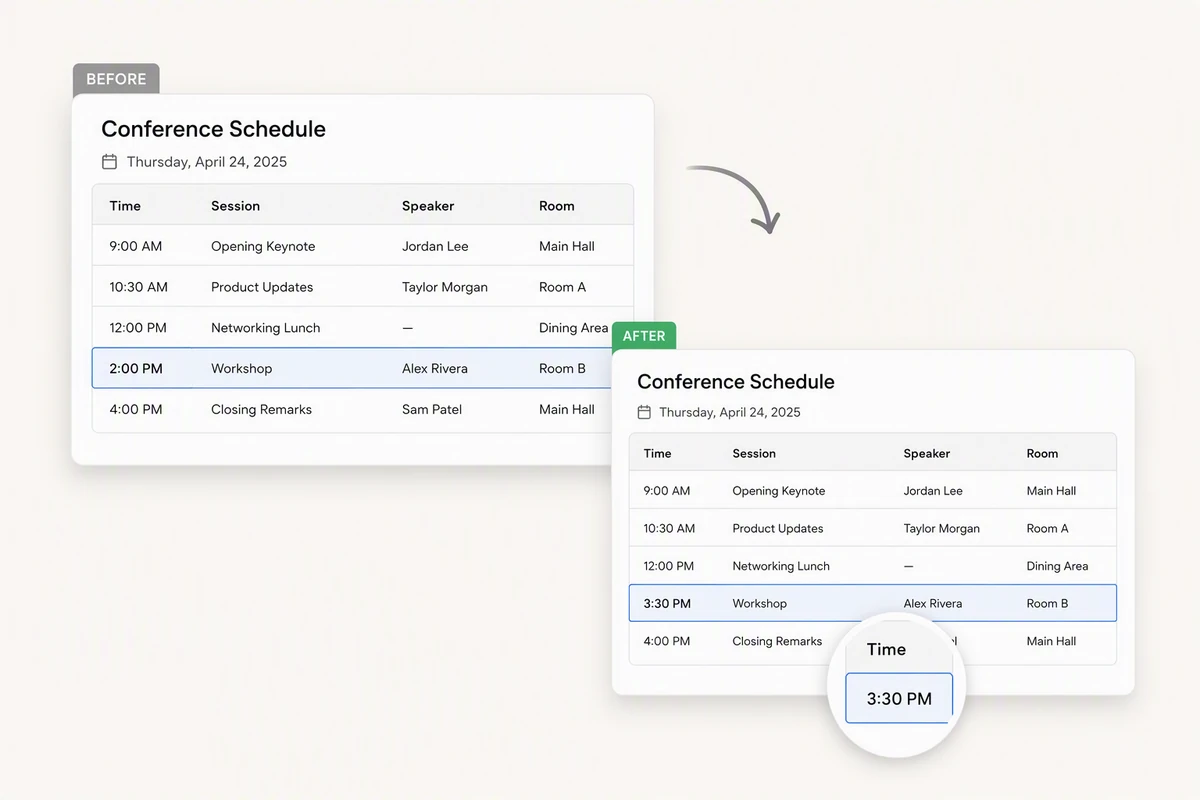
Replace Text in Screenshots and Schedules
Name the exact line, its current wording, and the replacement instead of asking for a broad redesign. A conference schedule can change one workshop time while preserving the surrounding interface. If the source is compressed, check it first with Fix Blurry Pictures, because unclear letters make review harder.
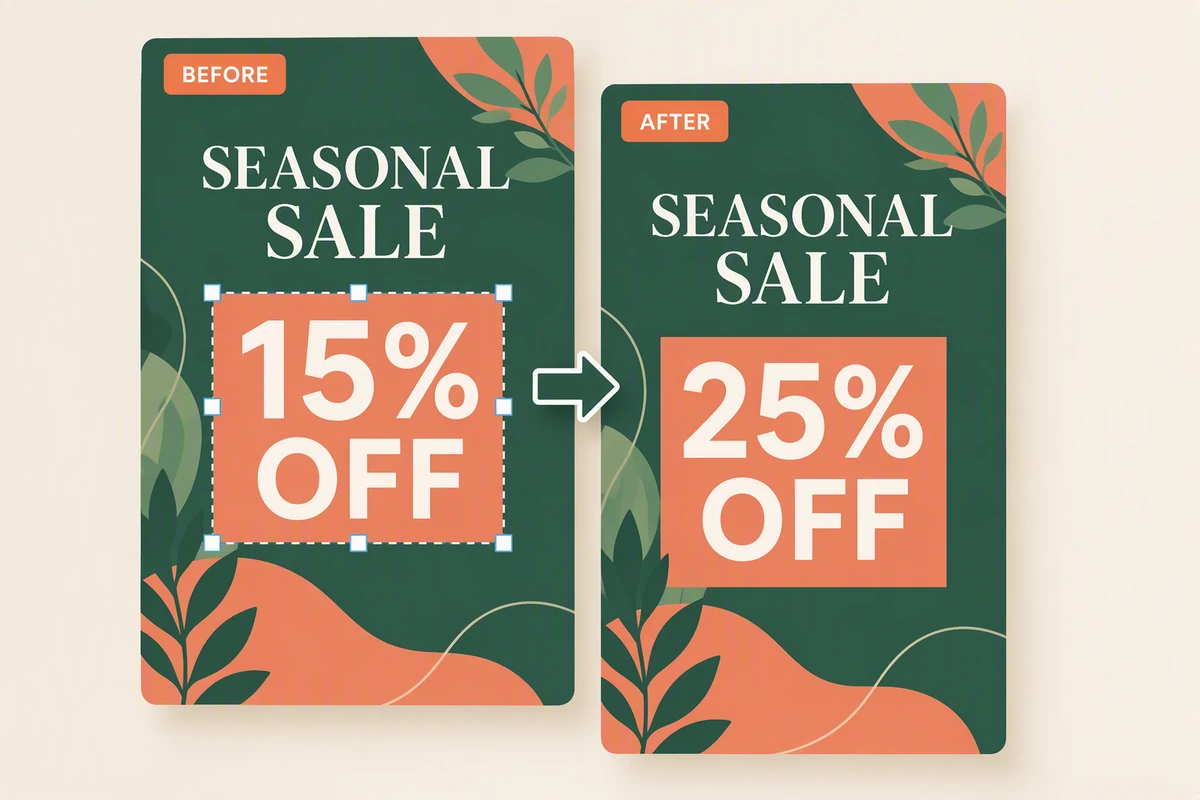
Update Marketing Graphics without Source Files
An image text editor can turn one poster into a revision: replace the offer, preserve the artwork, compare versions. Check whether longer copy changes the hierarchy or wraps unexpectedly. If the message still needs work, refine it with the Slogan Generator or plan channel variants with the AI Social Media Post Generator.
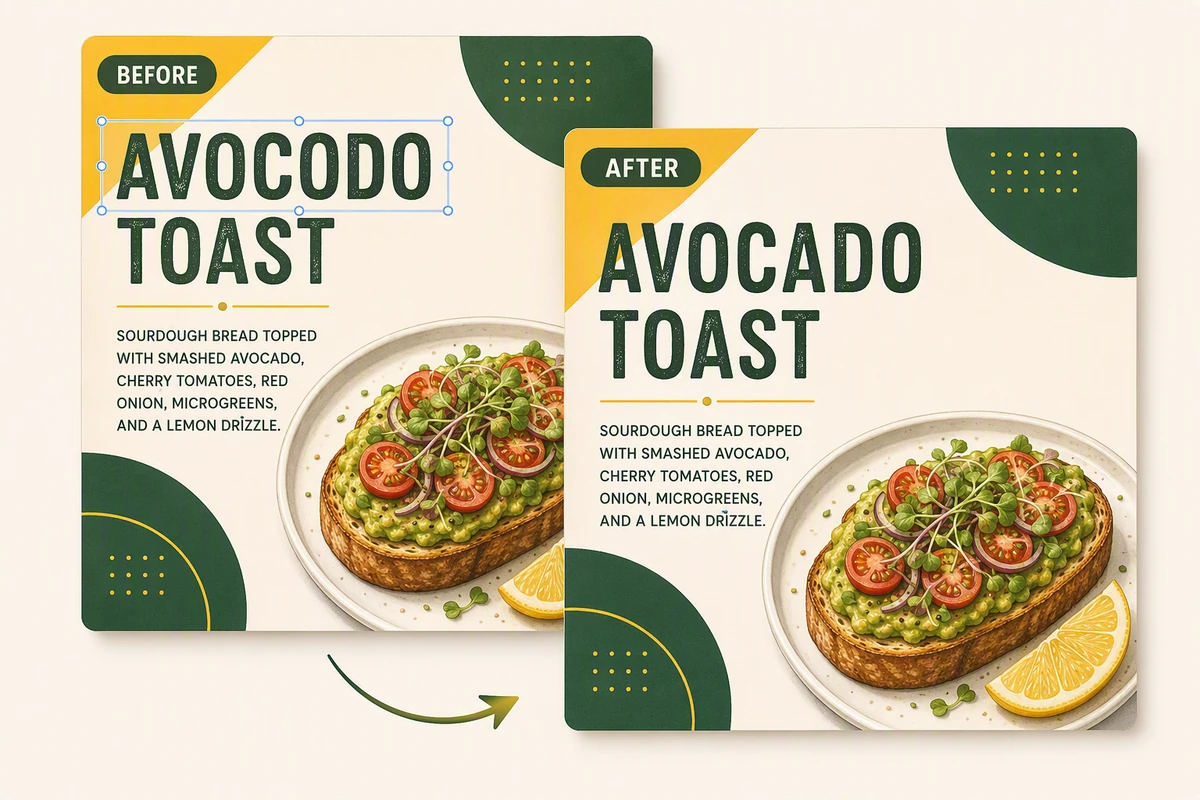
Correct Typos without Rebuilding the Design
A photo text editor works best when the correction is narrow and verifiable. Fix one misspelled menu item, then inspect font weight, line length, alignment, contrast, and decoration. Treat the output as a new visual interpretation, not proof every pixel stayed identical. Use Image saturation only as a separate finishing task.
What you can do with Ottermind
Correct a date or price
Replace one verified line in a poster, menu, schedule, or promotion while preserving typography and surrounding artwork.
Update an old screenshot
Change interface labels or sample data for current documentation without redesigning the rest of the image.
Localize a campaign graphic
Replace visible copy for another market, then use the Image Translator when several text regions need coordinated translation.
Create offer variations
Produce approved headline or CTA versions from one design while keeping logos, legal text, layout, and imagery fixed.
How to Use an Image Text Editor
Step 01
Upload the Original
Choose an image you may edit, then identify the exact word or line, its visual role, and the surrounding details that must not change.
Step 02
Describe the Replacement
State the old and new wording, location, intended language, and precise constraints for font feel, alignment, color, spacing, background, and overall composition.
Step 03
Compare and Refine
Review both versions at normal size and zoomed in, flag altered details or awkward typography, and request a focused correction before publishing the image.
Why creators choose Ottermind
Precise Edit Briefs
Replace text in image files with a bounded instruction that names both the target and protected regions.
Originals Stay Connected
Keep source graphics, replacement wording, decisions, and feedback organized around the same project.
Focused Revisions
Ask an agent to revisit one weak text region without discarding an otherwise useful direction.
Separate Finishing Passes
Apply Image Effects after approving the wording so creative changes remain easy to evaluate.
Reusable Visual Context
Carry an approved graphic into a Free Online Photo Collage Maker while retaining its review notes.
Visible Agent Work
Inspect the output, compare versions, and approve critical next actions before continuing the project.
Frequently asked questions
Can an Image Text Editor Recover the Exact Font?
Not reliably from every flattened image. An agent can interpret the visible style, but tiny letters, custom type, compression, perspective, and textured backgrounds reduce certainty. Compare weight, width, spacing, baseline, color, effects, and nearby texture before accepting the result.
Is Replacing Text Different from Adding a Caption?
Yes. A caption adds a new layer in open space; replacement removes or reconstructs a baked-in text region before placing new wording. State which result you need so the agent does not simply cover the original with a visible label.
What Images Produce the Easiest Text Changes?
Clear, high-resolution posters, menus, screenshots, signs, cards, and product graphics with readable letters and simple backgrounds are easier to review. For a soft source, improve legibility through Fix Blurry Pictures before judging small typography.
How Do I Edit Text in Image Files with Longer Copy?
Expect line breaks or type size to change when the replacement is longer. Provide a preferred maximum line count, identify flexible space, and compare hierarchy at the final display size. Shorter wording is often easier to integrate without changing the composition.
What Should I Check before Publishing the Result?
Use five checks: spelling and meaning, font and effects, line length and baseline, repaired background texture, and unchanged surrounding content. Then inspect the full image at its actual use size rather than approving only a zoomed crop.
Are There Images I Should Not Alter?
Do not change identification, financial records, official documents, private conversations, or evidence to mislead someone. Edit only material you may use, preserve an original, and disclose material changes when accuracy, authorship, or trust could be affected.
Discover more
AI pet portrait generatorAI Product Image GeneratorGemini Watermark RemoverPicture Outline MakerPhoto into WatercolorPhoto RetouchingPhoto to Anime ConverterConvert Photo to Oil PaintingPhoto to SketchReplace Color in ImageResume Photo EditorWatermark RemoverAI Resume BuilderAI Receipt TrackerPC Builder AIAI Logo Generator
More from the blog

Edit Text in Image Files with Context
Upload the original, describe one controlled replacement, and let Ottermind create a version you can compare against a practical typography and layout checklist.
Edit Image Text