Upload image
JPEG · PNG · WebP · 20 MB · 4096 × 4096 px
Private image
AI Product Image Generator
Upload a product photo, describe the scene you need, and create product images you can compare, inspect, and refine with Ottermind.












Explore image transformation styles
Explore a range of image transformations and find the look that fits your idea.
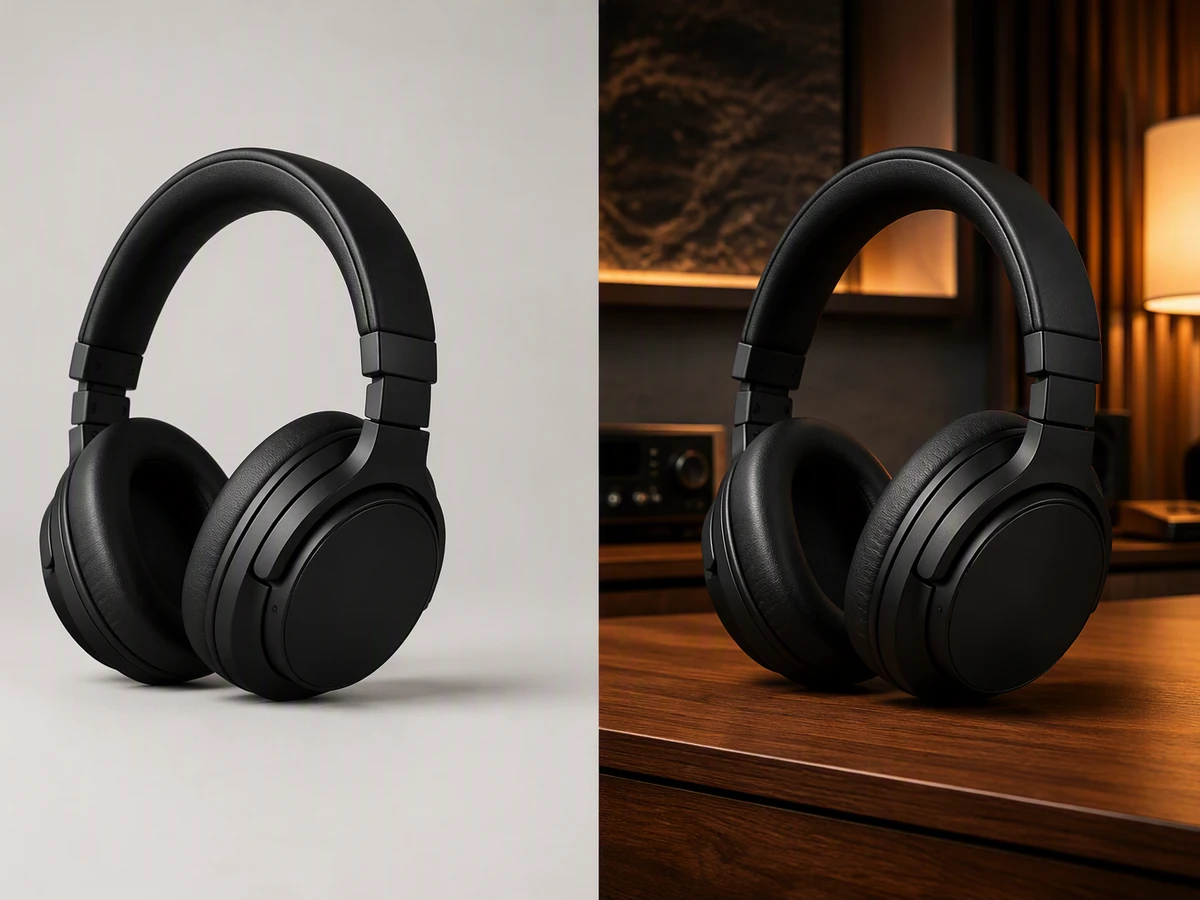
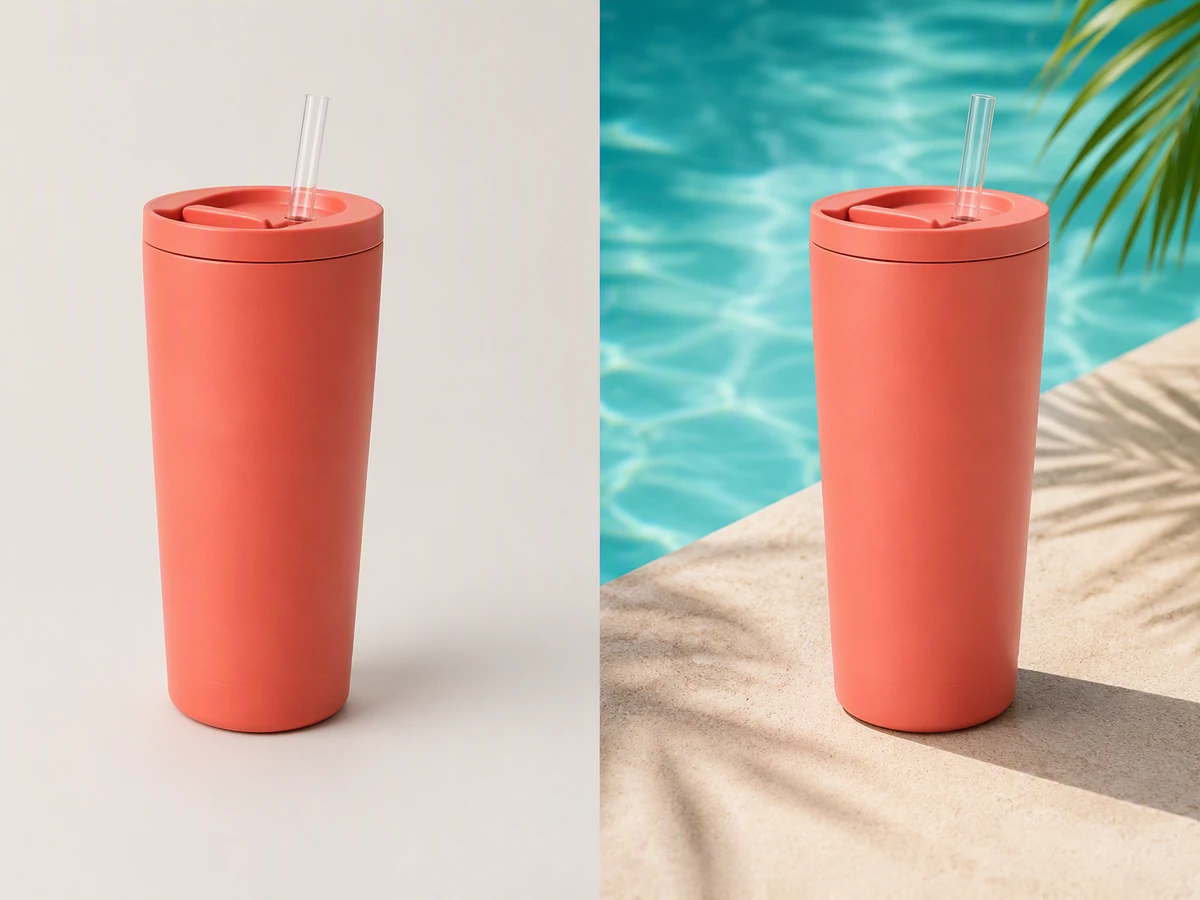
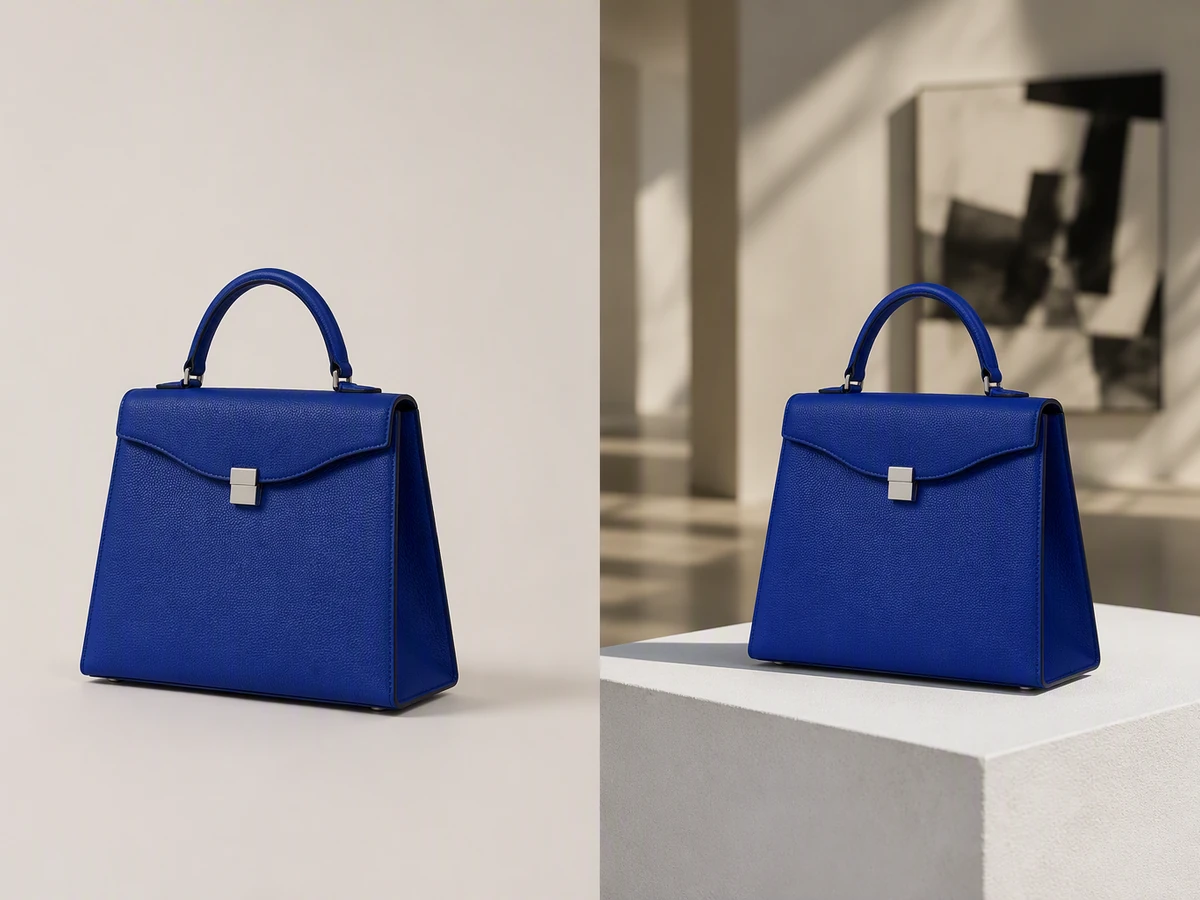
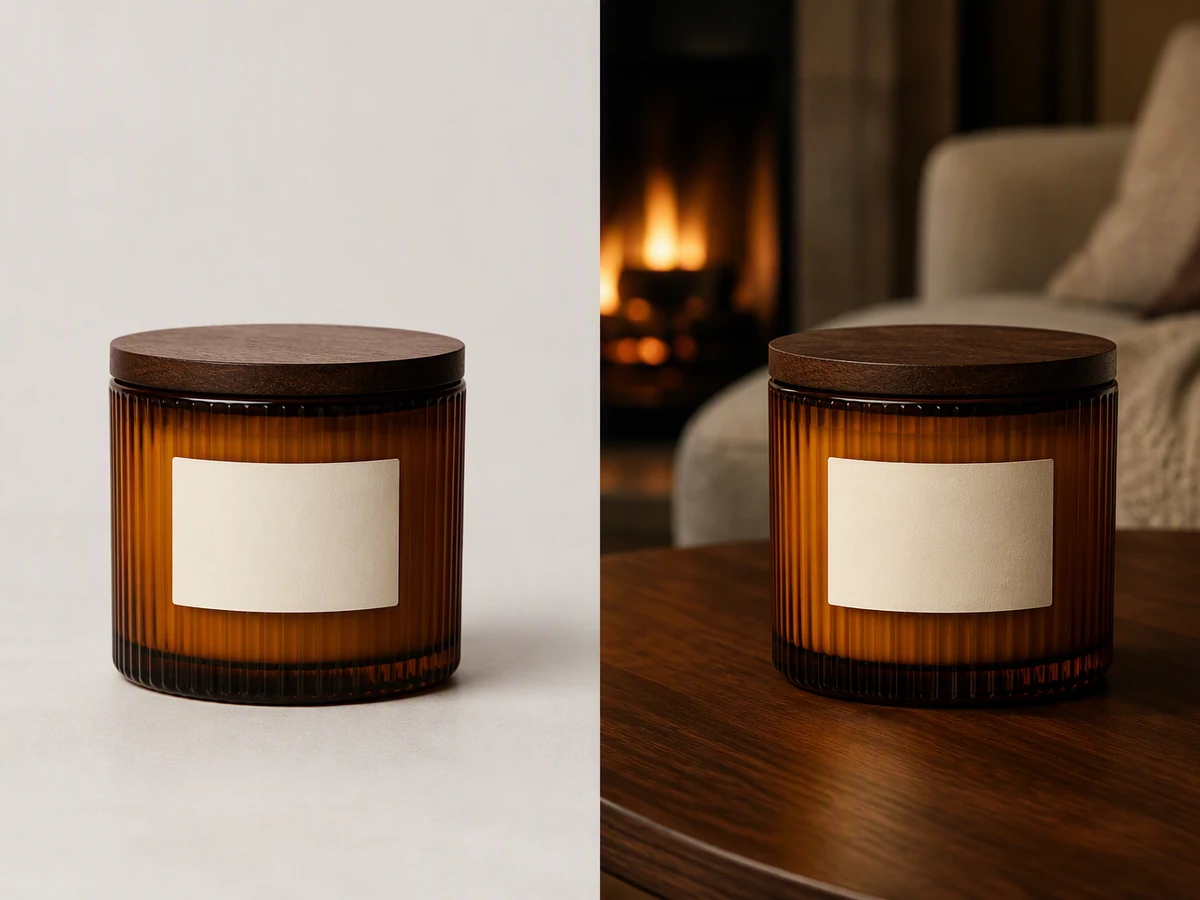
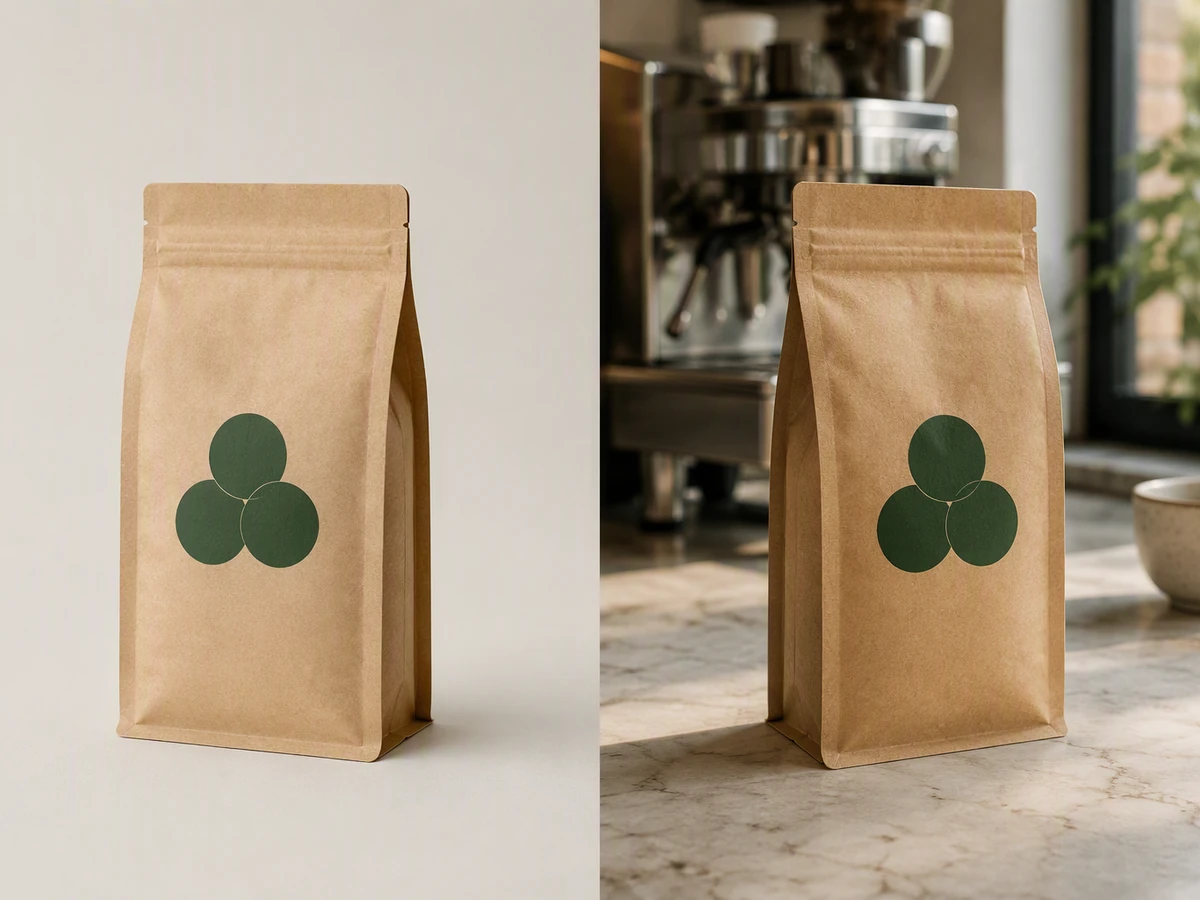
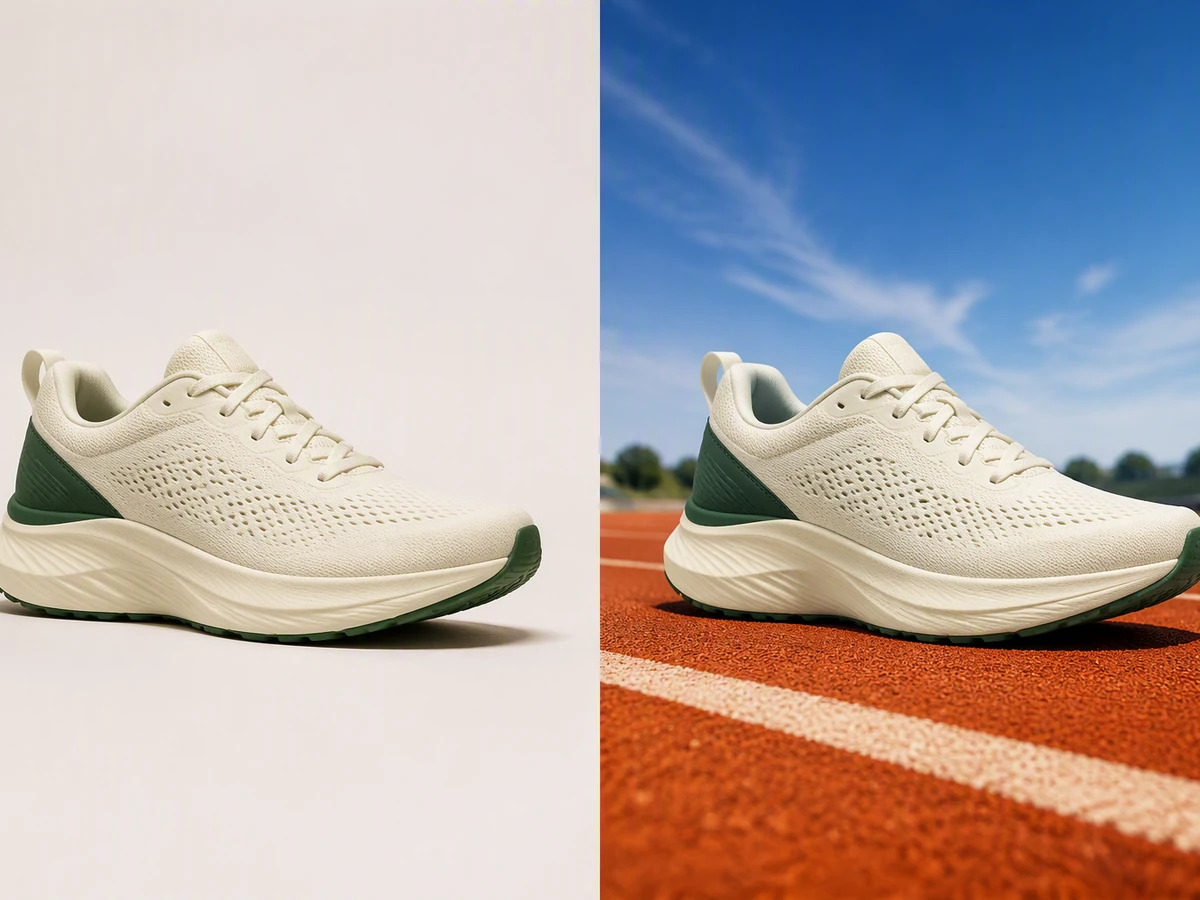
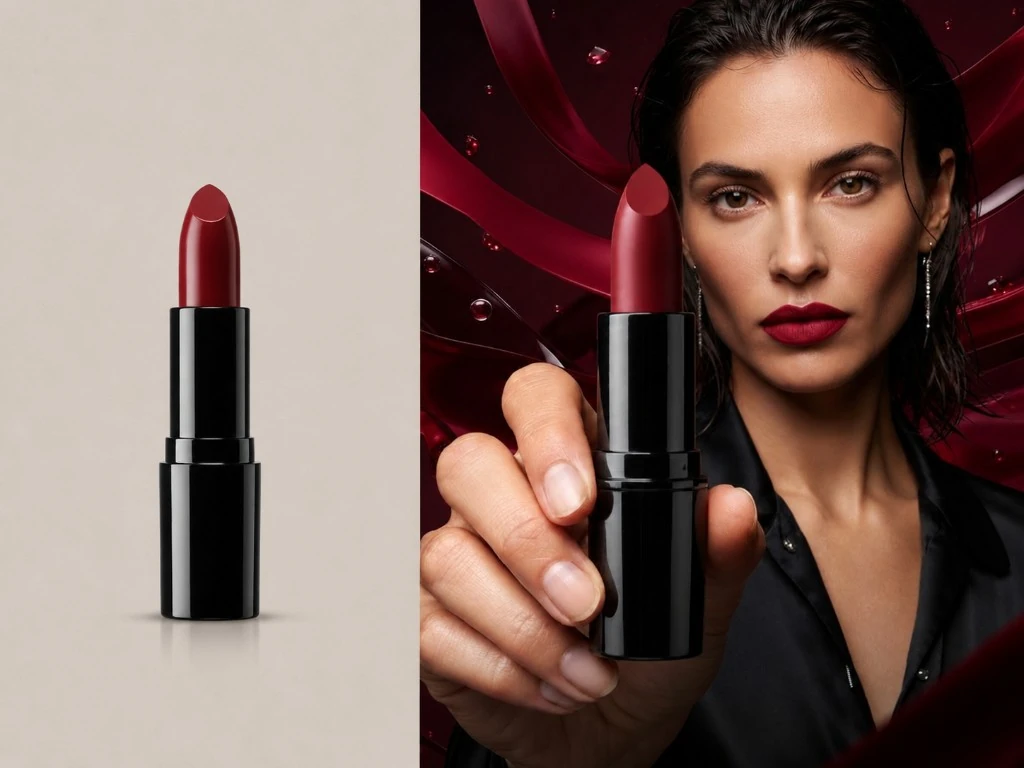
Turn One Product Photo into a Reviewable Campaign Direction
An AI product image generator uses your source photo as visual context while you direct the setting, lighting, composition, and purpose. Start with a clear view of the real item, then use AI image generation to explore a catalog, lifestyle, or campaign treatment. Keep the source beside every result. If the original needs careful cleanup first, use Photo Retouching as a separate preparation step rather than hiding defects inside a new background.
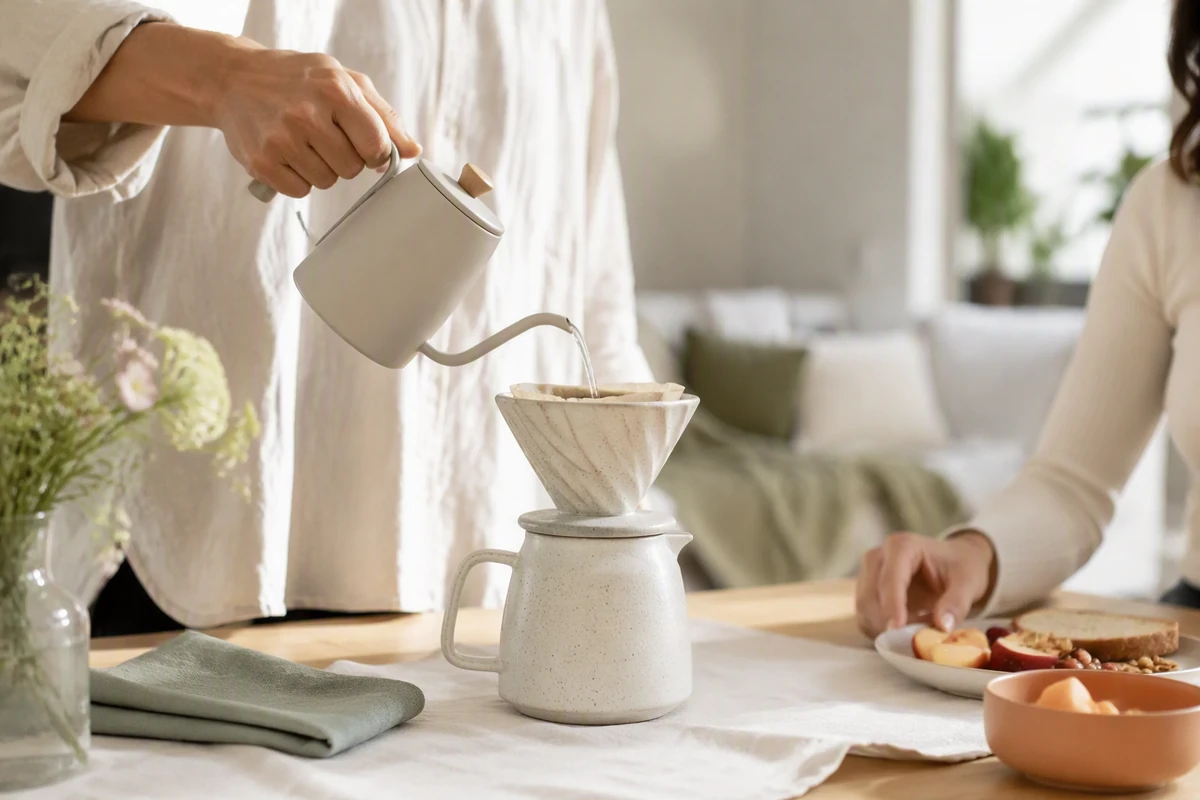
Place Products in Believable Lifestyle Scenes
Show how an item fits into a real moment without letting the setting overpower it. Direct the location, time of day, props, and human interaction, then check scale and contact points. Use Image Effects only after the product image composition works on its own.
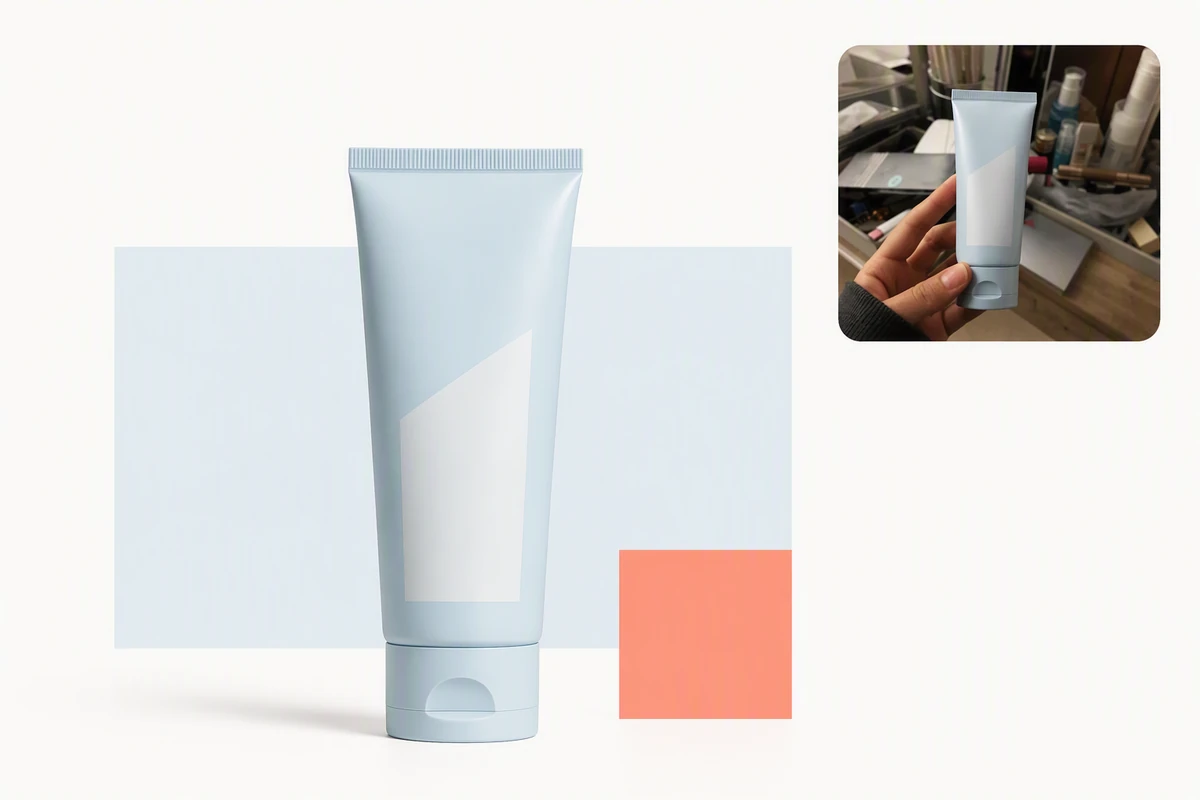
Build Clean, Consistent Brand Backgrounds
Turn a cluttered source into a controlled catalog direction with repeatable spacing, light, shadow, and accent colors. Compare the product edge and material against the original before approving a set. Adjust Image saturation separately when color intensity, rather than scene design, is the real issue.
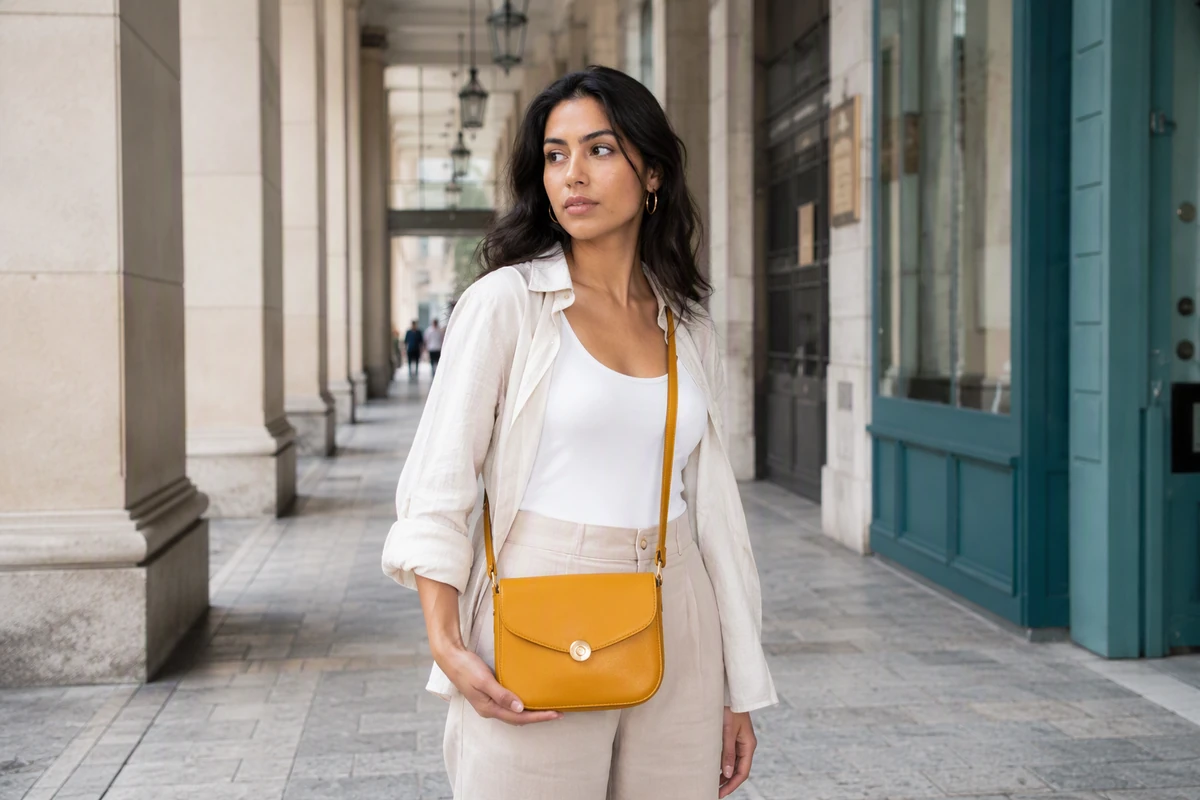
Create Credible In-Hand and On-Model Shots
Use people when size, fit, or handling helps explain the product. Review hands, straps, closures, and body-to-product proportions at normal viewing size and close up. Once the still is approved, Image to Video can carry the selected visual direction into a separate motion brief.
What you can do with Ottermind
Create a clean catalog image
Place a verified product on a controlled background with consistent lighting, scale, edges, and room for marketplace crops.
Build a lifestyle campaign
Show the product in a believable home, travel, work, or outdoor moment without letting the setting overpower it.
Preview an in-hand or on-model shot
Communicate size, fit, or use through a person while carefully reviewing hands, contact points, and product geometry.
Adapt an approved still for motion
Develop the final image into a separate AI Product Video Ads brief while preserving the approved product details.
How to Use the AI Product Image Generator in 3 Steps
Step 01
Add a Clear Source
Upload a product image you can use, with the shape, edges, color, material, label, and important construction details visible enough to compare later.
Step 02
Direct the Selling Context
Describe the intended channel, background, lighting, composition, props, mood, and details that must stay unchanged while Ottermind develops the visual direction.
Step 03
Run the Accuracy Check
Compare geometry, color, material, label, reflections, shadows, scale, and edges with the real item; revise any mismatch before treating the image as campaign material.
Why creators choose Ottermind
Source-Guided Direction
Keep the real product visible while directing a new setting, mood, and composition.
Specific Creative Briefs
Describe the channel, audience, scene, light, props, and non-negotiable product details.
Context That Carries Forward
Keep selected images, decisions, and feedback organized around the same campaign project.
Focused Revisions
Ask agents to inspect a mismatch, adjust the direction, and retry with project context.
Reviewable Agent Work
Compare versions and keep critical actions subject to your approval before publishing.
Better Prompt Decisions
Use the How to Write AI Prompts That Actually Work to make constraints and review criteria explicit.
Frequently asked questions
What Is an AI Product Image Generator?
An AI product image generator uses a product photo and written direction to develop new visual treatments, such as clean catalog backgrounds or lifestyle scenes. Treat each output as a generated interpretation and compare it with the real item before publication.
What Source Photo Should I Upload?
Use an image you have permission to edit with a sharp, unobstructed view of the product. Make important geometry, materials, colors, labels, closures, and reflective surfaces visible so the finished product images have a useful reference for review.
How Do I Keep the Product Accurate?
Keep the source open and check shape, proportions, color, label placement, small hardware, texture, reflections, shadows, and edge quality. Review at normal viewing size and zoom in. Regenerate or correct any detail that could misrepresent what a customer receives.
Can I Create Several Background Directions?
Yes, you can brief several distinct directions and compare the results, but Ottermind does not guarantee that every version preserves every product detail. Lock the approved item characteristics and review each scene independently instead of assuming consistency across a set.
Can Product Images Become Video Concepts?
Yes. Approve the still image first, then use the AI video generator as a separate next step. Carry the selected product image, scene direction, and accuracy notes into the motion brief so reviewers keep the same reference.
Are Generated Product Photos Ready to Publish?
Not automatically. Confirm that you can use the source and generated assets, compare every visual claim with the real product, and check the current rules for the channel where the image will appear. Human review remains necessary for labels, materials, proportions, and disclosures.
Discover more
AI pet portrait generatorFix Blurry PicturesGemini Watermark RemoverPicture Outline MakerPhoto into WatercolorPhoto to Anime ConverterConvert Photo to Oil PaintingPhoto to SketchReplace Color in ImageResume Photo EditorWatermark RemoverAI Resume BuilderAI Receipt TrackerPC Builder AIAI Logo GeneratorAI Brochure Maker
More from the blog

Create a Product Image Direction You Can Review
Add a real product photo, describe the scene and constraints, then compare the result against the item before refining your campaign visual.
Create Product Images