Upload video

MP4, MOV, WebM · 200 MB · 2 minutes · up to 4K

Private video
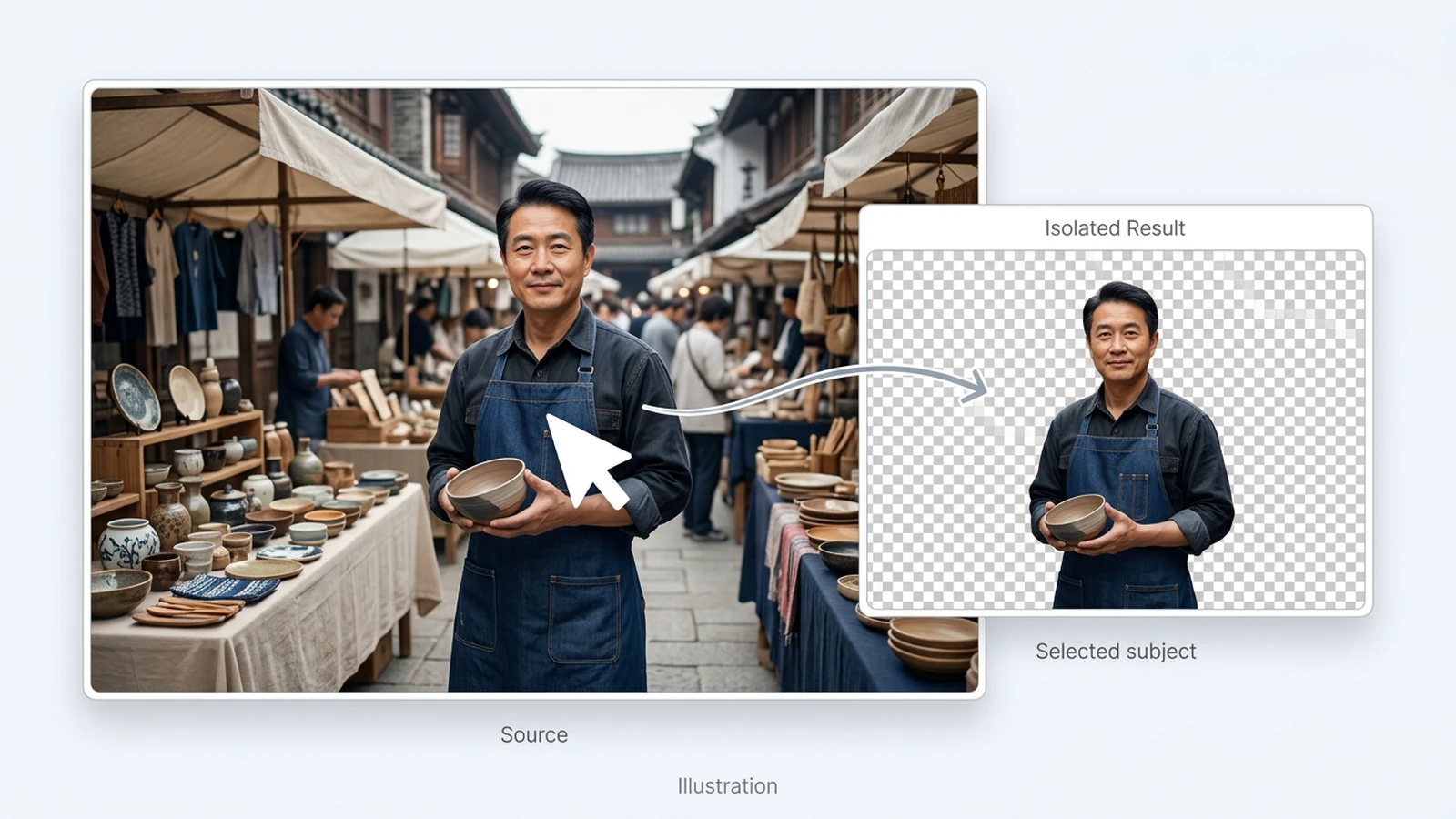
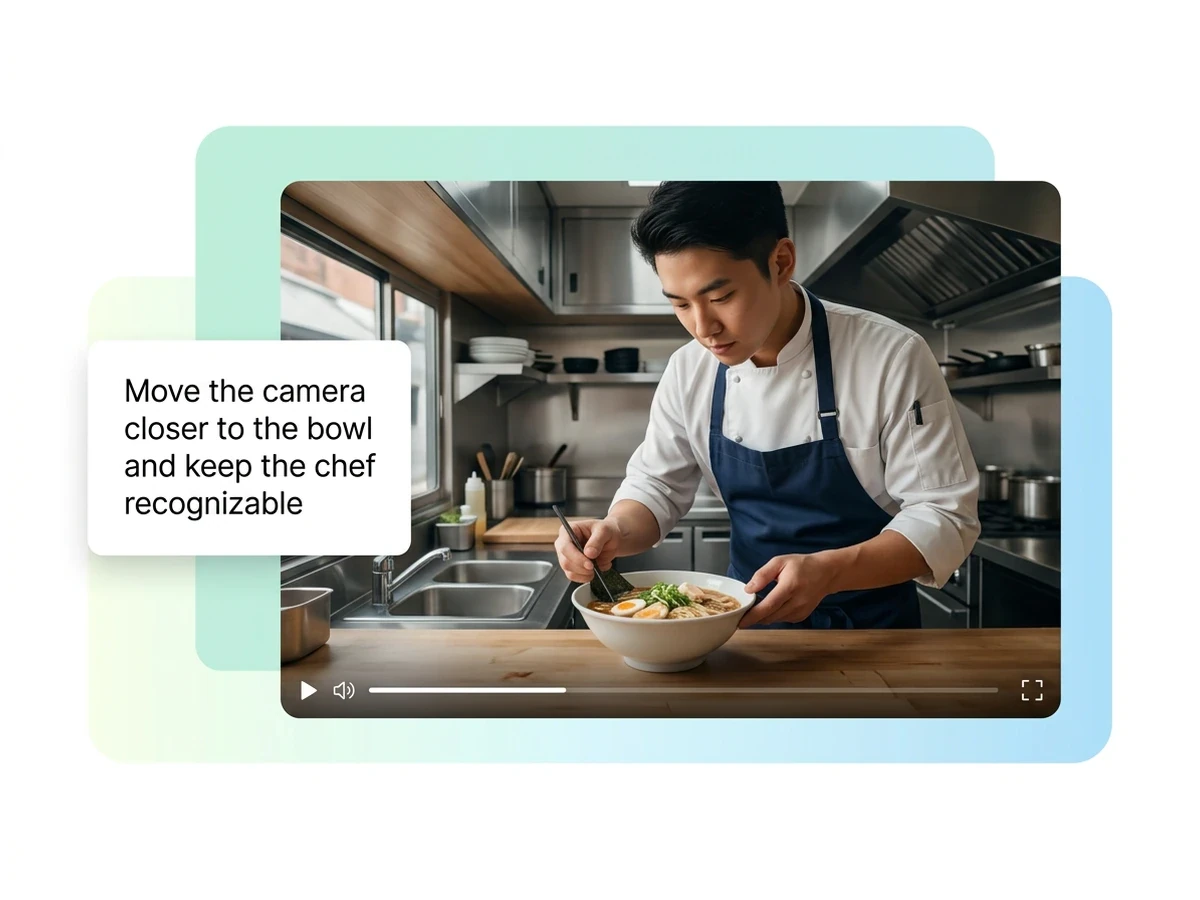
Illustrated chef clip with a prompt to move the camera closer to the bowl while keeping the chef recognizable.

AI Video Editor

Upload an existing clip and describe a visual change. Adjust its setting, lighting, or style, then compare the edited video with your source.

Illustrated chef clip with a prompt to move the camera closer to the bowl while keeping the chef recognizable.

Edit What Happens Inside an Existing Shot

An AI video editor can use your footage and a written instruction to change the look of a shot. Start with an existing clip and describe a specific visual revision. If you need footage from an idea or image instead, start with AI video generator.

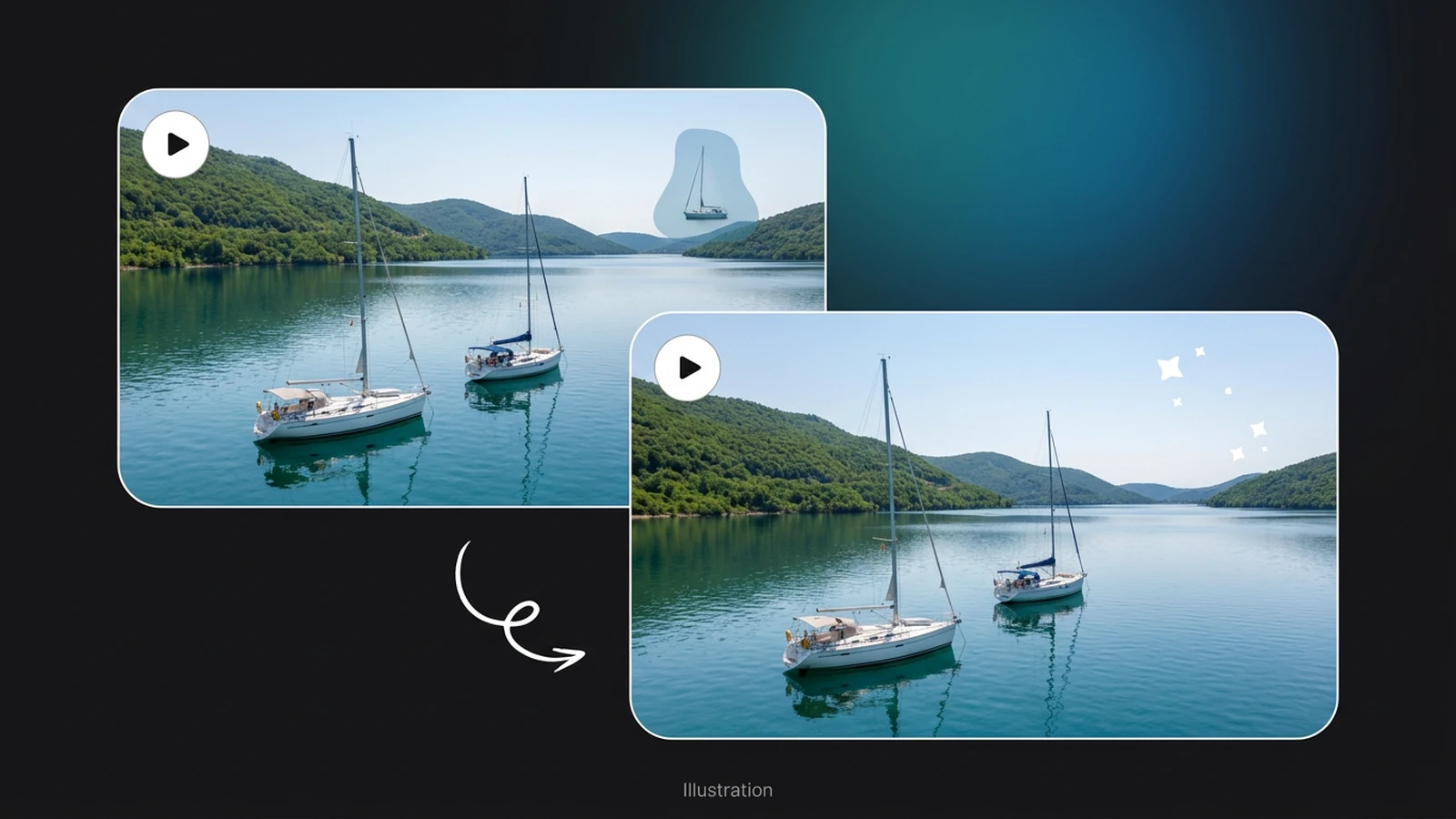
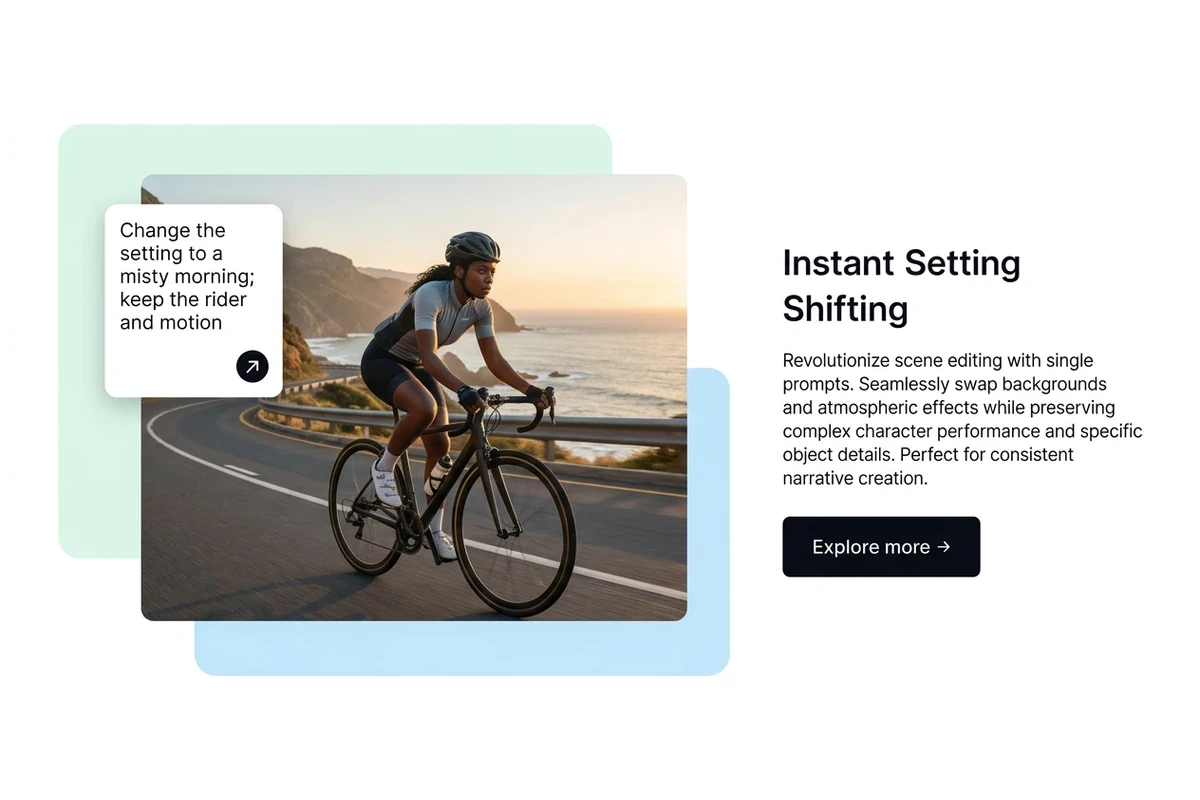
Illustrated coastal cycling clip with a prompt to change the setting to a misty morning while retaining the rider and motion.

Give a Familiar Scene a New Setting

For a coastal cycling shot, request a misty morning while naming the rider, bicycle, and route as details to preserve. Describe the atmosphere you want, rather than a whole new story. Treat those details as editing instructions and check the result for unintended changes.
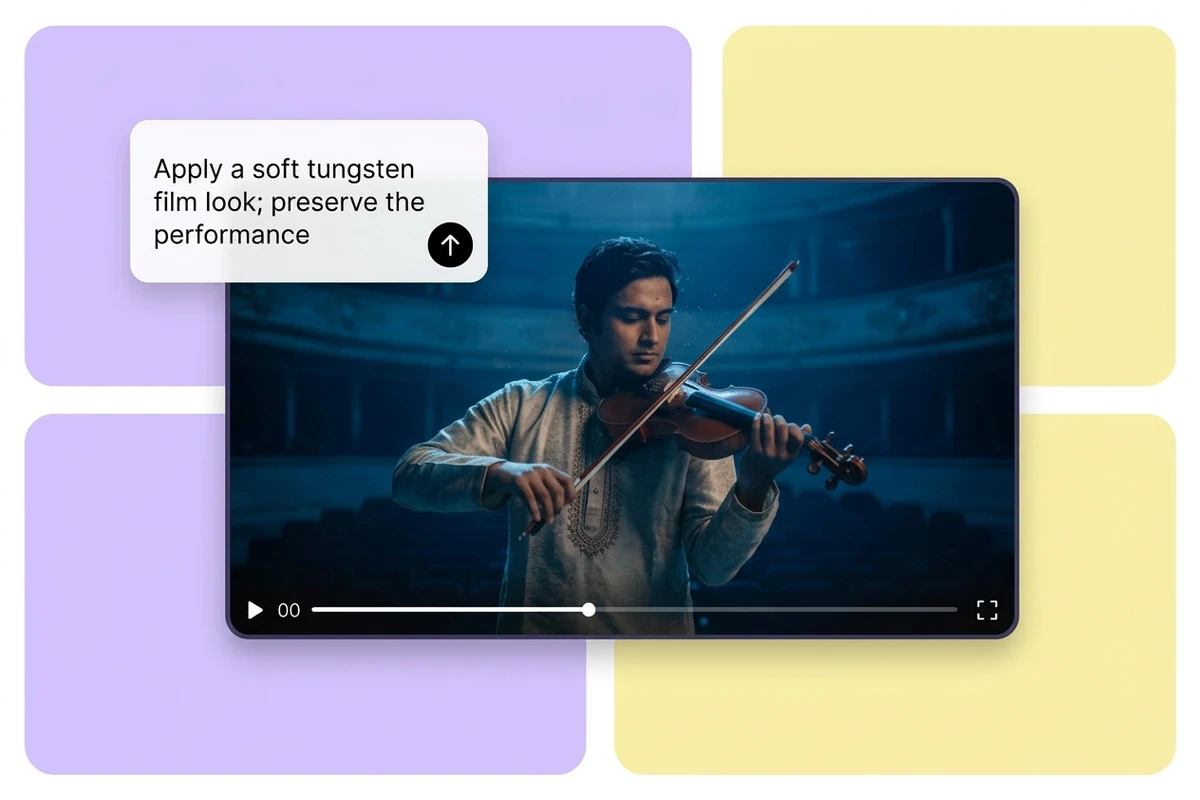
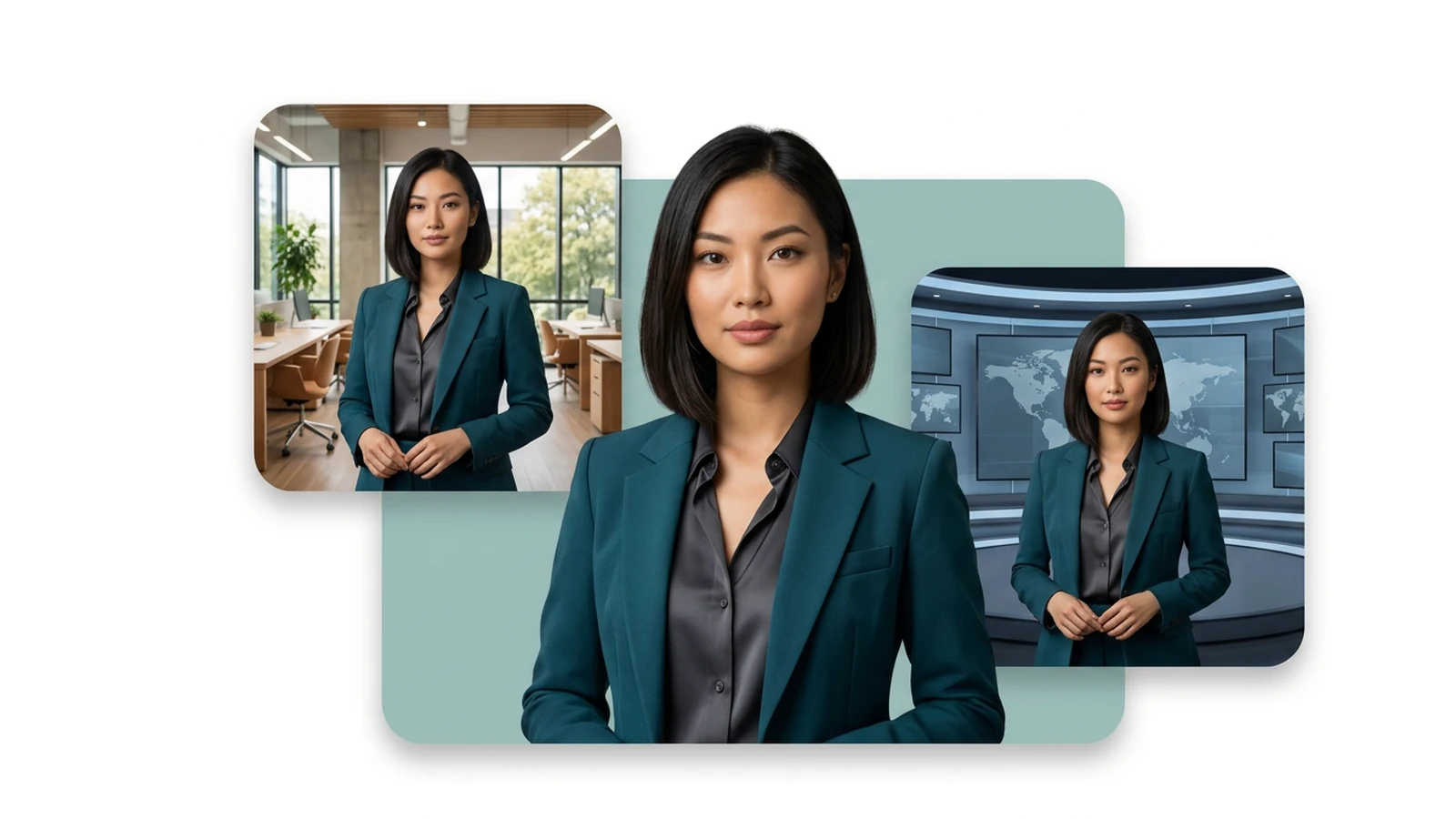
Illustrated violinist clip with a prompt requesting a soft tungsten film look while preserving the performance.

Explore Style Without Rewriting the Performance

A music clip already contains timing, expression, and movement worth keeping. Ask for one visual direction, such as warmer light or a softer film look, and identify the musician and instrument. Review the playing motion as carefully as the new palette before choosing a version.

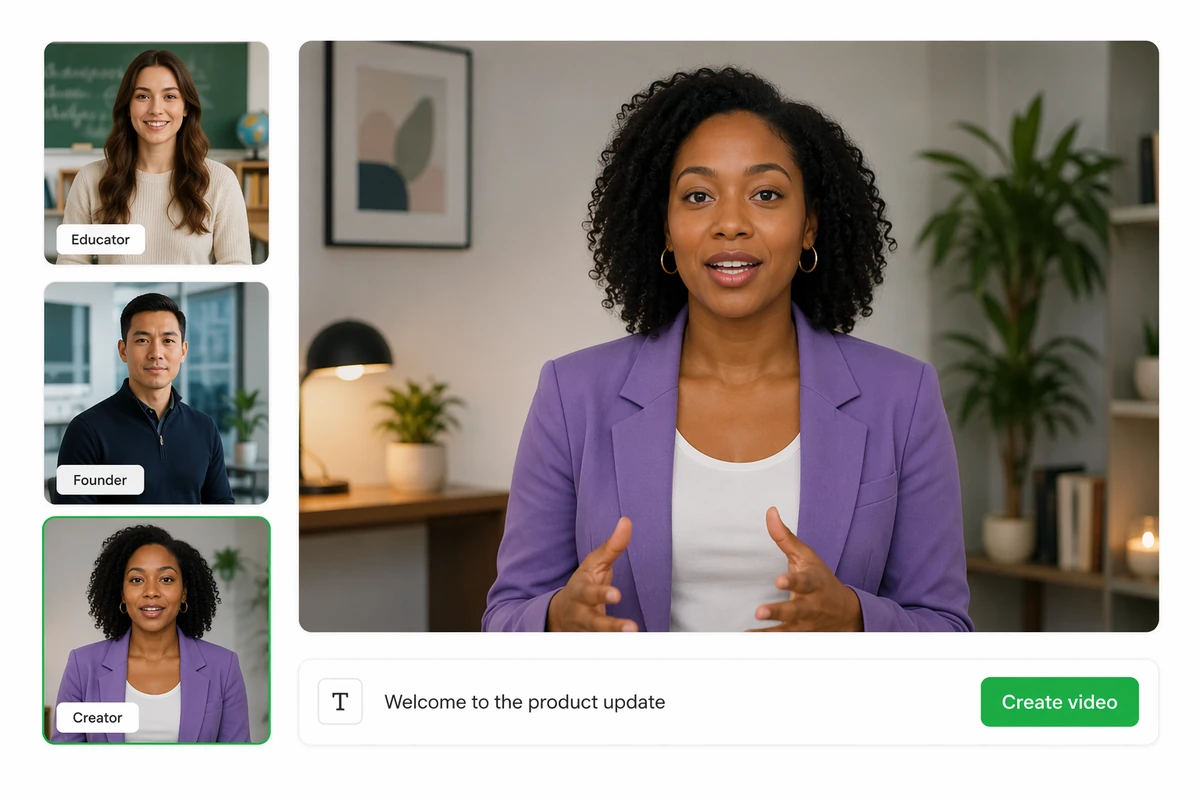
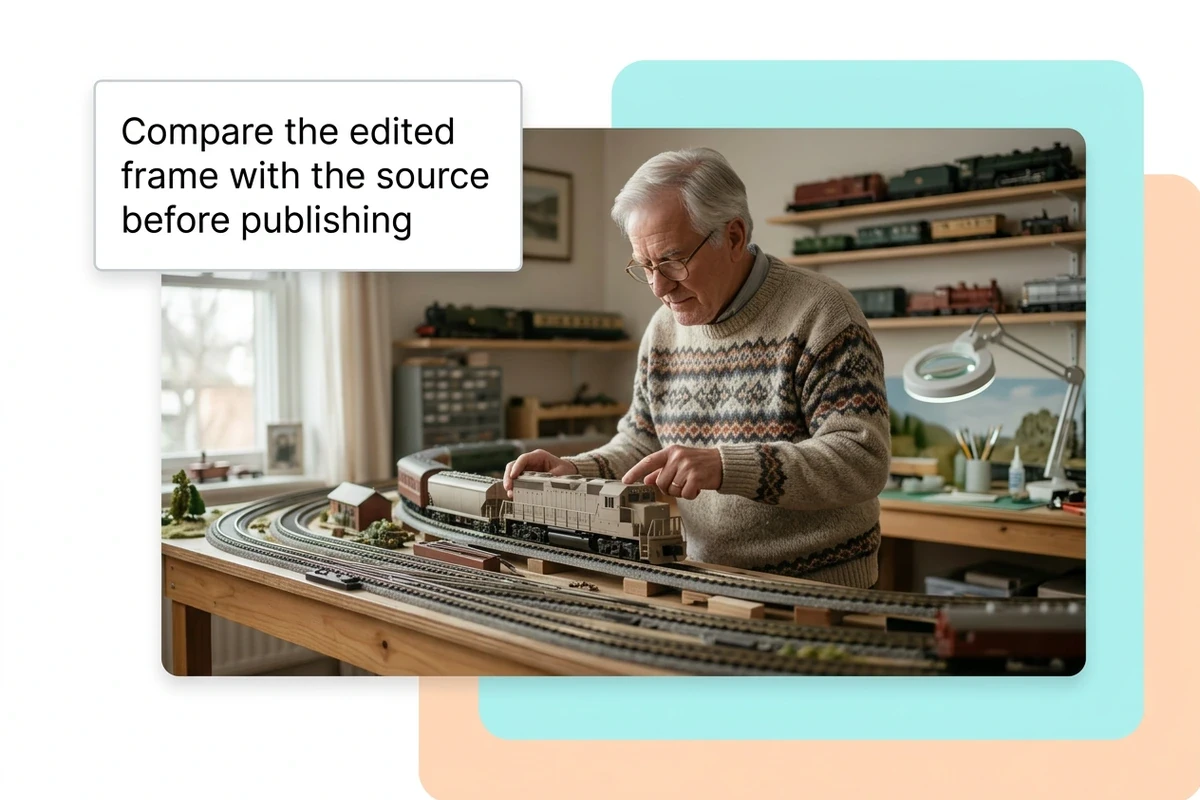
Illustrated model-train hobbyist clip with a prompt to compare the edited frame with its source before publishing.

Check the Change Across Moving Frames

In a model-train demonstration, inspect hands, train details, and track alignment as the clip plays. Compare matching moments in the source and result; one attractive frame is not enough. If your only goal is a different crop, use AI Video Reframe.

What you can do with Ottermind

Refresh a Product Backdrop

Revisit a filmed product reveal with a quieter studio setting. Specify the packaging and label details that matter. For a new ad made from a product image, use AI Product Video Ads.

Change a Travel Shot’s Mood

Give an existing coastal ride or city walk a different time-of-day treatment. Name the landmarks and direction of movement to retain, then check whether the revised atmosphere still suits the sequence.

Try a Performance Look

Explore a warmer visual treatment for a rehearsal excerpt before choosing the look for a music post. Watch facial expressions, hands, and instrument movement to decide whether the revision is usable.

Refine a Demonstration Scene

Request gentler lighting for a cooking or hobby demonstration while keeping the action legible. Check small objects and hand movements so the visual treatment does not obscure what the viewer is learning.

How to Edit a Video with AI

1

Upload your video and select the part you want to edit. Check the available model’s clip limits; a file that opens in the preview may need a shorter selection for processing.

2

Write the visual change and the details to preserve. Choose 720p or 1080p, set whether to keep original audio, and review the displayed credit cost before selecting Generate. Sign in when prompted.

3

When processing finishes, compare the result with the original at matching moments. Play through the whole edit, check important details, and download a version that suits your intended use.

Edit a Video

Why creators choose Ottermind

Start from Your Footage

Use an existing video as the source, so the edit begins with the shot you want to revise.

Plain-Language Direction

Describe a visible change and preservation priorities together, without translating the request into individual frame edits.

Choose the Output Size

Select 720p or 1080p for the edit, then judge the result at its intended viewing size.

Check Costs First

Review the displayed credits before processing. Availability and clip limits follow the selected model.

Keep Work in Context

Keep the source, revision goals, and feedback organized in Ottermind as you develop the surrounding project.

Separate the Next Task

Need more action after the ending? AI Video Extender handles continuation as a separate task.

Frequently asked questions

Can this editor assemble a complete video?

This tool focuses on prompt-based visual changes to an existing clip. Use a timeline editor for arranging multiple shots, adding titles, or building a soundtrack. Describing a new scene here is an edit request, not a promise of a complete multi-scene production.

Which videos and clip lengths can I use?

The local preview accepts MP4, MOV, and WebM files up to 200 MB, two minutes, and 4096 pixels per side. Processing has separate model limits. Check the selected model and choose a supported segment; an accepted upload does not mean the entire file can be edited in one job.

Is AI video editing free without an account?

You can load a local preview before signing in, but processing requires an account and uses credits. Review the displayed cost and your balance. If no compatible model is available, preparing a clip and prompt does not produce an edited video.

Will the person and original audio stay unchanged?

Exact visual preservation is not guaranteed. Name the face, clothing, text, and movement that matter, then inspect the finished clip. The Keep original audio option requests the source audio; it is not a voice replacement, dialogue editor, or noise-removal control.

Should I use this for removal or cleanup?

Choose the dedicated task when that is your whole goal: Video Background Remover for a cutout, Video Subtitle Remover for captions, or Video Denoiser for visual noise. Check each tool’s current availability rather than assuming every operation is enabled.

Does choosing 1080p restore missing detail?

1080p selects the requested output resolution for the edit. It does not guarantee sharper source detail, readable lettering, or faithful reconstruction. Review faces, labels, and fine edges at the size where the video will be watched before accepting the result.

Discover more

More from the blog

Give Your Existing Clip a New Look

Choose one shot, describe the visual change, and name what should remain recognizable. Start with your video, then judge the edit against the original.

Edit a Video