Upload video

MP4, MOV, WebM · 200 MB · 2 minutes · up to 4K

Private video
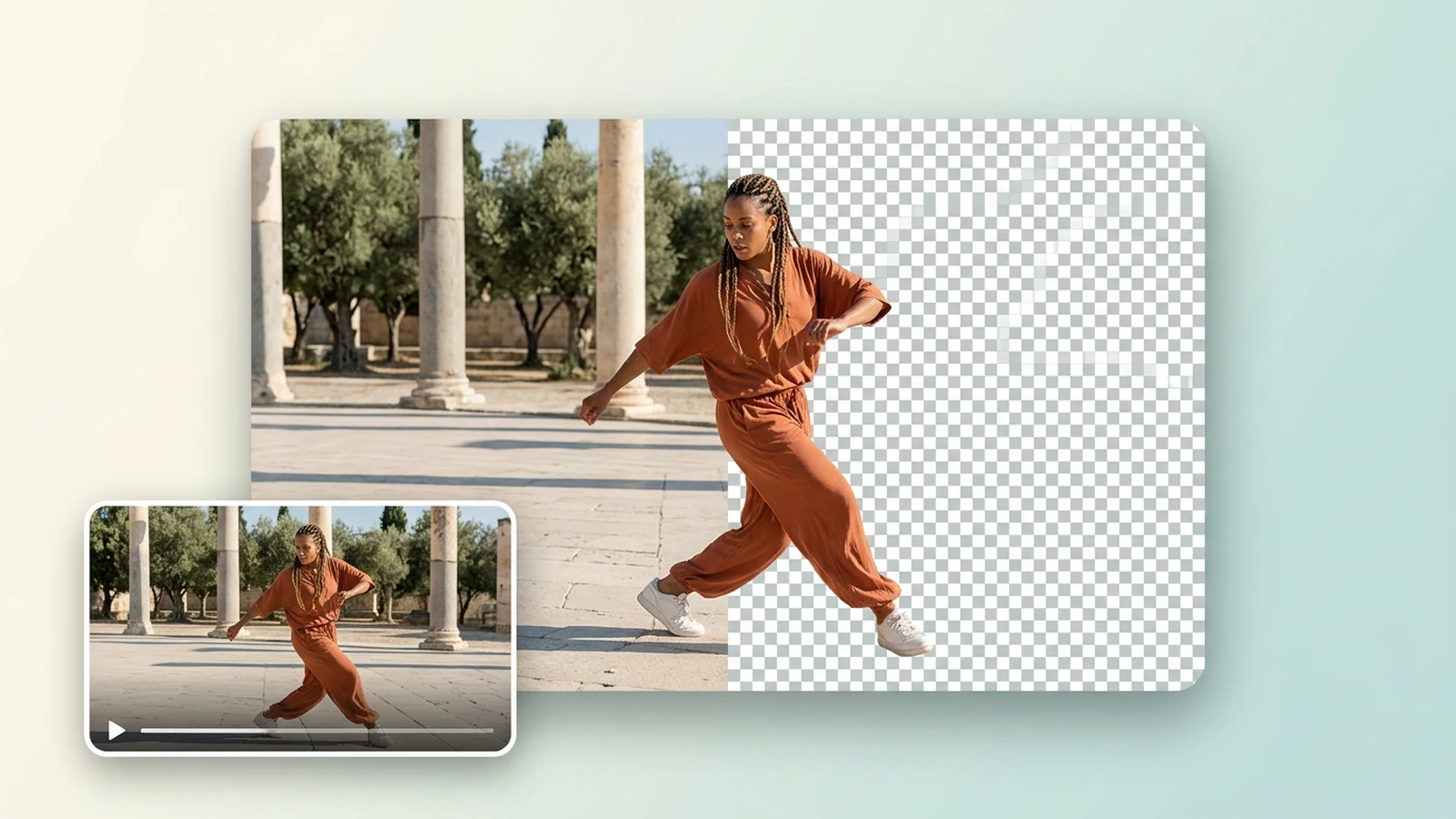
Illustration of a dancer in a plaza, with the background changing to a transparency checkerboard and an inset video preview.

Remove the setting, keep a useful foreground

Choose your output before you remove the background from a video: transparent WebM gives you a foreground layer for later compositing; a solid color gives the clip a finished backdrop. For broader scene changes, explore AI Video Editor. The images below illustrate these workflows, rather than measured processing results.

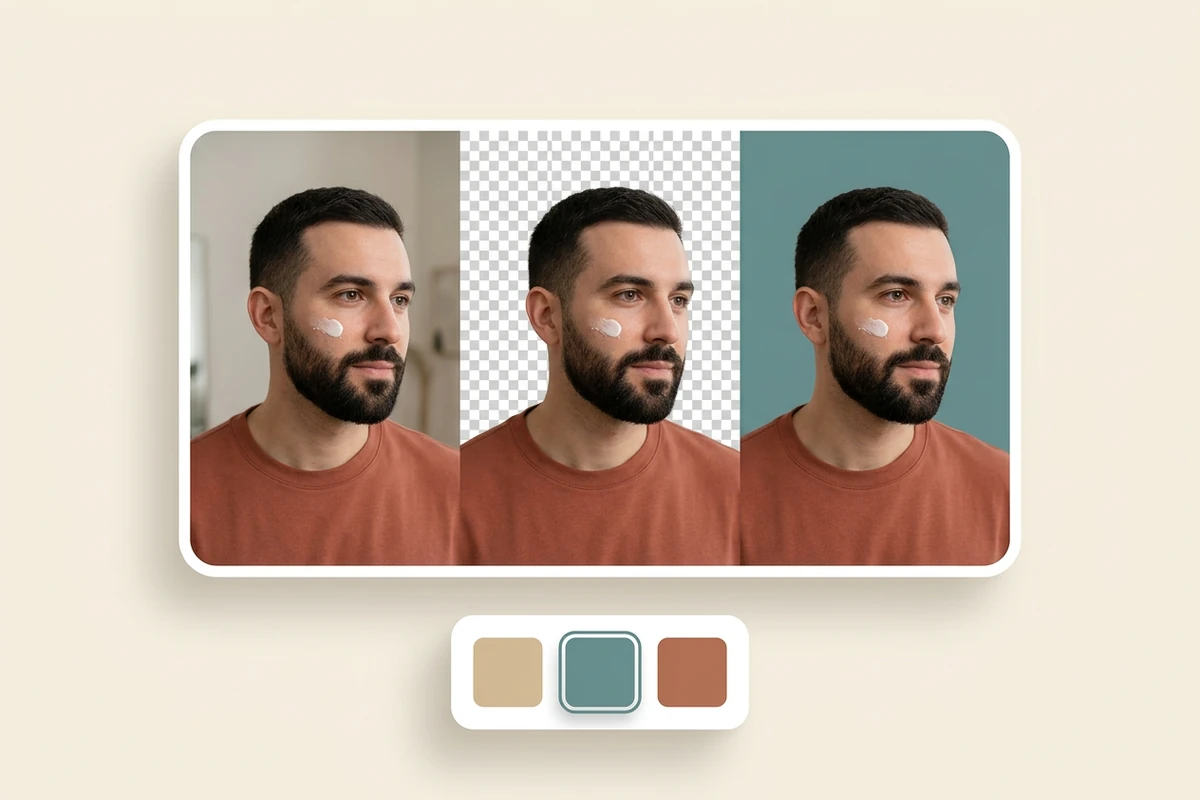
Illustration of the same bearded presenter against a room, transparency checkerboard and solid teal background, with three color swatches.

Change your video background to a solid color

Turn a grooming explainer or talking-head clip into a consistent series with a chosen backdrop. Select Solid color, pick the shade, then choose MP4 or WebM. You can change video background online using these controls; adding a photo or moving scene requires a separate compositing step.
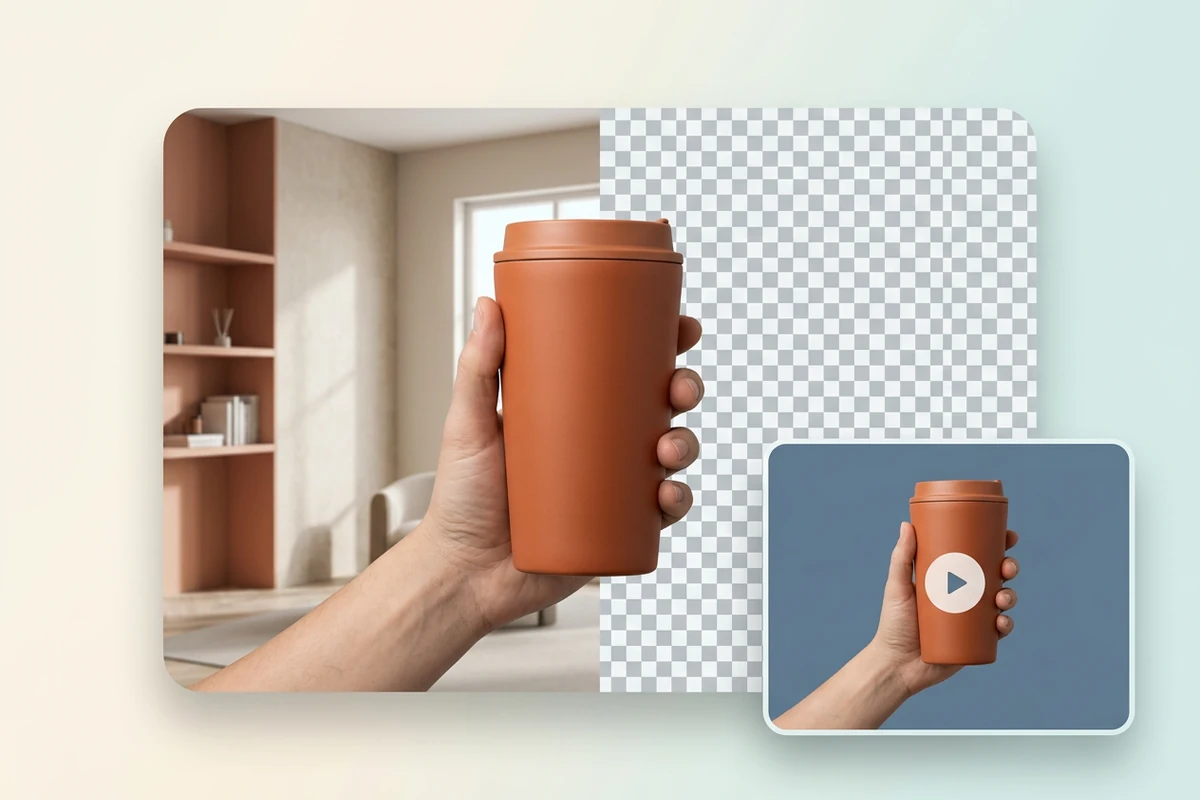

Illustration of a hand holding an orange tumbler as the room becomes transparent, with the cutout previewed on solid slate blue.

Export a transparent video background for reuse

Choose Transparent to export WebM when the foreground needs to sit over another layer. For a hand-held product demonstration, check that the selected model can isolate your subject, then inspect fingers and the item throughout the clip. Keep this transparent export for later edits; a solid-color export includes the backdrop.

Illustration of a presenter isolated from a room and then combined with a teaching slide in a separate video composition.

Give a tutorial presenter a new setting

Remove the room behind an instructor, then place the exported foreground over lesson material in an editor that supports WebM transparency. That final assembly happens outside this background tool. If the footage itself needs a prompt-guided change, use AI Video Editor as a separate task.

What you can do with Ottermind

Coordinate a creator series

Bring short product explainers recorded in different rooms onto the same solid backdrop. Pick a recurring brand color, then review the speaker's outline and any item held on camera before saving each clip.

Simplify employee training clips

Replace a trainer's busy room with a plain background so viewers can focus on the demonstration. Review hand movements and props across the selected segment, especially when they overlap the speaker.

Prepare speaker overlays

Export a short introduction with transparency for use over an event slide in a compatible editor. For a separate portrait version, plan the framing with AI Video Reframe before assembling the final layout.

Reuse an instructor demonstration

Keep a transparent version of a language or craft instructor for several lesson layouts. Assemble the cutout over your teaching material in a compatible editor, and check that gestures remain visible against each new background.

How to remove a video background online

Use the workbench above to prepare a clip and choose an output that fits your next step.

1

Upload a playable MP4, MOV, or WebM. Select an available model, then set the start and end times within the clip-length range shown for that model.

2

Select Transparent for WebM, or Solid color for WebM or MP4. If the model asks for a subject point, select it at the clip's start before generating.

3

Review the displayed credits and sign in when prompted to generate. When processing succeeds, play the result, inspect moving edges, and download the output for its intended use.

Choose video background

Why creators choose Ottermind

Start with your recording

Preview a supported local video before submitting it, so you can check the footage you intend to process.

Choose the useful segment

Set start and end times to process the passage you need within your selected model's limits.

See model availability

The model selector shows which options are available, helping you avoid planning around an unconfigured option.

Review credits first

The generate control displays the estimated credits, so you can review the cost before submitting your clip.

Inspect the moving result

Play a completed output before downloading; a single still frame cannot show every edge throughout a gesture.

Keep enhancement separate

Need a larger frame? Video Upscaler handles resolution as a separate task from background removal.

Frequently asked questions

Which video files and clip lengths can I upload?

The workbench accepts playable MP4, MOV, and WebM files up to 200 MB and two minutes, with neither side above 4096 pixels. The selected model may require a shorter processing segment; use its displayed clip-length range rather than assuming the full upload can be processed.

Do I need a green screen or a specific subject?

A green screen is not required by this workflow. Subject handling depends on the selected model: some options focus on people, while a point-selection option asks you to identify a subject. Inspect hair, hands, motion blur, and overlapping objects; results are not guaranteed for every scene.

Why does my transparent video look black elsewhere?

A black preview can mean the destination does not display the file's transparency, but it can also indicate an opaque output. Check that you selected Transparent and exported WebM. Test it over a colored layer in a compatible editor before assuming the background removal failed.

Can I replace the background with my own image?

This workbench offers transparency or a solid color, not a custom image or video backdrop upload. To use a photograph, slide, or moving scene, export transparent WebM and assemble the layers in a compatible editor. Solid-color output is available as WebM or MP4.

Is video background removal free to process?

Do not assume processing is free. Review the credit estimate shown for your selected model and clip; submission requires sign-in and sufficient credits when a charge applies. If no compatible model is available, you can prepare your input, but cannot start a processing job.

How is this different from video matting?

This tool centers on the background you want: transparent or a chosen solid color. AI Video Matting provides a separate workflow for cutout or mask output and feathering controls. Removing subtitles, extending footage, and changing the frame are also separate tasks.

Discover more

More from the blog

Choose a new background for your clip

Bring your video to the workbench, decide between transparency and a solid color, and review the selected model and credits before you generate.

Choose video background