Upload video

MP4, MOV, WebM · 200 MB · 2 minutes · up to 4K

Private video
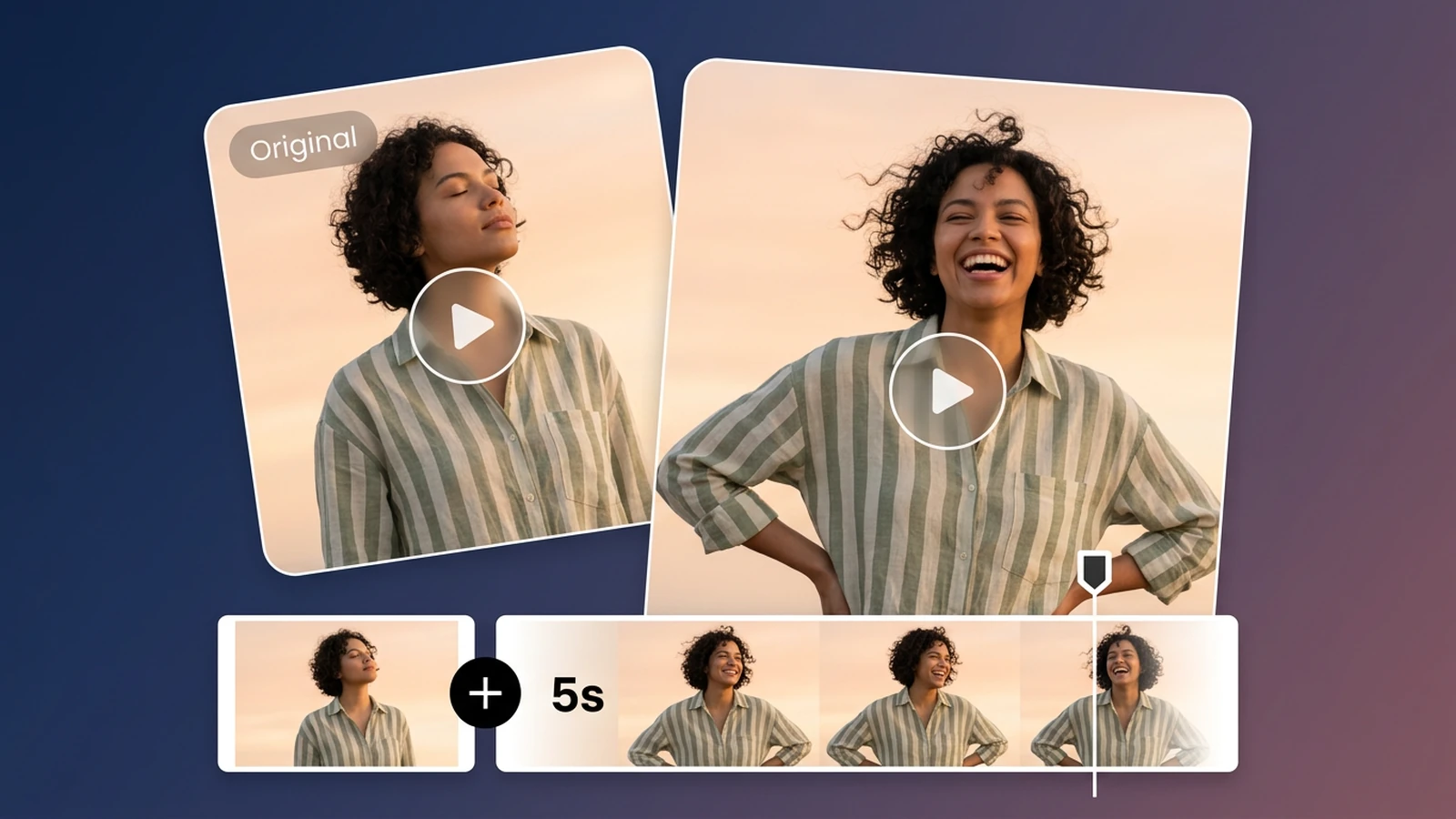
Two video cards show a curly-haired woman in a sage striped shirt, above an original clip and five-second continuation filmstrip.

AI Video Extender

Upload a video, describe what should happen next, and generate a short continuation you can review before using. Choose an extension length and output resolution in the workbench.

Two video cards show a curly-haired woman in a sage striped shirt, above an original clip and five-second continuation filmstrip.

Give the last frame somewhere to go

An AI video extender generates a short continuation from the end of an uploaded clip. Describe the next beat, select an available duration, and inspect the result alongside the source. It is useful for adding a little breathing room to a shot; it is not a loop maker, slow-motion effect, freeze-frame timer, canvas expander, or full timeline editor. For broader changes to an existing clip, use AI Video Editor.

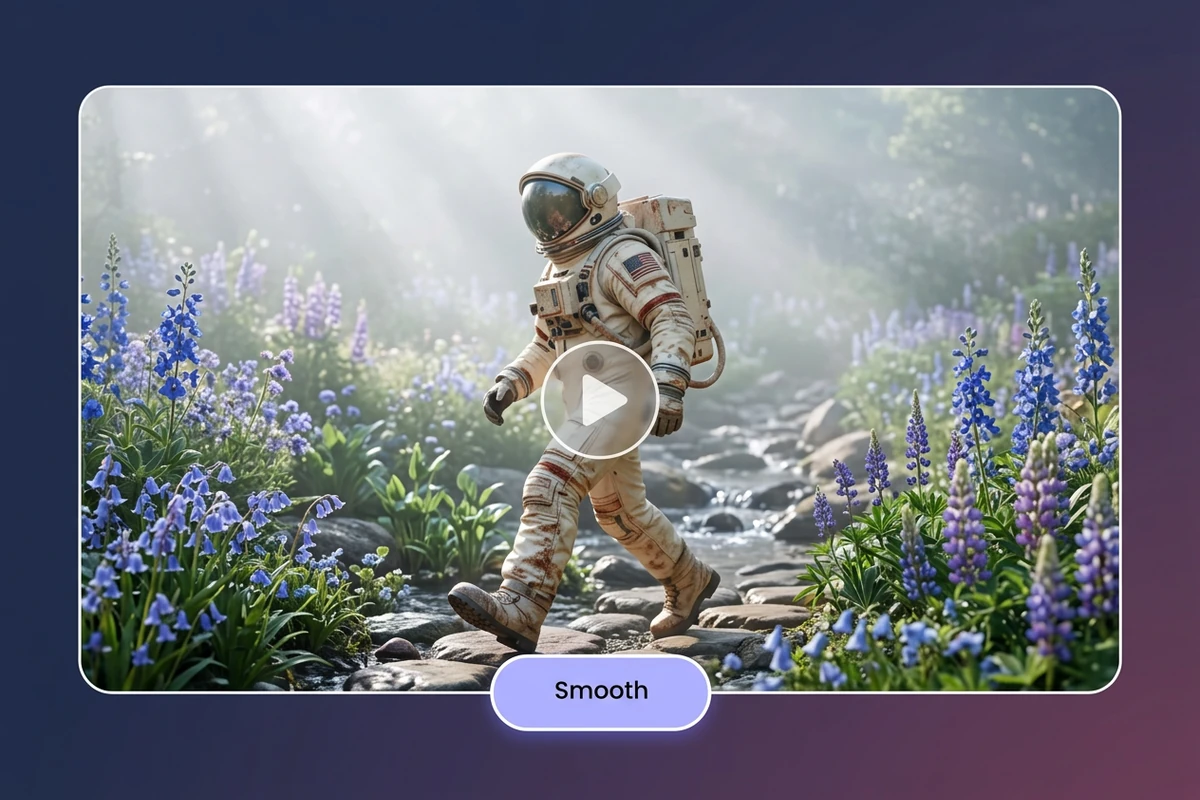
An astronaut walks beside blue wildflowers and a rocky stream in a rounded video frame.

Match the movement before adding a beat

A useful extension starts with a clear description of what happens next: a hand finishes a wave, a cyclist reaches the bend, or a product settles after a turn. The model uses the source clip and your prompt, so describe continuity in motion, setting, and light rather than asking for an unrelated new scene.
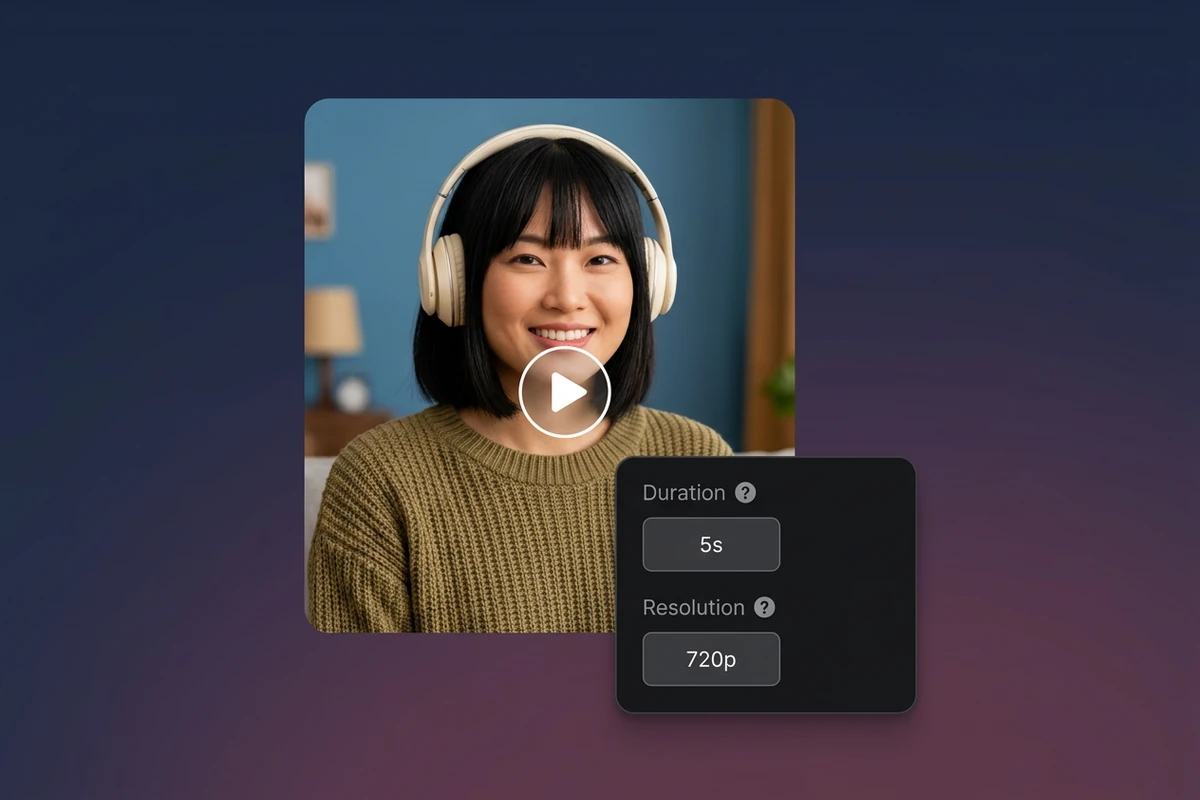
A woman wearing cream headphones appears beside a compact panel showing five seconds and 720p.

Choose a short extension and review it

The extend control offers a selectable duration, including a five-second default, and the workbench exposes the resulting credit estimate before processing. Review the join at the original ending and the generated opening; a continuation can drift, so keep the source and output available for comparison. If grain makes the join hard to judge, try Video Denoiser before comparing the clips.

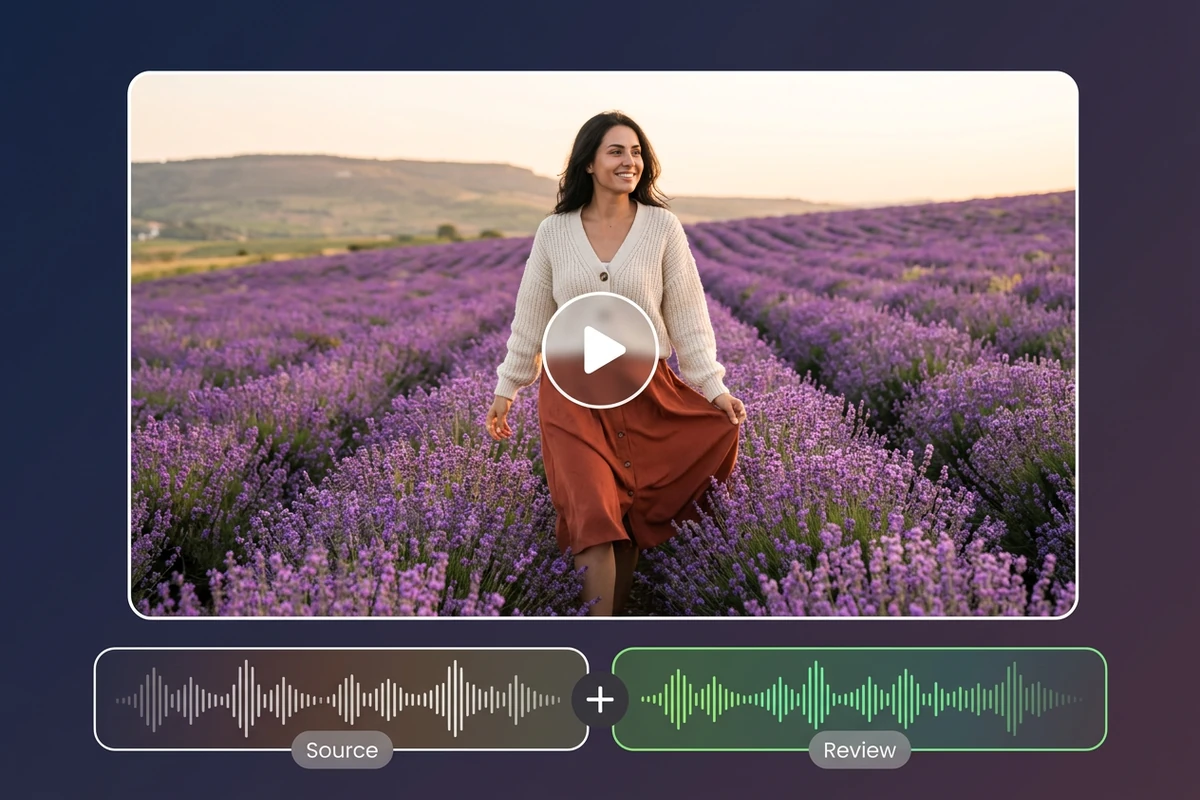
A woman walks through a lavender field above two audio waveforms labeled Source and Review.

Review the sound alongside the new frames

Listen across the transition as well as watching it. Dialogue, ambient sound, and music can make an otherwise useful continuation feel abrupt. Compare the source and generated clip, then finish sound work in your editor if needed. The extender does not expose a separate audio-extension control, so check the result rather than assuming that sound continues automatically. If the finished shot needs a new spoken track, use AI Lip Sync Tool to match the lip movements.

What you can do with Ottermind

Give a social clip a cleaner ending

Add a few seconds after a presenter finishes a point so a vertical post has room for its final expression or gesture. Write the next beat and review the join before publishing.

Let a product shot breathe

Continue a turntable or handheld reveal to show the product's final angle. Keep the prompt focused on the object, camera path, and light; extension does not replace product editing. For separate compositing, isolate it with Video Background Remover.

Finish a travel moment

Carry a wave, walk, or scenic pan into a brief closing beat for a montage. Compare the generated frames with the source to catch changes in faces, signs, or scenery. Once the continuation is approved, use Video Object Remover to clean up an unwanted object.

Build a longer presentation cut

Extend the final moment of a demonstration when a talk track needs a little more visual room. Choose the available duration and resolution, then assemble the approved result in your normal editor.

How to extend a video with AI

Upload a supported clip, describe the continuation, choose the available output settings, and review the result.

1

Use an MP4, MOV, or WebM video up to 200 MB and 120 seconds, with dimensions no larger than 4096 pixels. Keep a local copy of the source.

2

Write one concrete continuation prompt that names the next action and preserves the source's subject, setting, motion, and light. The workbench shows the available model and estimate.

3

Select an available extension duration and resolution, process the job, and inspect the seam. Download or continue editing only after the generated opening fits your source.

Extend Your Video

Why creators choose Ottermind

A prompt for the next beat

Describe the continuation instead of manually rebuilding every frame.

Selectable extension length

Choose an available duration for a short addition to the source clip.

Output resolution control

Select the resolution exposed by the selected video model. For a separate resolution enhancement step, explore Video Upscaler.

Source-aware continuation

The input clip remains the visual reference for the generated opening.

Review before reuse

Inspect the join and the new motion before carrying the clip into an edit.

Clear task boundaries

Use a reframe, slow-motion, loop, or editor tool when that is the actual job.

Frequently asked questions

How long can I extend a video?

The workbench exposes the available extension duration for the selected model, with a five-second default in the extend tool. The model and source constraints can limit what can run, so check the current controls and estimate rather than assuming any length or unlimited extension.

Does AI Video Extender make a perfect loop?

No. It generates a continuation from the source clip's ending. It does not promise a loop that returns to the first frame. Use a loop workflow when repeated playback is the goal.

Can I extend audio too?

The extend tool's controls cover a continuation prompt, duration, and resolution; they do not expose a separate audio extension control. Review the generated result's audio behavior and finish sound work in an editor when needed.

Is this the same as slow motion or a freeze frame?

No. Slow motion changes playback timing and a freeze frame holds an existing image. AI extension generates new frames after the source ending, so choose the method that matches the edit you need.

Can it expand my video to a new aspect ratio?

Extension adds time after the clip. It does not reframe the canvas. Use AI Video Reframe or a crop workflow when you need a different aspect ratio.

Will the continuation always look seamless?

No guarantee is implied. Similar motion, lighting, and a specific prompt can help, but generated frames may drift in identity, details, or camera behavior. Compare the seam and revise or edit the result when it does not fit.

Discover more

More from the blog

Continue the moment

Upload a clip, describe the next beat, and review a short AI-generated continuation in the workbench.

Extend Your Video