Upload video

MP4, MOV, WebM · 200 MB · 2 minutes · up to 4K

Private video
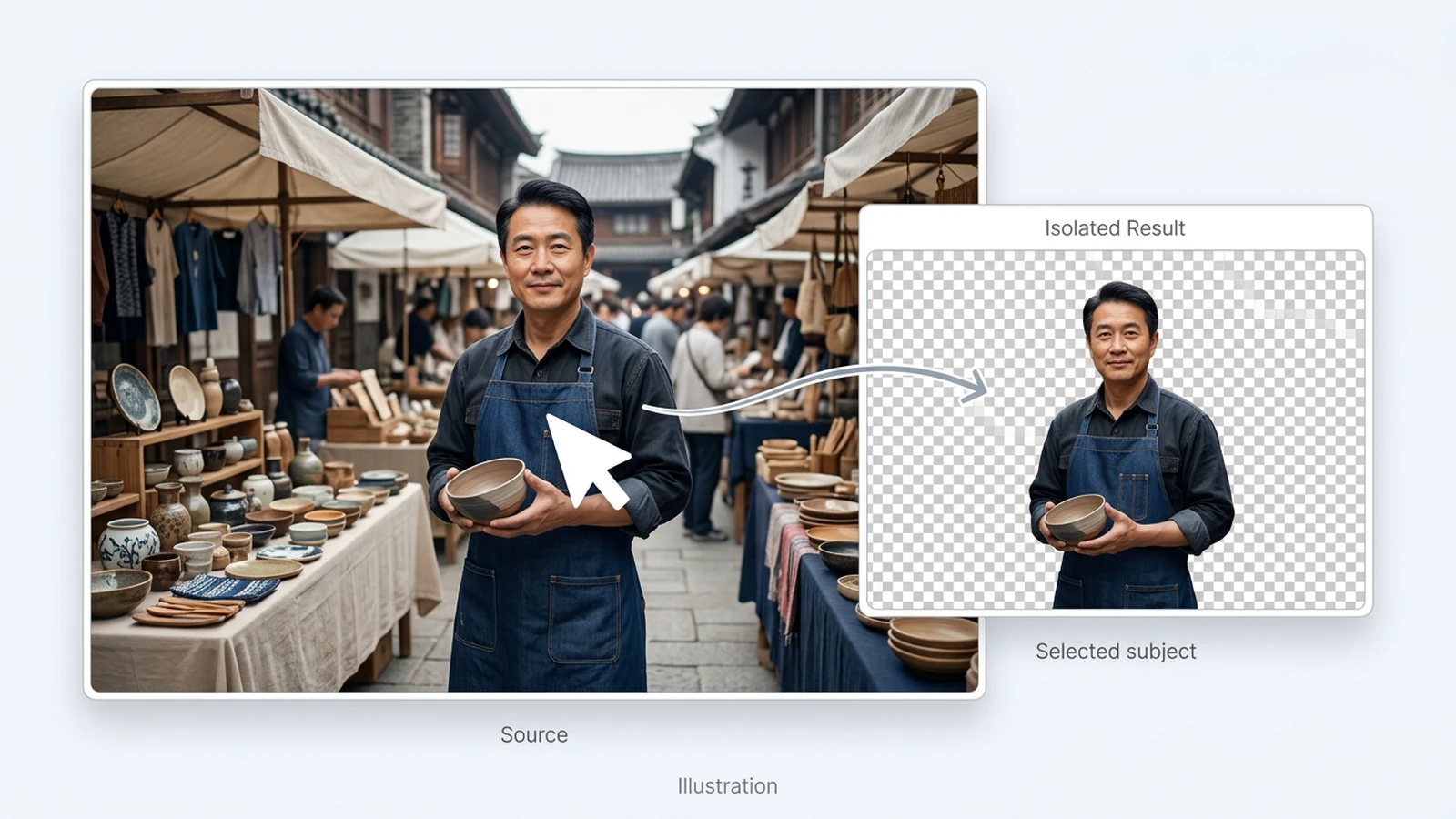
Illustration of a potter in an outdoor craft market beside his isolated portrait on a checkerboard background.

AI Video Matting

Choose a subject in your footage, prepare cutout or mask settings, and plan a foreground layer for your next composition.

Illustration of a potter in an outdoor craft market beside his isolated portrait on a checkerboard background.

Give your selected subject its own layer

Video matting separates a foreground subject from its surroundings so you can work on that layer in a composition. This workbench focuses on subject selection, cutout or mask settings, and edge review. For whole-scene backdrop changes, explore Video Background Remover. The illustrations below show workflow concepts, not measured output quality.

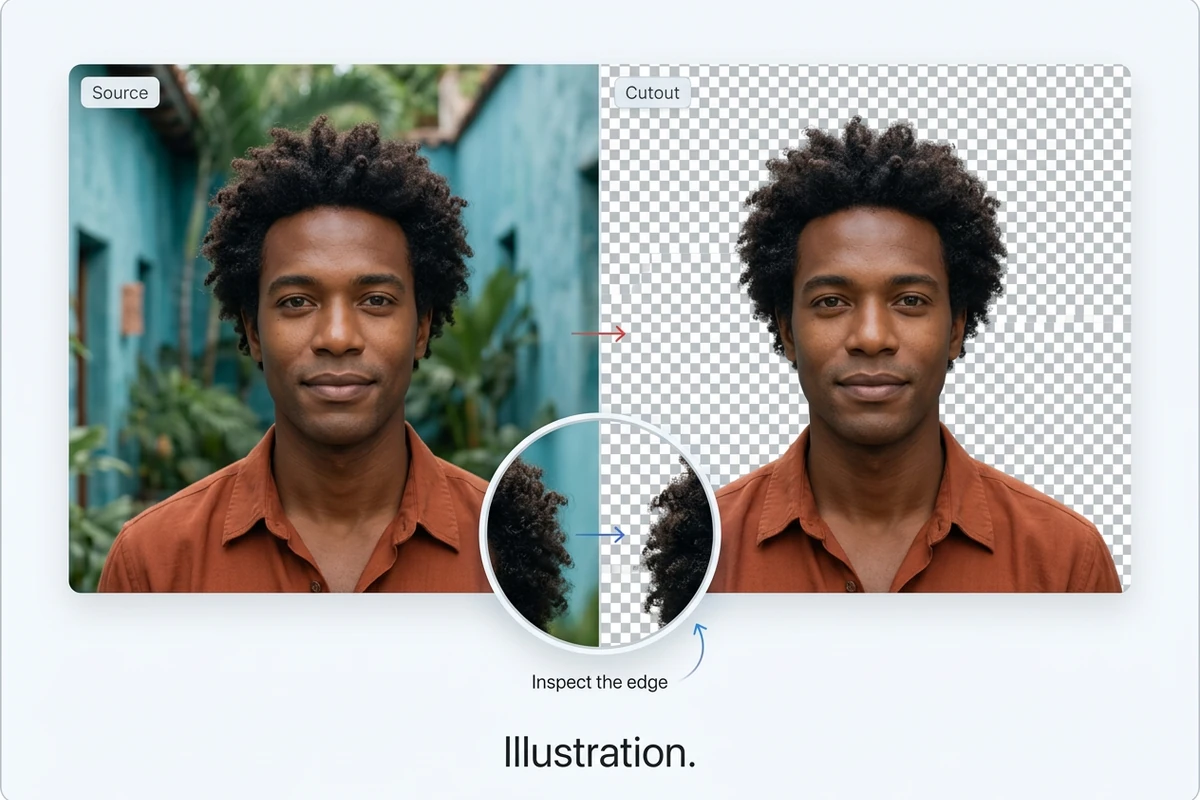
Illustration comparing a curly-haired man in a courtyard with an isolated portrait and a circular edge detail.

Inspect the edge before the next edit

A subject can look convincing in one frame and lose definition as it moves. Use a short clip to check hair, shoulders and moving hands. The workbench includes edge feathering from 0 to 20; start conservatively and inspect the result. A softer outline does not guarantee recovered fine detail.
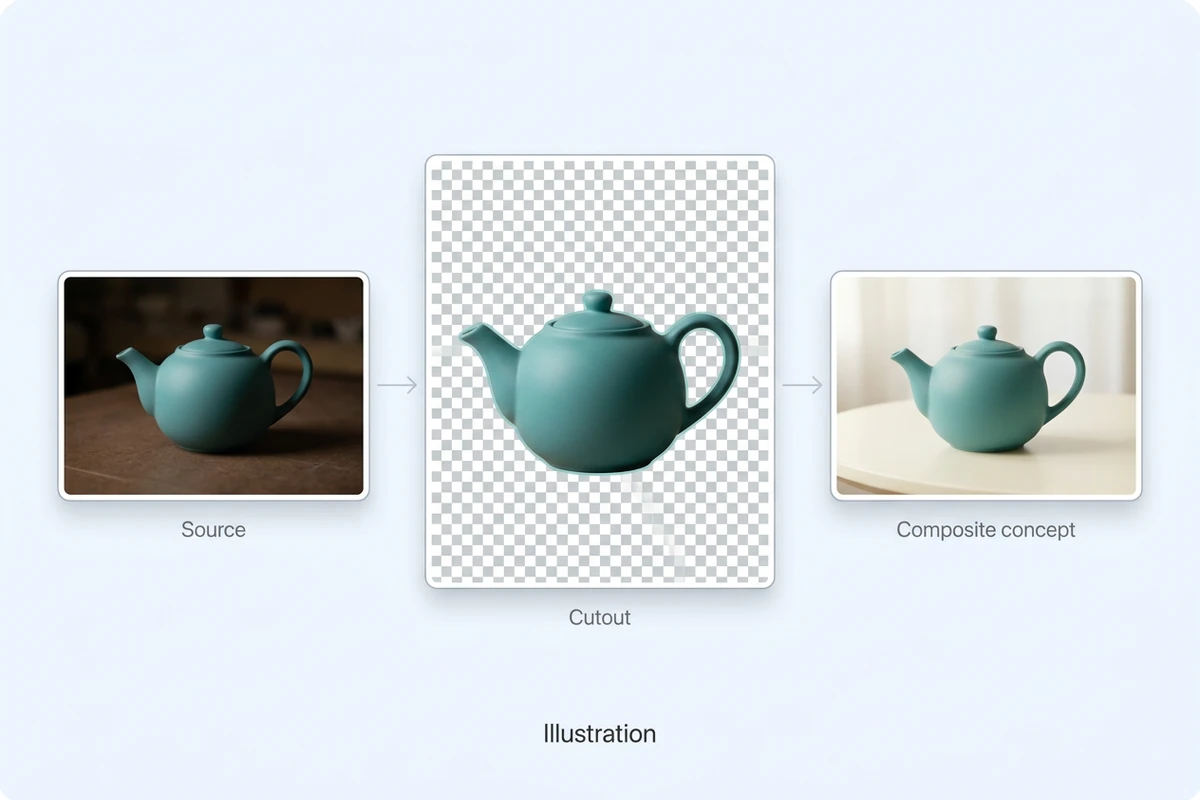
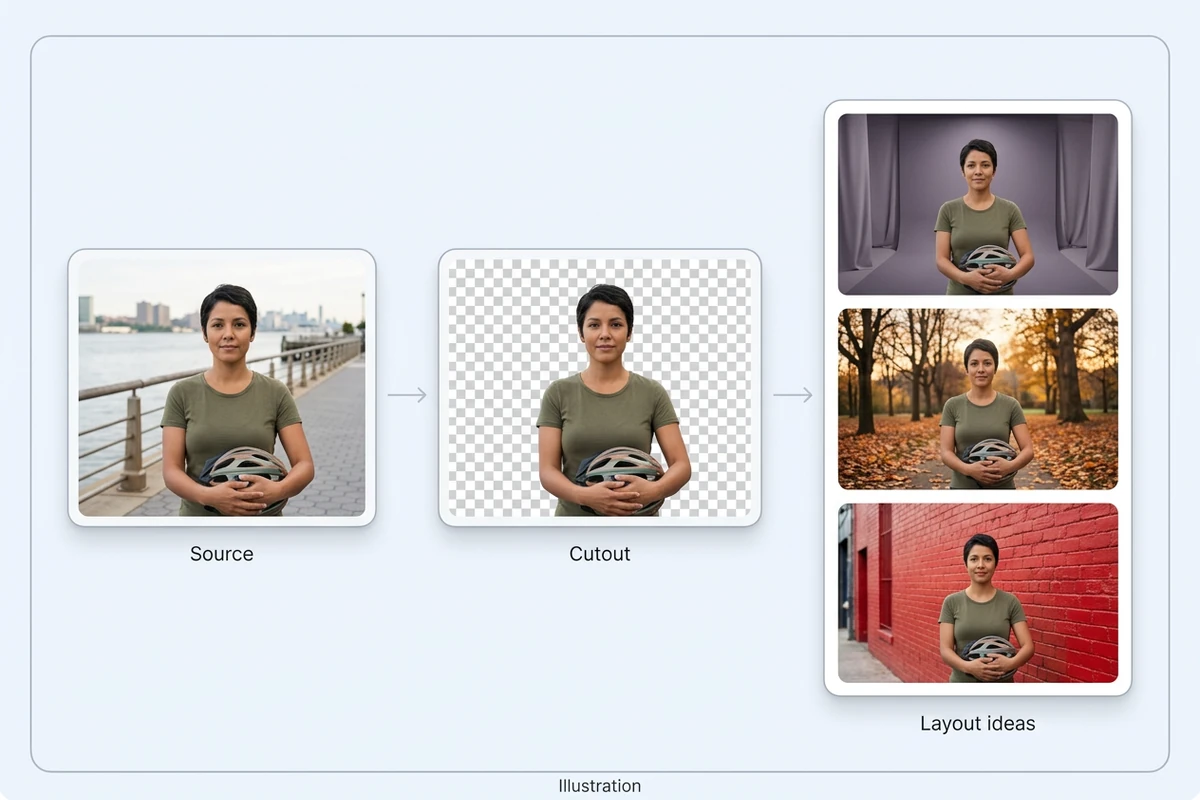
Illustration of a teal ceramic teapot on a dark tabletop, a checkerboard background, and a light tabletop.

Choose a video cutout or a mask

The output menu offers a cutout for a foreground-layer workflow or an alpha mask for a separate masking step. Cutout settings use WebM; mask settings offer WebM or MP4. For an opaque product such as this teapot, check the handle opening as well as the outer edge before compositing.

Illustration of a cyclist beside her cutout and three layout concepts: a studio, an autumn park, and a brick wall.

Carry one subject into new compositions

Plan how your selected subject will sit against a studio backdrop, an outdoor scene or a graphic layout. After processing, check the cutout in a compatible editor before building those variations. The scene cards are composition ideas; for changes to the footage itself, explore AI Video Editor.

What you can do with Ottermind

Prepare a course presenter

Choose a short explanation from a teaching video and identify the presenter as the foreground. Plan space for lesson diagrams, then inspect gesturing hands and shoulders before placing the layer over course graphics.

Isolate a product demonstration

Prepare a cutout workflow for an opaque ceramic product rotating on a table. Include the moment its handle turns away from the camera, so the review covers changing gaps instead of only an easy front view.

Plan campaign variations

Select a campaign subject and decide how much surrounding space each layout needs. Keep compositing separate from changes to the original performance; use AI Video Editor for a broader footage edit.

Prepare an editor's mask handoff

Choose mask output when a compositor needs the subject boundary separately from the original footage. Keep both clips aligned and note the selected time range, so the receiving editor knows which frames belong together.

How to prepare your video matting workflow

Set up a short segment first. Processing depends on the model availability shown in the workbench.

1

Upload an MP4, MOV or WebM file, then set the clip start and end. Include a moment of movement that will make the subject boundary worth checking.

2

Choose an available model. For SAM 2, mark the subject at the clip's start frame. Select cutout or mask, choose the offered format, and check the credit estimate.

3

When processing finishes, compare the result with the original. Check edges through motion, then test the downloaded asset over light and dark backgrounds in your intended editor.

Set up video matting

Why creators choose Ottermind

Compare with the source

Use the original view as a reference when deciding whether a contour belongs to the selected subject.

Choose the useful segment

Set a clip range around the movement you need to inspect before attempting a longer edit.

See the estimate first

Review the model's credit estimate before submitting, rather than guessing the cost from the source length.

Follow the job

Processing status and job history keep the submitted clip and its result accessible within the workbench.

Keep a source reference

Retain the original footage for comparison and a separate mask workflow in your chosen compositing editor.

Address noise separately

For noisy source footage, explore Video Denoiser before evaluating the subject boundary.

Frequently asked questions

Will my exported video have a transparent background?

The cutout setting offers WebM for a transparent-layer workflow. Mask output offers WebM or MP4 and represents the masking information separately. The format selector alone does not verify a file's alpha channel. Test the downloaded asset in your intended editor; a black player background does not by itself settle whether transparency was preserved.

Can I run matting, and what does it cost?

Check the model status and credit estimate in the workbench. At the latest check, the matting models were listed but not enabled, so processing could not be verified. When a model becomes available, review its displayed limits and estimate before submission. There is no unlimited-free-processing promise.

Can I select a product instead of a person?

The workbench distinguishes People mode from SAM 2 subject selection. When SAM 2 is available, select the subject on the chosen clip's start frame. A product example illustrates that workflow, not a guarantee for every object. Transparent materials, thin gaps and overlapping subjects need especially careful review.

Which video files and clip lengths can I use?

The upload control accepts MP4, MOV and WebM files up to 200 MB and two minutes, with each frame dimension no greater than 4096 pixels. Processing limits are model-specific: the listed matting models currently specify 1–30-second clips. Use the range and limits shown for the selected model.

Does feathering produce a professional video alpha matte?

Feathering adjusts edge softness; it is not proof of fine-opacity recovery. Inspect hair, motion blur and gaps across multiple frames, then compare against contrasting backgrounds. Professional hair-level results, automatic tracking quality and translucent-material accuracy have not been verified here. Choose footage and review criteria accordingly.

How is matting different from removing an object?

Matting keeps the selected subject as the foreground for a separate layer or mask workflow. Object removal aims to erase an unwanted element while keeping the scene. Use Video Object Remover for that task. This page works with footage, not still-image background removal.

Discover more

More from the blog

Prepare your subject for the next composition

Bring a short clip, identify the foreground you need, and choose the output settings that fit your next editing step. Start with the workbench above.

Set up video matting