
Upload video

MP4, MOV, WebM · 200 MB · 2 minutes · up to 4K

Private video
Illustrative coastal picnic before-and-after comparison with a subtitle on the left and a clean frame on the right.

Remove Subtitles From Video

Clear old captions before adding a new language or reusing a clip. Choose a model for subtitle tracks or burned-in text, then review the result before download.

Illustrative coastal picnic before-and-after comparison with a subtitle on the left and a clean frame on the right.

A clean clip starts with the right removal method

Subtitles may be a separate track or permanently embedded in the picture. Removing a separate track leaves the visible scene intact; removing burned-in captions requires reconstructing the area they cover. Start with your original uncaptioned file if you have it. If you need the spoken words for a new caption file, use Video Transcript Generator before you replace the old text.

Illustrative riverside scene with a dashed selection box around a subtitle over the water.

Rebuild the Background Beneath Captions

Burned-in subtitles cover real details: rippling water, paving lines, clothing, or a moving face. An available AI removal model estimates what belongs in that area. Review the repair at normal playback speed and pause on detailed frames to catch smearing or unstable texture. Removing text does not recover the original hidden pixels. For a separate obstruction in the shot, use Video Object Remover.

Illustrative yellow tram comparison with an upper caption on the left and matching caption-free street scene on the right.

Match the Removal Method to Your Clip

Use the subtitle-track option when the text is stored separately, or an available AI model when it is embedded in the picture. The selected model determines the removal mode; you do not need to paint a still-image mask here. Upload your clip, select the supported segment, and review the displayed cost before processing. A clean source is useful for the next stage in AI Video Editor.

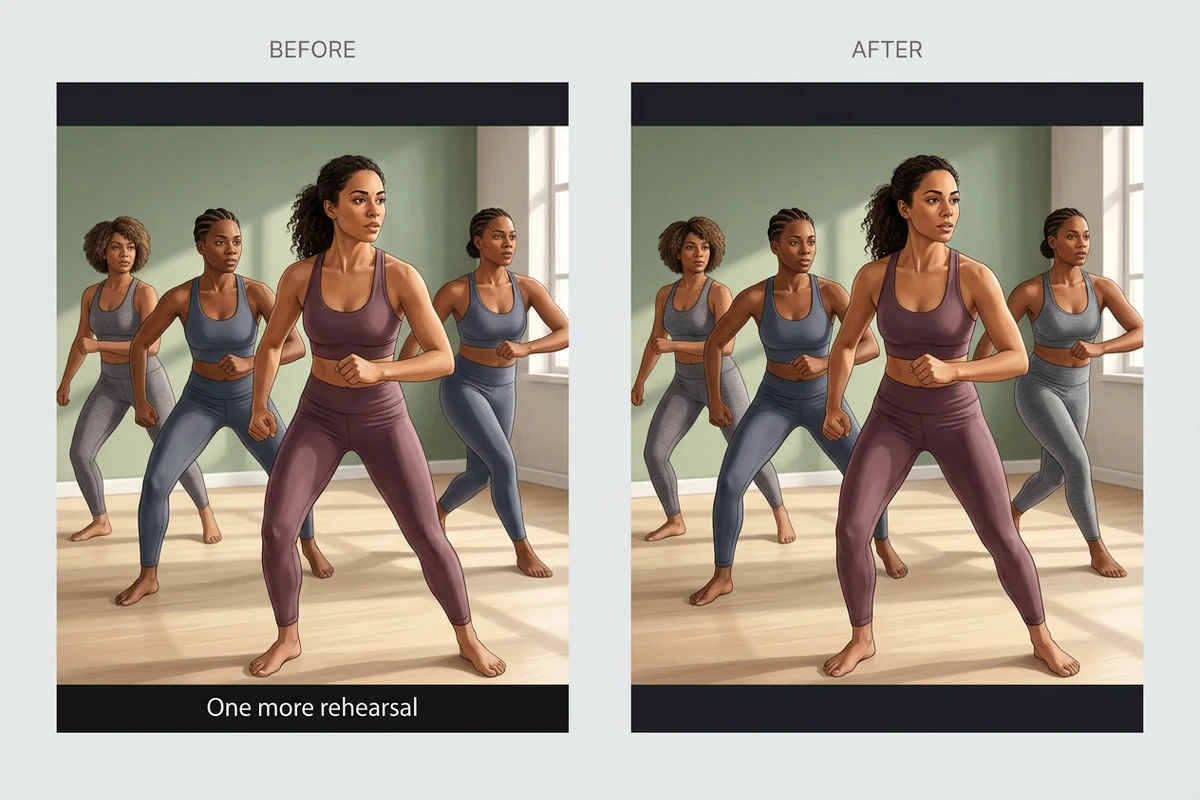
Illustrative dance rehearsal comparison with a bottom subtitle on the left and the same dancers without the subtitle on the right.

Prepare Footage for a Fresh Caption Pass

Clear outdated subtitles before producing a new language version or changing your caption style. Check the complete result, especially around scene cuts, fast movement, and text that overlaps the subject. Keep useful signs and labels in mind when judging the edit. Then create a new transcript with Video Transcript Generator and add accurate captions in your editing workflow. These images illustrate the intended cleanup, rather than a measured processing result.

What you can do with Ottermind

Localize a Course Lesson

Prepare a course clip with baked-in English captions for a new language version. Check that the cleanup preserves slide labels, formulas, and the instructor’s gestures. Use Video Transcript Generator to draft the spoken text for translation, then add a new subtitle track in your editor.

Refresh a Product Campaign

Reuse an approved product clip whose old captions no longer match the campaign. Start with the uncaptioned master if it is available; otherwise review the repaired region around packaging, hands, and product edges. Add the current message only after checking that the cleaned footage still represents the product accurately.

Reuse a Travel Interview

Prepare a short interview for viewers who need a different subtitle language. Remove the separate track when possible, or review AI cleanup of text embedded over clothing and scenery. Keep the speaker’s expressions and gestures intact, then add an accurate translation so the new version remains understandable without sound.

Restyle a Dance Tutorial

Clear an old caption style before creating a consistent lesson series. Inspect frames where feet or hands pass through the subtitle area, since motion can expose uneven repairs. Keep the original soundtrack and timing as your reference, and check the whole exported segment before adding the new instructional captions.

How to remove subtitles from a video

Upload a clip, choose a compatible removal model, and check the result before downloading.

1

Choose an MP4, MOV, or WebM file up to 200 MB, two minutes long, and 4K dimensions. Identify whether its subtitles are a separate track or embedded in the picture.

2

Select an available model for the subtitle type. The mode follows your model selection. Choose a supported clip segment, check the required credits, and start processing.

3

Play the result and inspect scene cuts, motion, and detailed backgrounds before downloading. If the repair damages important details, return to the source and revise your approach.

Remove subtitles

Why creators choose Ottermind

Two Subtitle Types

The workbench distinguishes separate subtitle tracks from burned-in text. Choose an available model that matches how the captions are stored.

Work on a Short Segment

Use the clip controls to focus on a supported segment. Check a difficult passage before committing to cleanup across more footage.

See the Credit Estimate

Review the displayed credit estimate before submitting a job. Costs and supported clip lengths depend on the selected model.

Compare During Playback

Judge the edit as moving footage. Watch for flickering patches, lost details, or subtitle traces rather than accepting a single clean frame.

Revisit Your Jobs

Use History to find processing tasks associated with your account and return to an available result for review.

Continue the Edit

Continue in AI Video Editor after cleanup. Keep your original for comparison.

Frequently asked questions

Can I remove burned-in subtitles from a video?

An available AI subtitle-removal model can attempt to reconstruct the regions covered by embedded text. Results depend on the background, movement, and how much detail the captions hide. Check the full clip for smearing, flicker, and remaining letters; perfect recovery of hidden detail is not guaranteed.

What is the difference between soft and burned-in subtitles?

Soft subtitles are stored as a separate track and can be removed without reconstructing the picture. Burned-in subtitles are part of the visible frames and require visual editing. If turning captions off in your player removes the text, you may have a separate track; if it stays visible, it may be embedded.

Is this video subtitle remover free?

Check the current account requirements and credit estimate in the workbench before processing. Available models, clip limits, and costs can differ. Do not assume unlimited free processing or that another attempt will use the same credits.

Which video formats can I upload?

The upload surface accepts MP4, MOV, and WebM files up to 200 MB, two minutes in duration, and 4K dimensions. Individual models may support shorter segments or impose additional restrictions. Still-image formats such as PNG and JPEG are not substitutes for a video clip.

Can I remove subtitles without cropping the video?

Subtitle removal targets the text or its track instead of deliberately cutting away the lower part of the shot. With burned-in text, inspect the repaired region to judge whether the original composition remains usable. If you need a different aspect ratio afterward, use AI Video Reframe as a separate step.

Will removing subtitles translate the audio?

No. Subtitle cleanup does not translate speech or create replacement captions. Use Video Transcript Generator to work with the spoken words, then prepare a translation and new captions in your editing workflow.

Discover more

More from the blog

Make room for your next caption track

Choose the removal method that fits your source, review the cleaned footage, and prepare your clip for a new audience.

Remove subtitles