Upload video

MP4, MOV, WebM · 200 MB · 2 minutes · up to 4K

Private video
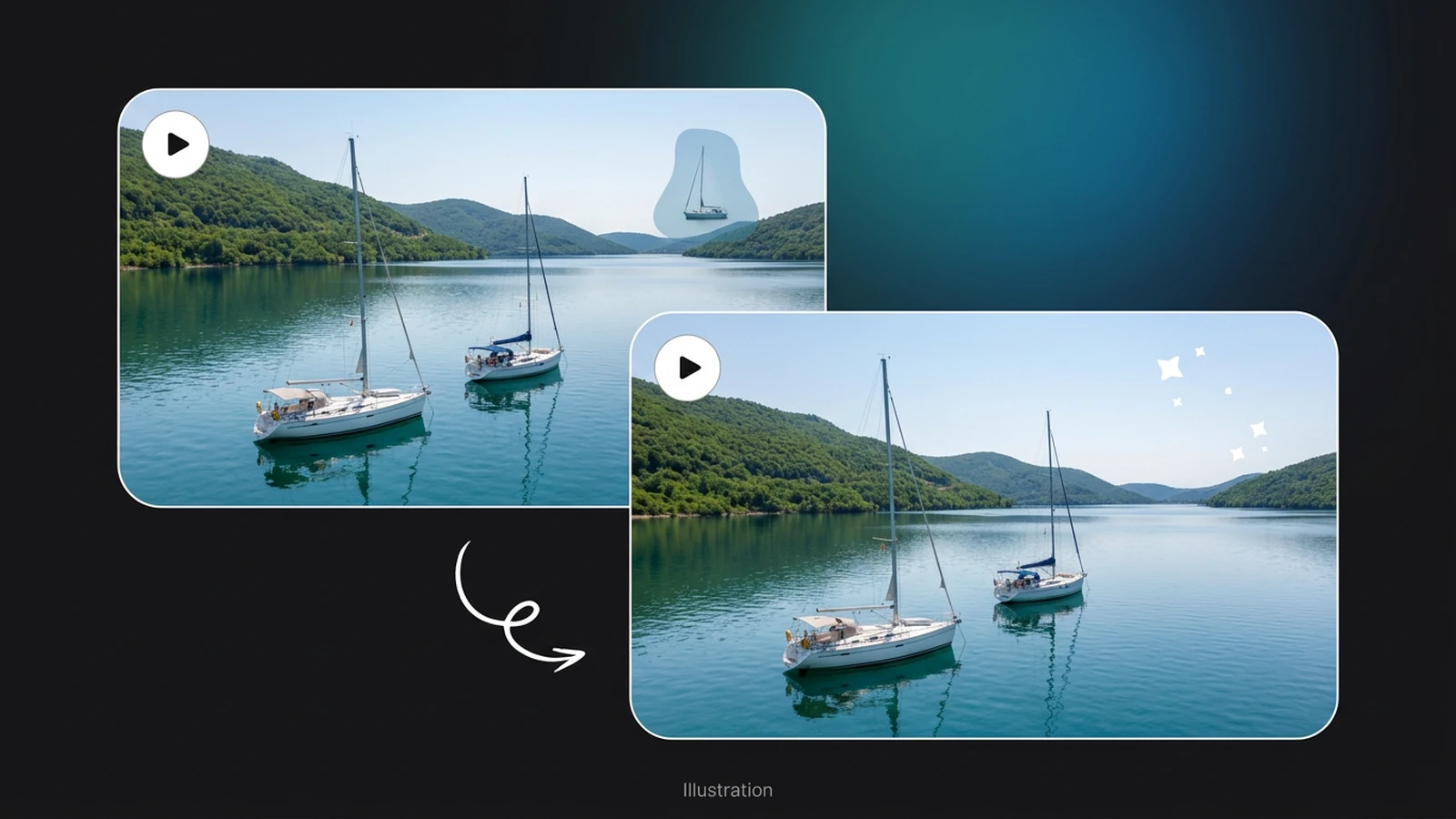
Illustrative overlapping video frames of a lake with sailboats, showing a conceptual distant-boat removal.

Remove Object from Video

Describe the unwanted object in your video, select a short clip, and review the edited result before downloading.

Illustrative overlapping video frames of a lake with sailboats, showing a conceptual distant-boat removal.

Keep the shot, remove the distracting object

An AI video object remover edits an unwanted element within a scene. Upload your footage and describe the target in words, then check whether the edited clip keeps the subject and surroundings convincing. For a still photo, use AI Object Remover. The comparisons here are illustrations of removal tasks, not recorded Ottermind processing results.

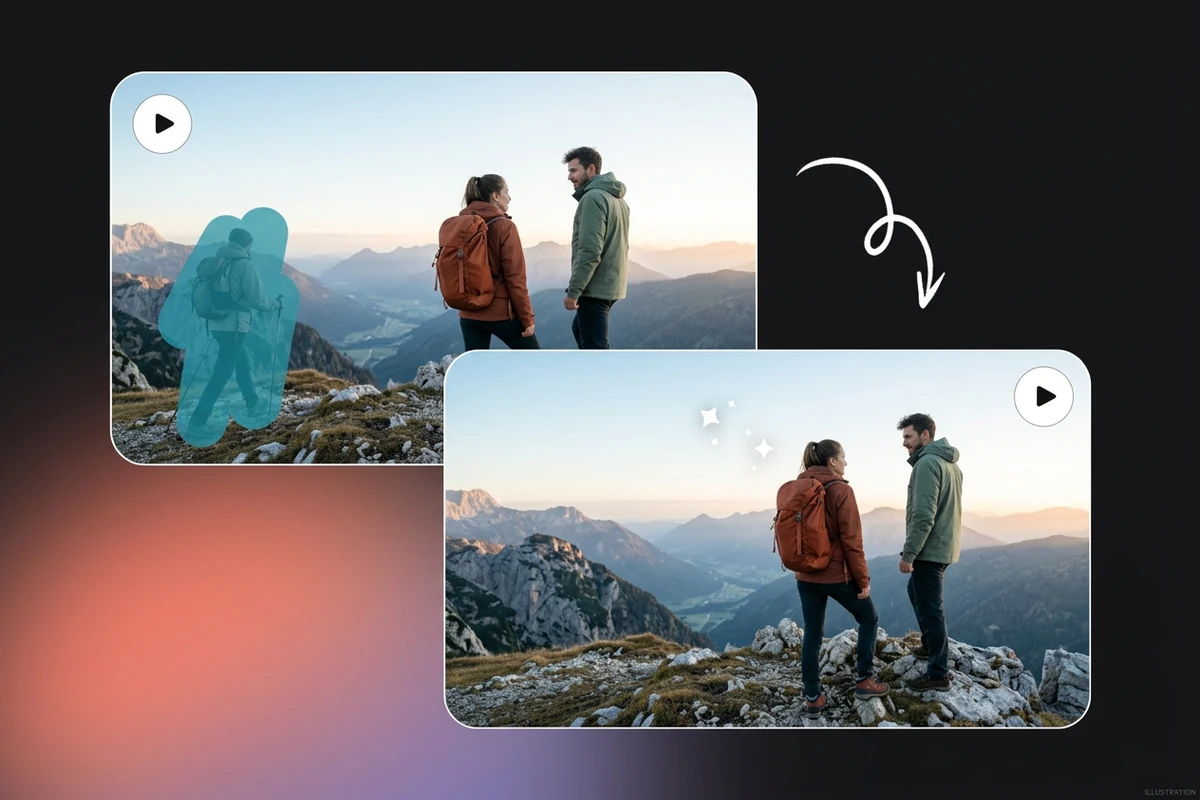
Illustrative mountain video frames keeping two hikers while conceptually removing a peripheral passerby.

Remove a passerby without losing the moment

An unexpected passerby can pull attention from the people you filmed. Identify both the removal target and the subjects to keep: “Remove the passerby behind the two hikers; keep both hikers and their clothing unchanged.” Use this as a request, not a preservation guarantee. Check faces and outlines wherever people overlap.
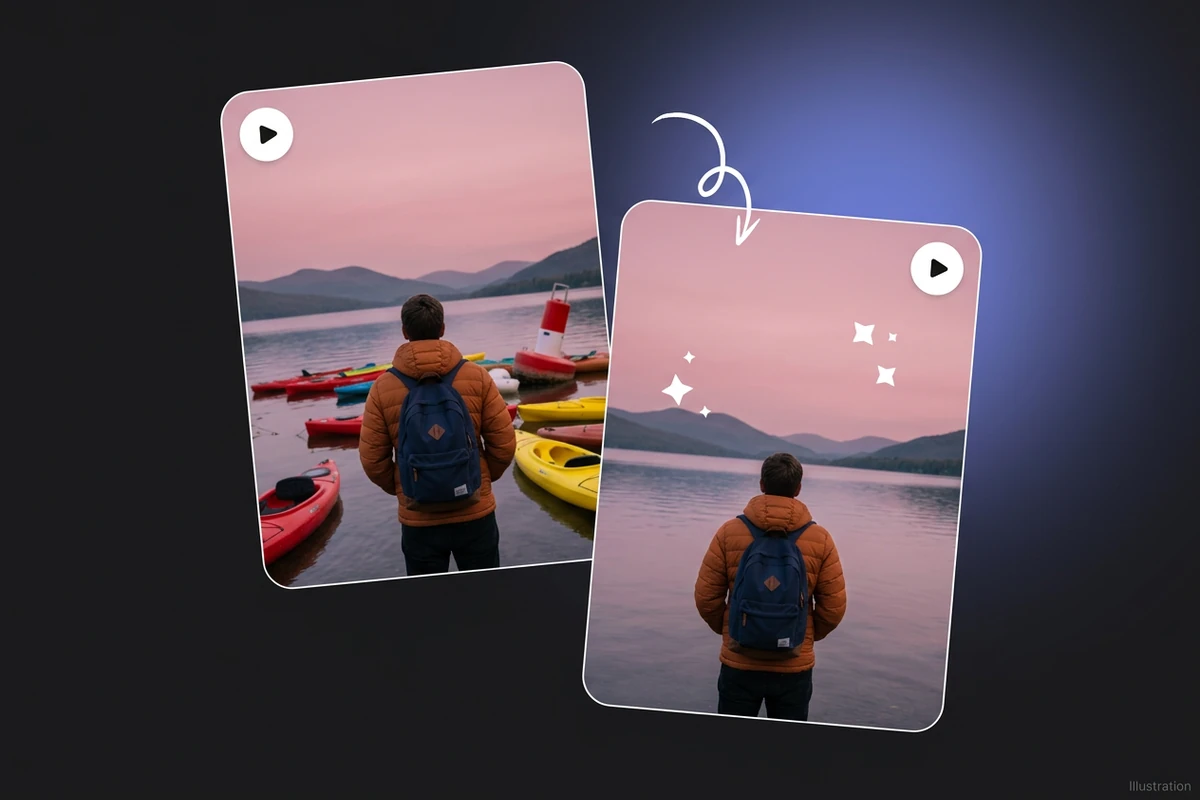
Illustrative tilted portrait frames of a traveler beside a lake, with a conceptual kayak and buoy removal.

Clear distractions while keeping the scene recognizable

A kayak or buoy behind a traveler may distract from the landscape. Describe its position and ask to retain the traveler, shoreline and light. Review the water, reflections and background after removal: a convincing replacement still needs to hold together as the camera moves. Handle broader creative changes separately with AI Video Editor.

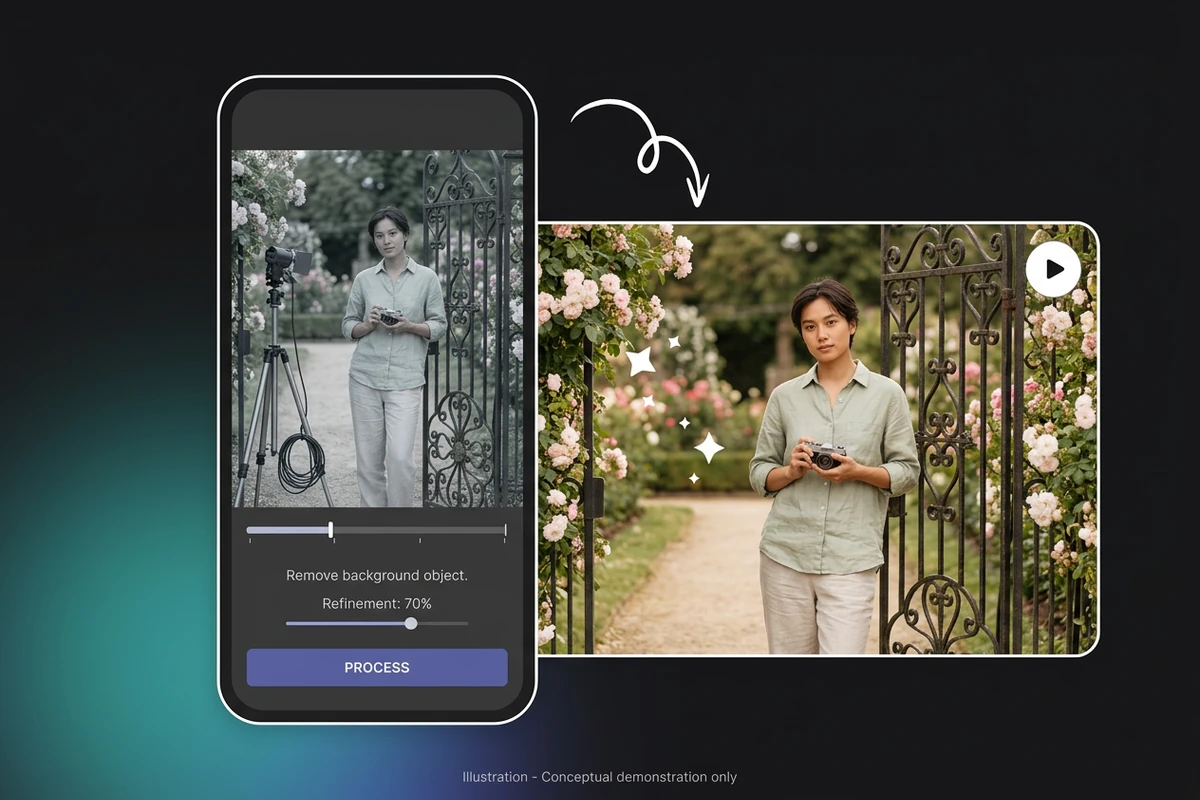
Illustrative unbranded phone and video frames of a photographer at a garden gate with conceptual equipment removal.

Describe the cleanup in your browser

To remove an object from video online, use the workbench’s text description. For a garden shoot, try: “Remove the equipment stand behind the person holding a camera; keep the person and gate consistent.” Select a short section containing the distraction, check the displayed cost, and review the finished clip before downloading.

What you can do with Ottermind

Remove a stray product prop

Request removal of a spare bottle beside the product you are filming. Name the bottle by color and position, and identify the product that must remain. Check packaging edges and table reflections before using the clip in a campaign.

Tidy a room walkthrough

Target a bag left on the floor during a room tour. Choose a continuous section that shows where it sits, then inspect floorboards, furniture edges and any shadow left behind. Keep the original recording if the reconstructed area looks distracting.

Clean up a travel shot

Try removing a distant boat or temporary sign that competes with the view. Review the entire edited selection before sharing. After accepting the picture, use Video Compressor if you need a smaller delivery file.

Take equipment out of frame

Describe a stand or cable that slipped into a recorded scene. Start with a short section where the object is clearly visible. Look closely when it crosses the subject: an edit that changes a face, hand or clothing may not be usable.

How to remove an object from a video

1

Add an MP4, MOV or WebM video. Set start and end times around the unwanted object. Follow the selected model’s clip-length limit, and sign in when prompted.

2

Name the object, its position and what should remain. For example: “Remove the red bottle on the left; keep the white mug unchanged.” Check model availability and the displayed cost, then submit.

3

When processing finishes, play the edited clip. Look for flicker, warped edges and leftover shadows. If necessary, clarify the prompt or try a shorter selection. Download only after reviewing the result.

Upload your video

Why creators choose Ottermind

A specific removal request

Name the distraction directly, keeping the job focused on the object that spoils your shot.

Your existing footage

Bring a recorded clip and describe the unwanted element within its original scene.

A short test section

Set start and end times to assess the edit on a manageable part of your footage.

A visible cost

Check the workbench’s current credit estimate before submitting the removal job.

Review before delivery

Play the finished result and inspect the scene before downloading a version to keep.

Another framing option

If the object sits near an edge, consider AI Video Reframe as a separate composition option.

Frequently asked questions

What files and clip lengths can I use?

The workbench accepts MP4, MOV and WebM source files up to 200 MB and 120 seconds. Upload limits differ from processing limits: the currently available removal model accepts a 1–15 second selection. Check the model’s displayed limit before submitting. A supported file extension does not guarantee every codec will work.

Can I remove people or moving objects from video?

You can describe a person or moving object as the removal target. Include its position or movement so the request is unambiguous. Fast motion, occlusion and overlap with the main subject can make the edit harder to judge. Review the full clip; success on one frame does not establish a consistent result.

Do I paint a mask around the object?

No. This workbench uses an edit description, with up to 1,000 characters for the removal request. It does not offer a removal brush, keep points or frame-by-frame masks. Name the target clearly and describe important elements to retain. The example images illustrate the task rather than reproduce the controls.

Will removal leave the background perfectly unchanged?

That is not guaranteed. Removing an object requires a replacement for the area it hides, and the edit may alter nearby details. Inspect straight lines, moving edges, shadows and reflections for patches or flicker. Keep the source file, and do not assume a plausible reconstruction reveals what was actually behind the object.

Is the video object remover free to use?

Processing requires sign-in and uses the available model’s credit pricing. Check the current availability and displayed cost before you submit; this page does not promise unlimited free removal. A successful job provides a video to preview and download. Processing time and result quality depend on the job.

Is this the same as removing backgrounds or subtitles?

No. This page targets particular objects inside a scene. Use Video Background Remover for the whole background, Video Subtitle Remover for captions, or AI Video Matting for a cutout or mask. Those are separate workflows with their own availability and controls.

Discover more

More from the blog

Try removing the distraction from your clip

Upload your video, choose a short section and describe the unwanted object. Review the scene in motion before downloading the edit you want to keep.

Upload your video