Upload video

MP4, MOV, WebM · 200 MB · 2 minutes · up to 4K

Private video
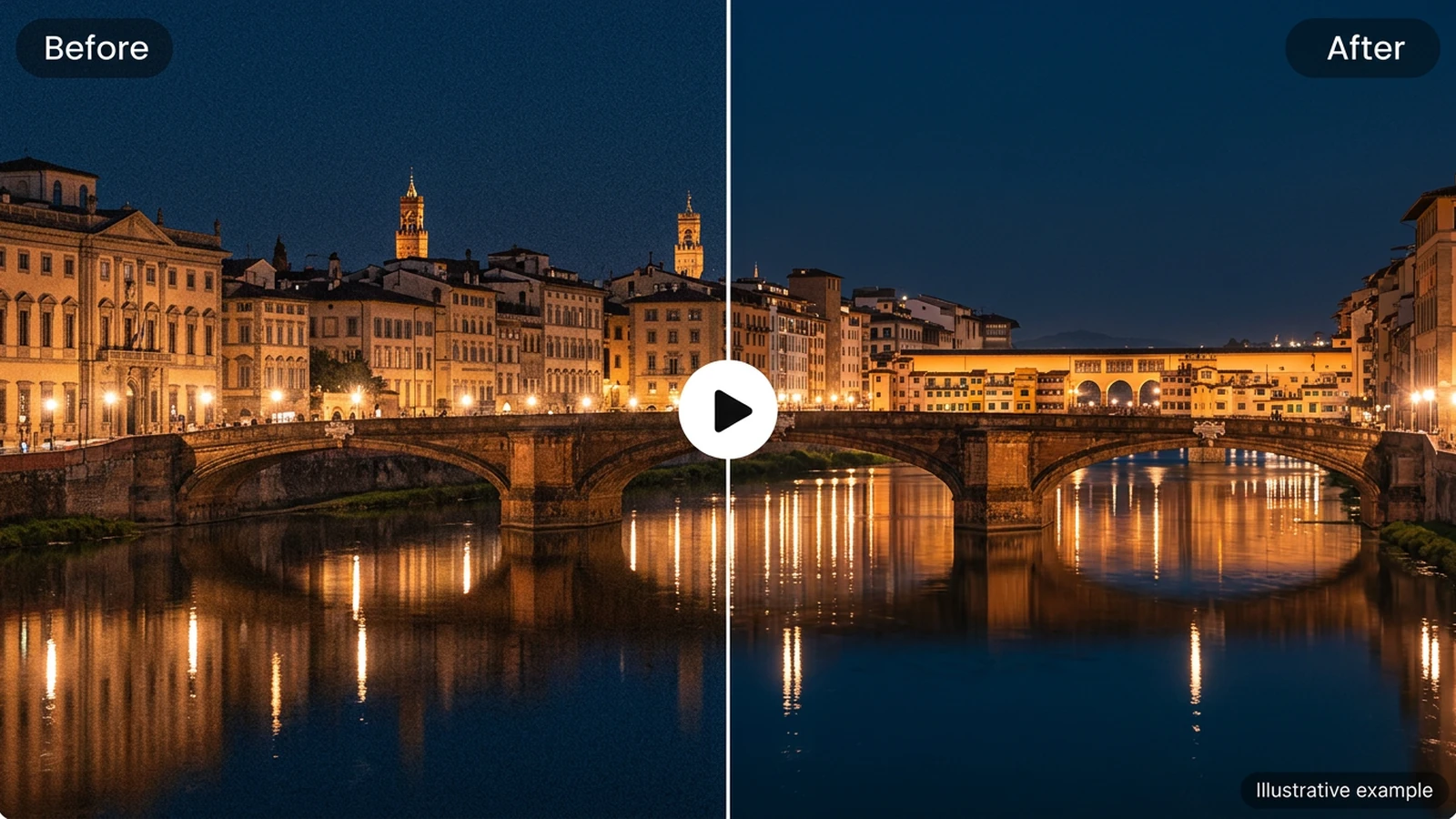
Illustrative night waterfront video frame with a grain-reduction split comparison.

Video noise reduction for the footage you have

Visible noise appears as speckles or grain, especially in dark areas of a clip. Ottermind lets you reduce that distraction with an adjustable denoising strength. Start with a short selection and judge the result against your original. For a single photograph, use AI Image Denoiser instead. The comparisons below illustrate the task; they are not measured tool results.

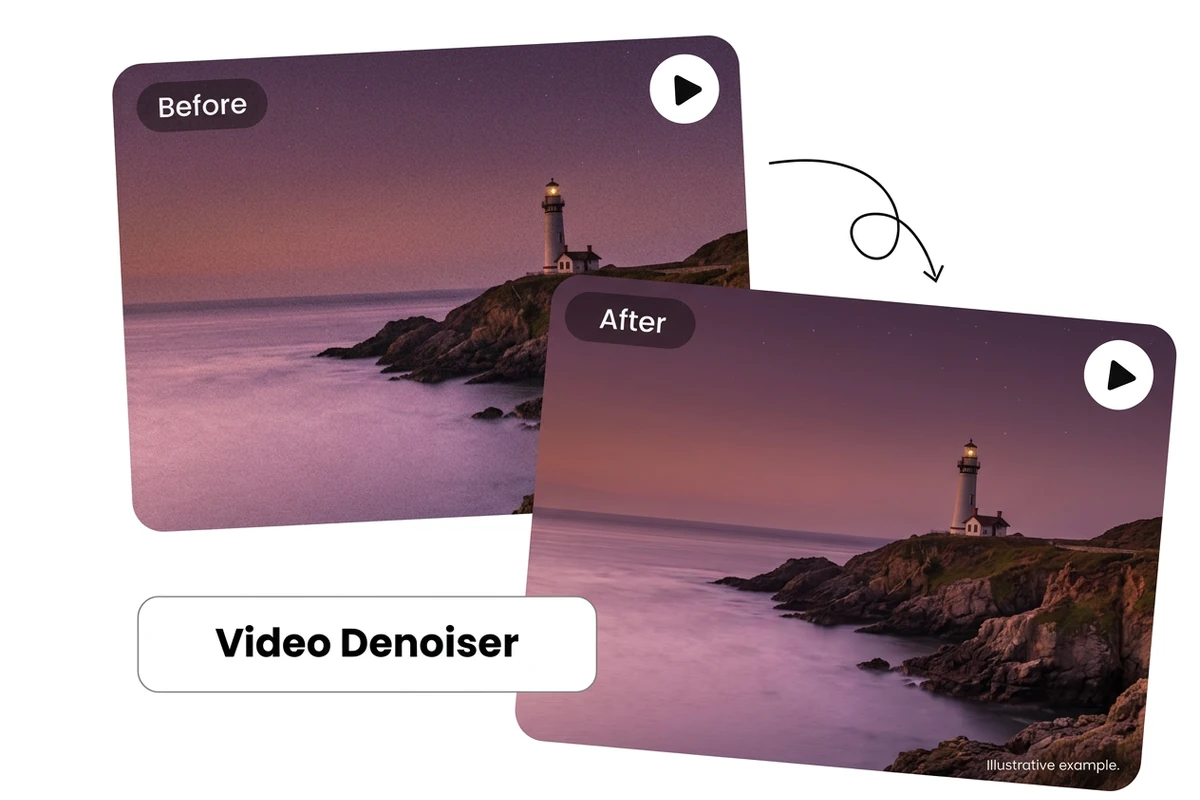
Conceptual before-and-after video cards showing a coastal lighthouse with modest grain reduction.

Reduce grain in low-light video

Night skies, dim interiors and shadowed landscapes can look busy with unwanted speckles. Upload your footage and apply video noise reduction to make that grain less distracting. Aim for a natural-looking scene rather than a perfectly smooth surface: denoising cannot recover detail the camera never captured.

Illustrative grain comparisons of a rainy tram street, sea turtle and orange butterfly.

Choose strength for the details that matter

To remove grain from video, adjust strength from 0.05 to 1; the starting value is 0.5. Test a short clip and compare smooth areas with fine edges. Street signs, underwater textures and delicate wings need different judgments. If details look smeared, lower the strength and try again.

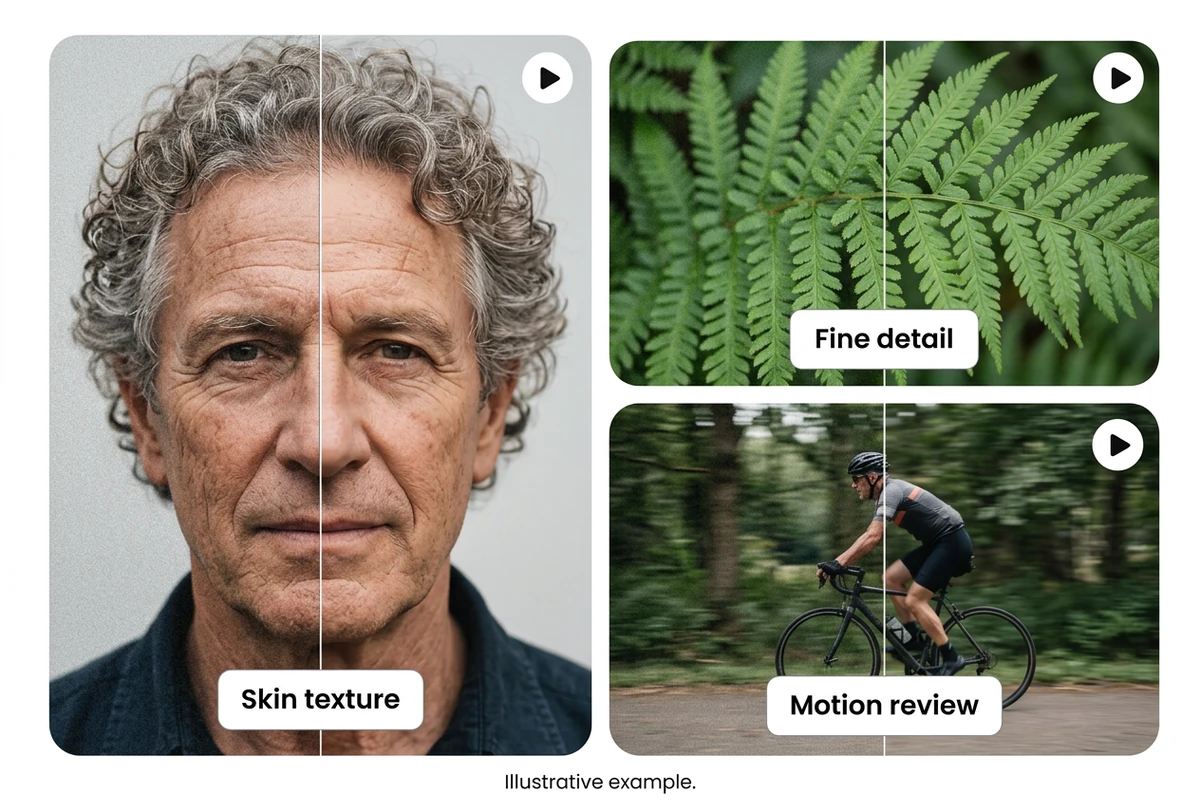
Conceptual grain comparisons showing an older man, fern details and a moving cyclist.

Check texture and motion before downloading

A still frame cannot show every tradeoff. Play the result and inspect skin texture, fine leaves and moving subjects for unwanted softness. Keep original audio when you need the existing soundtrack; this option does not clean it. Once satisfied, handle separate creative changes with AI Video Editor.

What you can do with Ottermind

Clean up a night travel clip

Reduce distracting grain in a dim street or waterfront shot before adding it to a travel edit. Check building edges and reflections as the camera moves, and leave some texture if stronger smoothing makes them look soft.

Keep an indoor interview natural

Try gentle denoising on an interview recorded in a poorly lit room. Compare cheeks, hair and clothing, then keep the original audio if the conversation belongs in your final cut.

Prepare a product close-up

Review a grainy product clip for noise on smooth packaging without sacrificing small lettering or fabric texture. After accepting the cleanup, use Video Compressor if you need a smaller delivery file.

Refresh a family archive clip

Work from the best available copy of an older family video and test a short section first. Reduce distracting speckles while checking faces and movement; keep the original safe, especially when the grain is part of its character.

How to denoise a video in Ottermind

1

Add an MP4, MOV or WebM file. Set the clip start and end around a representative noisy section, including movement and fine detail. Sign in when prompted to process it.

2

Choose a denoising strength and decide whether to retain original audio. Start gently for faces or fine textures. Check model availability and the displayed cost before submitting.

3

When processing finishes, play the result and compare it with your original. Lower strength and retry if important details look too soft. Download the version you want to keep.

Denoise your video

Why creators choose Ottermind

A dedicated task

Reduce visible grain without treating brightness adjustment or color grading as noise removal.

Your source clip

Work with an existing MP4, MOV or WebM file rather than generate a replacement scene.

A selectable section

Choose start and end times to try a representative part of your footage first.

Original audio control

Decide whether the existing soundtrack belongs with the processed picture.

Visible processing status

Follow the submitted job in the workbench and review its result when it finishes.

A downloadable result

Download the reviewed clip, then use Video Compressor if you need a smaller delivery file.

Frequently asked questions

Is this an AI video denoiser?

The current Ottermind denoise tool uses FFmpeg, rather than an AI video denoising model. It provides adjustable video noise reduction. If you are comparing AI video denoisers, judge the actual result on your footage; the AI label alone does not establish how well a tool preserves detail.

What videos can I upload, and what are the limits?

The workbench accepts MP4, MOV and WebM files up to 200 MB and 120 seconds, with each frame dimension no larger than 4096 pixels. The current denoise model accepts selections from 0.1 to 120 seconds. A supported extension alone does not guarantee that every codec can be decoded.

Does video denoising remove background audio noise?

No. This tool targets visible noise in the picture. The original-audio option controls whether you retain the existing soundtrack; it is not speech enhancement or removal of hiss, wind or hum. Audio cleanup requires a separate audio-processing workflow.

Can it fix blur, compression blocks or low resolution?

Do not expect it to repair those problems. Denoising targets grain; sharpening emphasizes edges, deblurring addresses blur, and compression-artifact repair tackles encoding damage. Upscaling changes resolution and is a separate task handled by Video Upscaler, subject to its current availability.

Can I remove grain from video without losing quality?

There is no lossless-restoration guarantee. Stronger denoising can soften real textures along with noise, and the downloaded output should be checked before you replace anything. Keep your source file, test a short selection, and accept some grain when that better preserves faces, lettering or movement.

Do I need an account, and what can I download?

Processing requires sign-in. Check the workbench's current availability and displayed cost before submitting a job. A successful job provides a processed video to preview and download. The denoise controls do not offer an output-format, bitrate or resolution selector; check the resulting file against your delivery requirements.

Discover more

More from the blog

Try noise reduction on your own clip

Upload a noisy video, choose a representative section and set the strength. Review texture and motion before downloading the result you want to keep.

Denoise your video