Upload video

MP4, MOV, WebM · 200 MB · 2 minutes · up to 4K

Private video
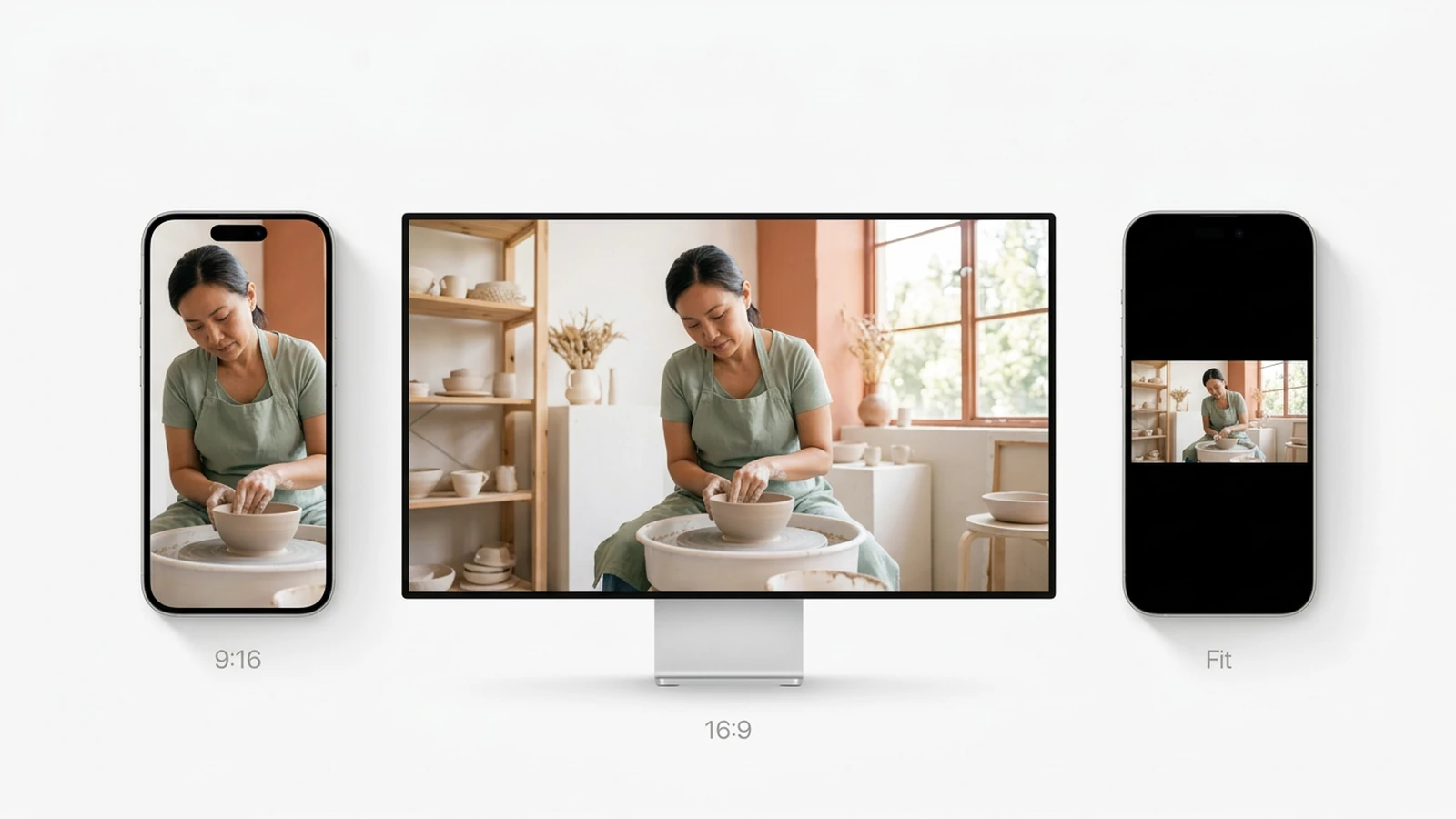
Illustrative view of a ceramic artist’s video shown in portrait, landscape, and fitted phone layouts.

Change Video Aspect Ratio

Turn existing footage into vertical, square or widescreen clips. Choose the aspect ratio and crop position, then review before downloading.

Illustrative view of a ceramic artist’s video shown in portrait, landscape, and fitted phone layouts.

A new frame for the footage you already have

To change video aspect ratio, choose the shape of your output and decide what stays inside it. A narrower crop can remove important action at the edges. Ottermind gives you center and manual framing controls; separate creative changes belong in AI Video Editor. The images below illustrate framing choices, not measured processing results.

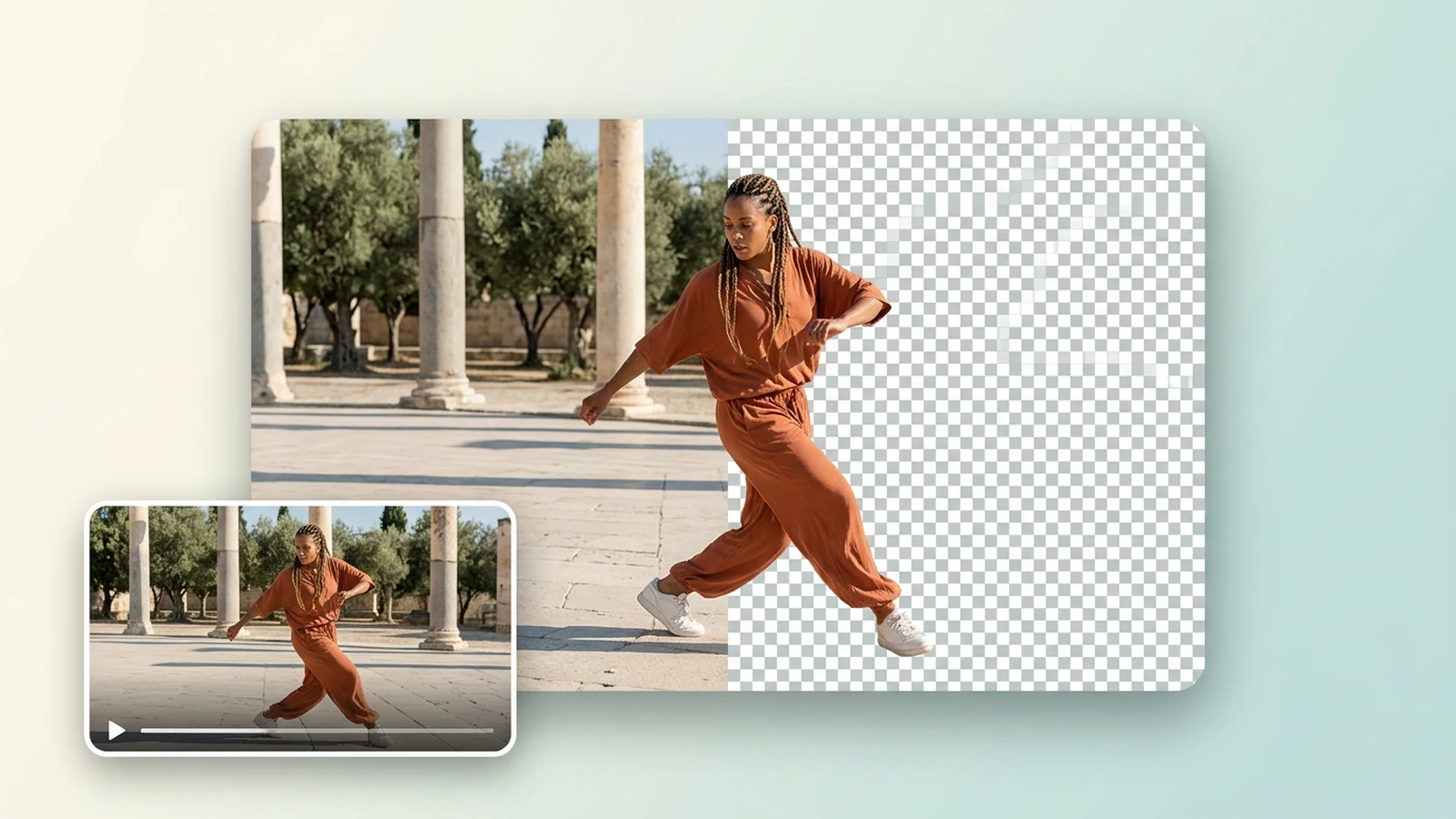
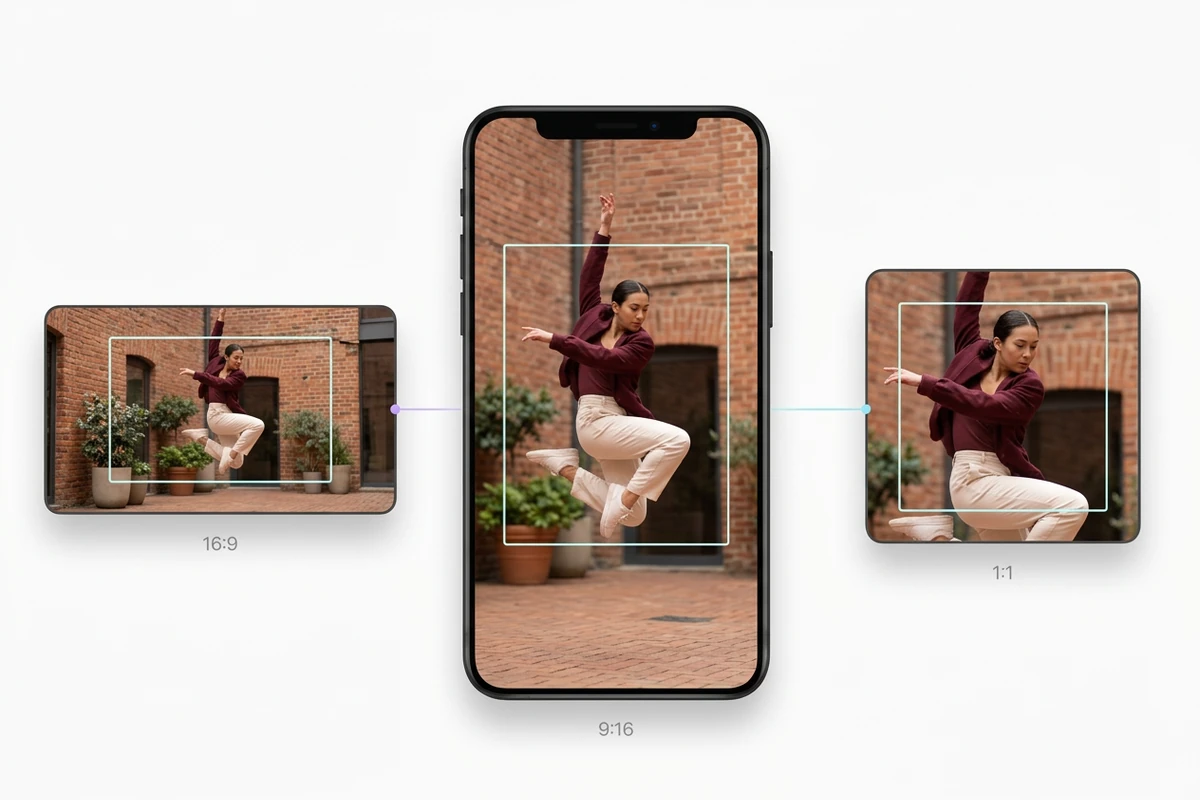
Illustrative view of a dancer’s courtyard video framed in landscape, portrait, and square crops.

Keep the action inside your chosen crop

Convert horizontal video to vertical with a 9:16 crop, then check the whole movement. Start centered; use Manual and the X/Y sliders to shift the frame when a dancer or speaker stands off-center. This position stays fixed: it does not automatically follow a moving subject.
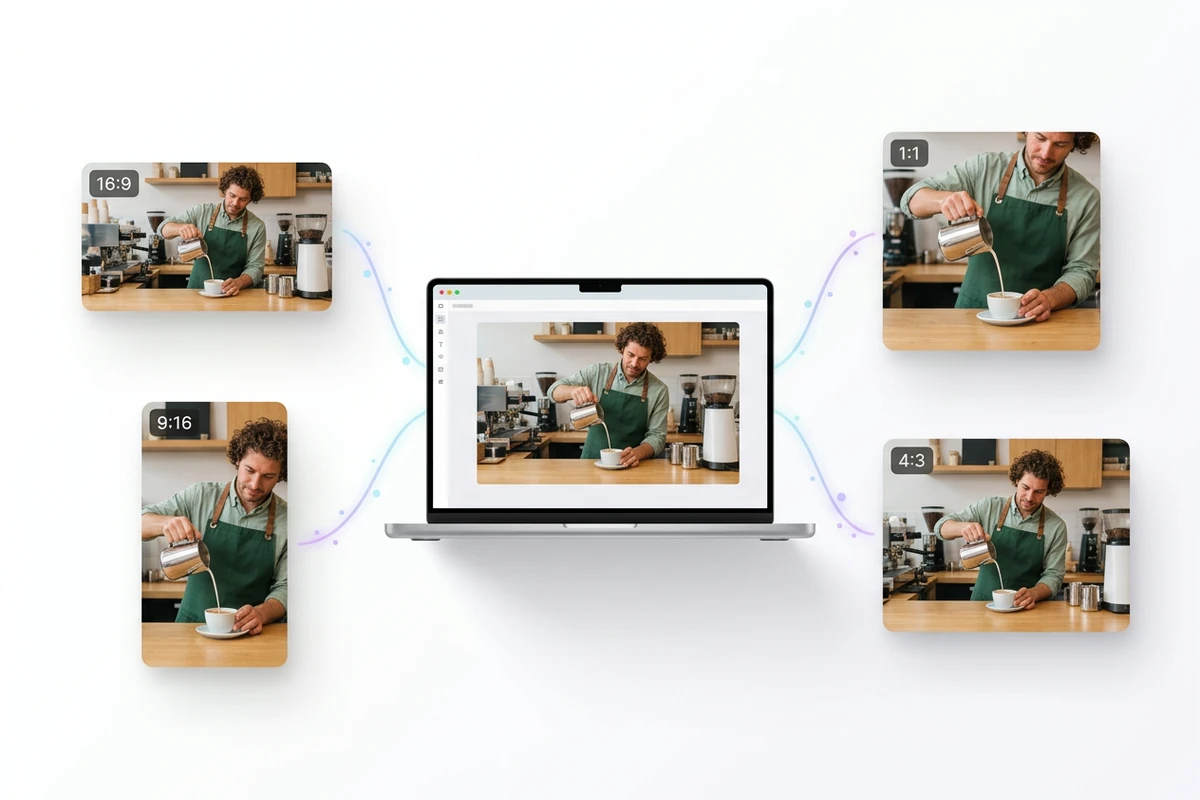
Illustrative view of a barista video on a laptop connected to four output aspect-ratio cards.

Prepare a different frame for each destination

Choose 9:16 for a vertical version, 1:1 for a square composition or 16:9 for widescreen. Process and review each version separately; the diagram illustrates possible formats, not simultaneous exports or direct publishing. If the finished file needs to be smaller, continue with Video Compressor.

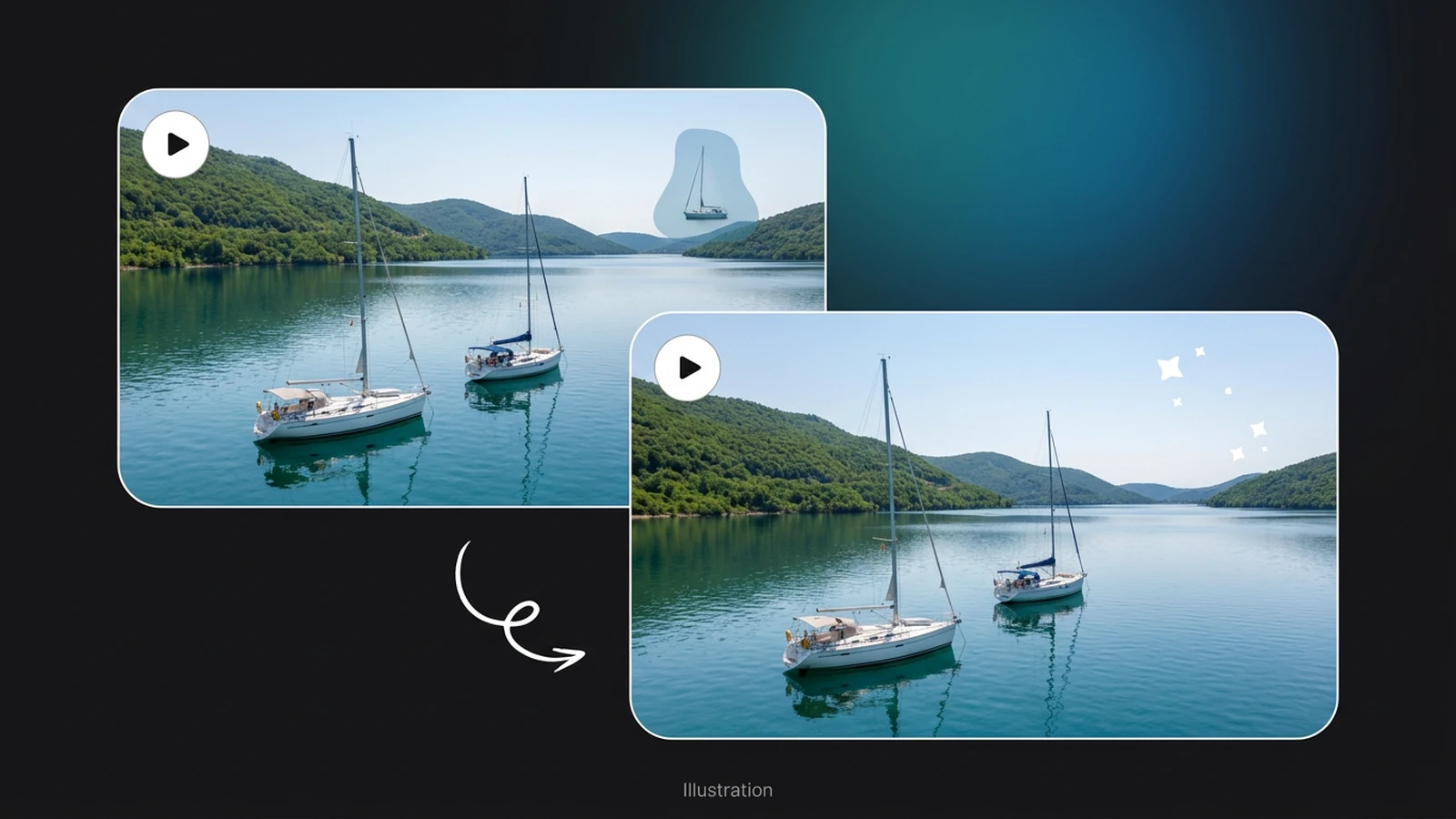
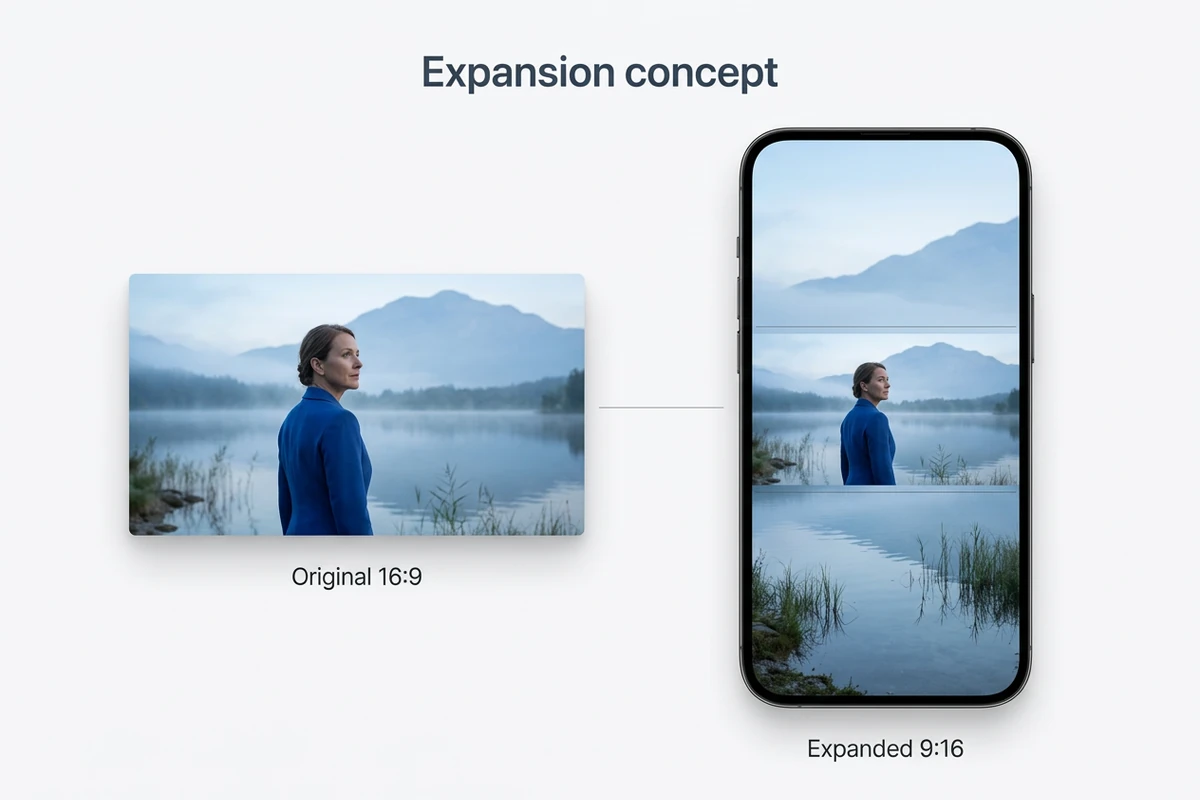
Illustrative expansion concept for a lakeside video extended above and below into a portrait frame.

Know when cropping cannot preserve the scene

A landscape shot may lose too much scenery in a portrait crop. Frame expansion would create new picture areas, as this concept illustrates. The current workbench offers a Luma Reframe option, but it is not enabled. Available center and manual modes crop existing footage; they do not generate the missing surroundings.

What you can do with Ottermind

Share a dance rehearsal

Turn a wide rehearsal shot into a vertical excerpt. Choose a section where the dancer stays within a workable crop, then watch hands and feet at the movement extremes before downloading.

Adapt a café promotion

Make a square version of a barista pouring coffee for a feed post. Place the cup and hands inside the crop, and prepare a separate vertical version if the wider counter scene is less important.

Reframe an interview excerpt

Use a portrait crop for a single speaker in a landscape interview. If the conversation switches between people, choose a shorter selection or keep a wider ratio; a fixed crop will not follow whoever speaks.

Show a pottery demonstration

Keep the potter’s hands and the clay visible when adapting a workshop clip. Check whether a square frame tells the process better than a narrow portrait crop. Handle separate scene changes in AI Video Editor.

How to change your video’s aspect ratio

1

Add an MP4, MOV or WebM file. Set the start and end around the action you want to keep. Include enough movement to judge whether one fixed crop works.

2

Select a target ratio and begin with Center framing. Switch to Manual to adjust X and Y. Check the beginning, middle, end and widest movement before submitting.

3

Sign in when prompted and check availability and the displayed cost. Play the processed clip before downloading. If the subject leaves the crop, adjust the position or select a shorter section.

Reframe your video

Why creators choose Ottermind

Your existing footage

Start with a supported video file and make a new framing decision around its actual content.

A clear starting point

The default 9:16 ratio and centered crop give you a starting point for a vertical version.

Visible position controls

Manual X and Y settings let you choose which part of the source frame remains visible.

A selectable excerpt

Set clip boundaries around a section that fits your intended composition, without automatic highlight selection.

Cost before processing

Check the current model availability and displayed estimate before committing to a processing job.

A practical next step

Review your download, then use Video Compressor if file size is the remaining delivery constraint.

Frequently asked questions

Does AI Video Reframe automatically track a subject?

No automatic subject tracking is provided by the currently available center and manual modes. They use a fixed crop position. For a subject that moves across the source frame, review the full selection and choose a shorter section or a less restrictive ratio when necessary.

Which video files and clip lengths can I use?

The workbench accepts MP4, MOV and WebM files up to 200 MB and 120 seconds, with neither frame dimension above 4096 pixels. The available FFmpeg option accepts selections from 0.1 to 120 seconds. A supported extension does not guarantee every underlying codec will decode.

Can I convert landscape video to portrait without cropping?

Not with the currently available crop modes. They remove areas outside the chosen frame. Luma frame expansion is listed but not enabled, and these controls do not offer blurred-background padding. Keep the original ratio when preserving every part of the scene is essential.

Will changing the ratio improve my video’s quality?

Changing the frame shape does not recover detail or increase the quality of the source. A narrow crop retains less of the original picture. For a separate resolution task, consult Video Upscaler and check its current availability. Always inspect the processed file before replacing your source.

Is processing free, and do I need an account?

Processing requires sign-in. The available FFmpeg model currently reports a zero-credit minimum, but check the displayed estimate for your selected job before submitting. A successful job provides a preview and download; keep a copy of your original video for future versions.

Which ratios can I choose for social videos?

The options are Original, 21:9, 16:9, 4:3, 1:1, 3:4 and 9:16. Use vertical, square or widescreen according to your destination, then check its current upload requirements. The reframe controls do not include custom dimensions, a 4:5 preset or direct social publishing.

Discover more

More from the blog

Give your next clip the right frame

Upload your video, choose its new aspect ratio and position the crop. Review the full movement before downloading a version ready for your next editing or publishing step.

Reframe your video