Upload image

JPEG · PNG · WebP · 20 MB · 4096 × 4096 px

Settings
Private image
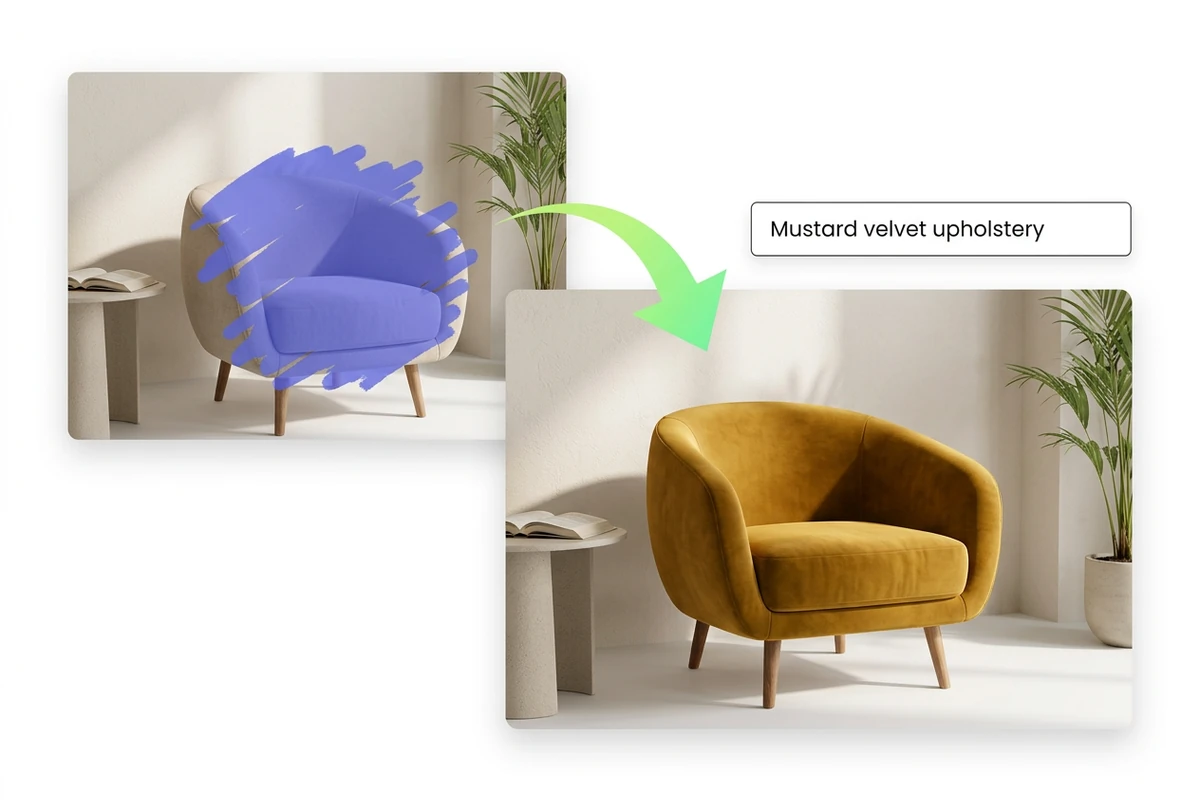
A brush selection over a reading chair beside the same chair redrawn with mustard velvet upholstery.

Give one part of your photo a new direction

Image inpainting combines a painted selection with a text prompt to generate new content inside an existing picture. Use it when you know what should appear in a particular area: a different material, a new prop, or a redrawn detail. If you only want something gone and the background filled in, choose AI Object Remover.

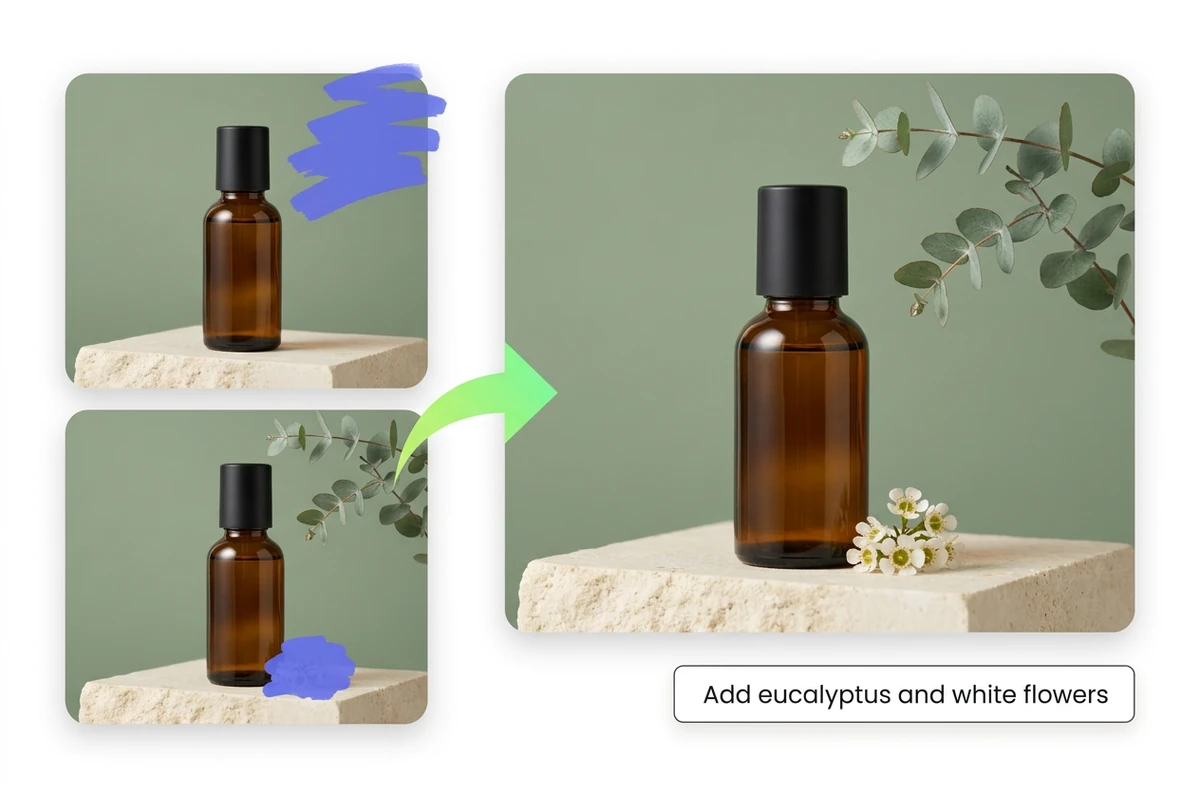
Two masked selections beside an amber bottle lead to a product scene with eucalyptus and white flowers.

Turn an empty spot into a useful prop

A product photo may need a small styling detail beside the main subject. In this illustrated example, brush the space beside the bottle and describe the object, placement, and light: ‘A eucalyptus sprig beside the bottle, lit softly from the left.’ Leave enough selected space for the prop and its shadow.
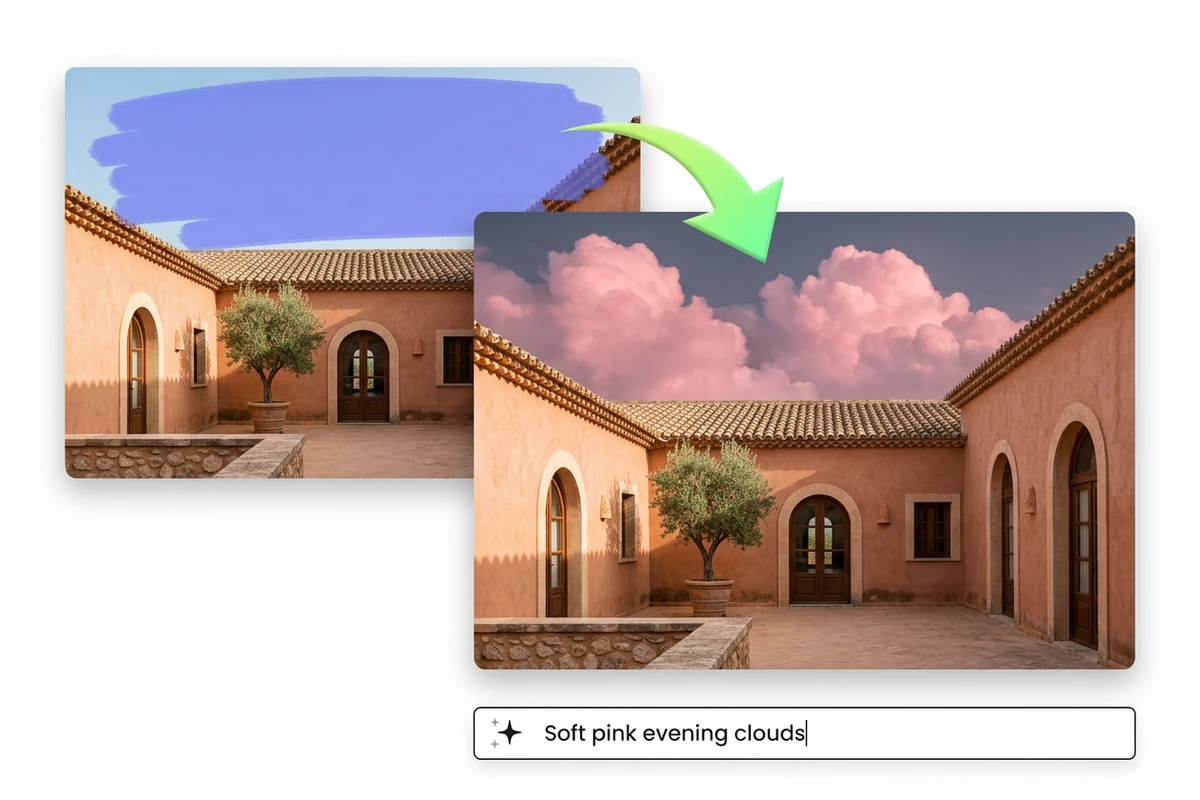
A mask over the sky above a terracotta courtyard leads to the same courtyard beneath pink evening clouds.

Redraw a scene detail with a clear brief

Select the sky above a courtyard and describe soft pink evening clouds. A focused prompt gives the replacement a subject and a visual direction; check that the new light still makes sense with the buildings below. For an overall treatment across the picture, explore Image Effects after deciding which local details belong in the scene.

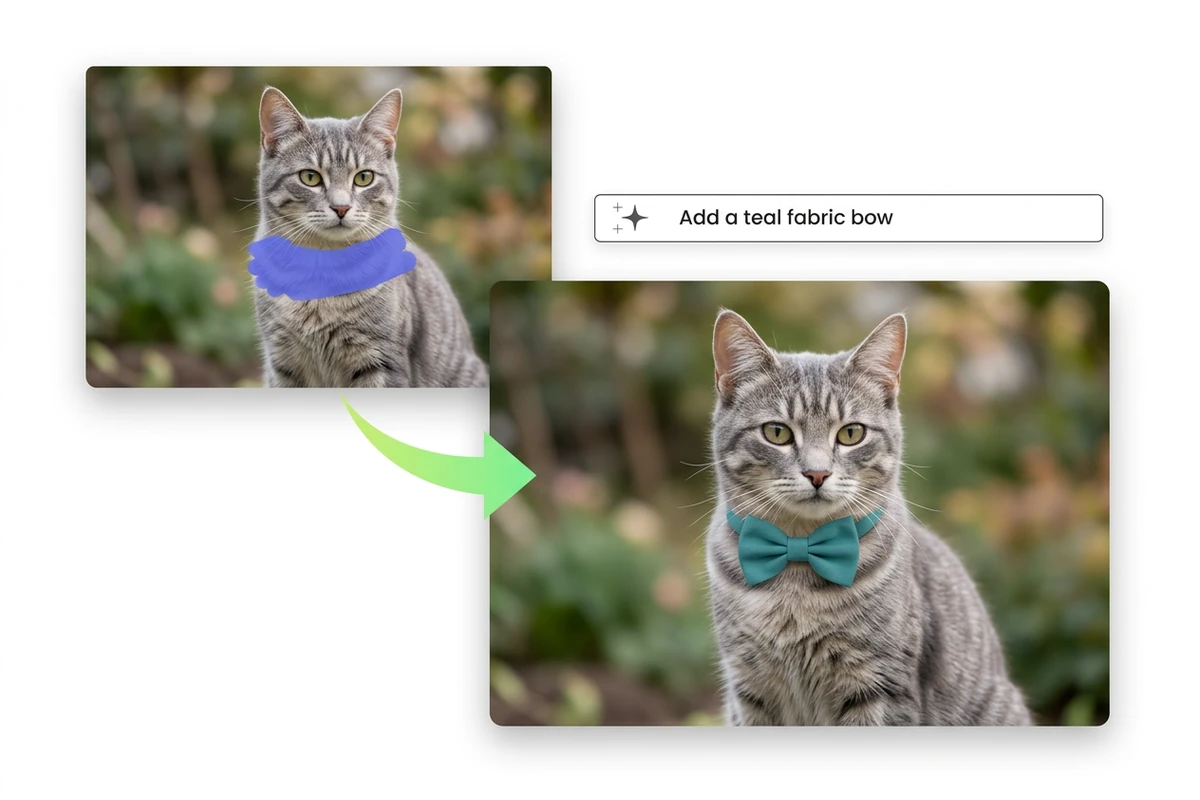
A selected area around a gray tabby cat’s neck leads to a portrait of the same cat wearing a teal bow.

Make a small addition fit its surroundings

Adding a fabric bow to a pet portrait calls for more than the right color. Inspect the bow's size, the fur along its edge, and the shadow where it meets the neck. If the addition is clipped, revise the selection; if its appearance feels wrong, revise the prompt. Check the rest of the portrait before accepting the edit.

What you can do with Ottermind

Style a seasonal product image

Start with a bottle or jar photo and select space for a botanical accent. Describe the leaves, flowers, or supporting prop you want to add. Review the packaging and nearby reflections so the concept still represents your product accurately.

Preview a different upholstery

Use a room photo to explore a chair in another fabric or color. Select the upholstery and describe its material, folds, and lighting. Treat the result as a visual concept to discuss, then check real fabric samples before making a purchase.

Refresh a campaign illustration

Replace a local prop in an existing illustration to suit a new campaign theme. Describe a replacement that fits its drawing style. Handle exact slogans separately with Image Text Editor, and proofread every word.

Create a playful pet portrait

Select a small area for a bow or accessory and describe its color and fabric. Review the pet's eyes, fur, and proportions alongside the addition. A restrained edit can give a familiar portrait a new theme without asking for an entirely new scene.

How to inpaint an image with a prompt

Use the selection to show where the change belongs and the prompt to explain what should appear there.

1

Upload your photo in the workbench and brush over the area to redraw. Cover the intended replacement space, including room for a new object's edges or shadow. Inpainting needs a painted selection.

2

Write what should appear in the selection, including material, color, and lighting when relevant. Sign in if prompted, review the displayed credit requirement, and generate. A blank prompt cannot start an inpaint edit.

3

Inspect the new detail, its boundary, and the surrounding image. Adjust the selection or prompt if needed. Download the result when it meets your brief; download access follows your account's current plan.

Inpaint your image

Why creators choose Ottermind

Keep the edit brief specific, the selection deliberate, and the final decision grounded in the whole image.

A visible edit area

Paint the region you want to change so your request has a clear location in the image.

Words for the replacement

Describe the new content directly, from fabric and color to the light falling on an added object.

A smaller revision brief

Focus each attempt on one change, making it easier to see which part of the request needs adjustment.

Credits before generation

Review the workbench's current credit requirement before starting an edit instead of assuming every attempt is free.

A separate sizing step

Once the edit works, use AI Image Upscaler if you need a larger image.

Your own acceptance check

Judge the result against the original photo and your brief, including details outside the selected area.

Frequently asked questions

Can I add something where there is no object?

Yes, the selected area can mark the space for a new element. Describe what should occupy it and give the selection enough room for its shape. Check the generated object's placement, scale, and contact shadow against the rest of the photo.

Will every pixel outside the selection stay identical?

Do not assume pixel-for-pixel preservation. The selection directs the edit, but you should compare the whole result with the original, especially faces, product labels, straight edges, and repeating textures. Keep your source file so you can reassess changes before using the image.

Can inpainting recover the exact detail that was missing?

Inpainting generates a plausible replacement from your image and description; it does not establish what was originally there. Use it for creative changes and visual concepts. For a product, document, or identifying detail, check against a reliable original rather than treating generated content as evidence.

Can image inpainting extend the edges of a photo?

This workflow edits a selection within your existing image. To create space beyond its current edges, use AI Image Uncropper. Decide whether you need a new detail inside the composition or a wider composition before choosing the tool.

Which image formats can I upload?

The workbench accepts JPEG, PNG, and WebP images. Use a clear source where you can identify the edit boundary; a tiny or heavily compressed source makes review harder. The uploader checks the file and reports size or dimension limits before you continue.

Do generation and downloading require an account?

The inpaint workbench uses an account and checks available credits before generation. Review the requirement shown for your current edit. Downloading a generated image can also depend on your plan; follow the account notice rather than assuming unlimited edits or free downloads.

Discover more

More from the blog

Give your next edit a clear starting point

Choose the part of your photo you want to redraw, describe what belongs there, and review the generated detail in context before you use it.

Inpaint your image