






Upload image

JPEG · PNG · WebP · 20 MB · 4096 × 4096 px

Settings
Aspect ratio
Private image
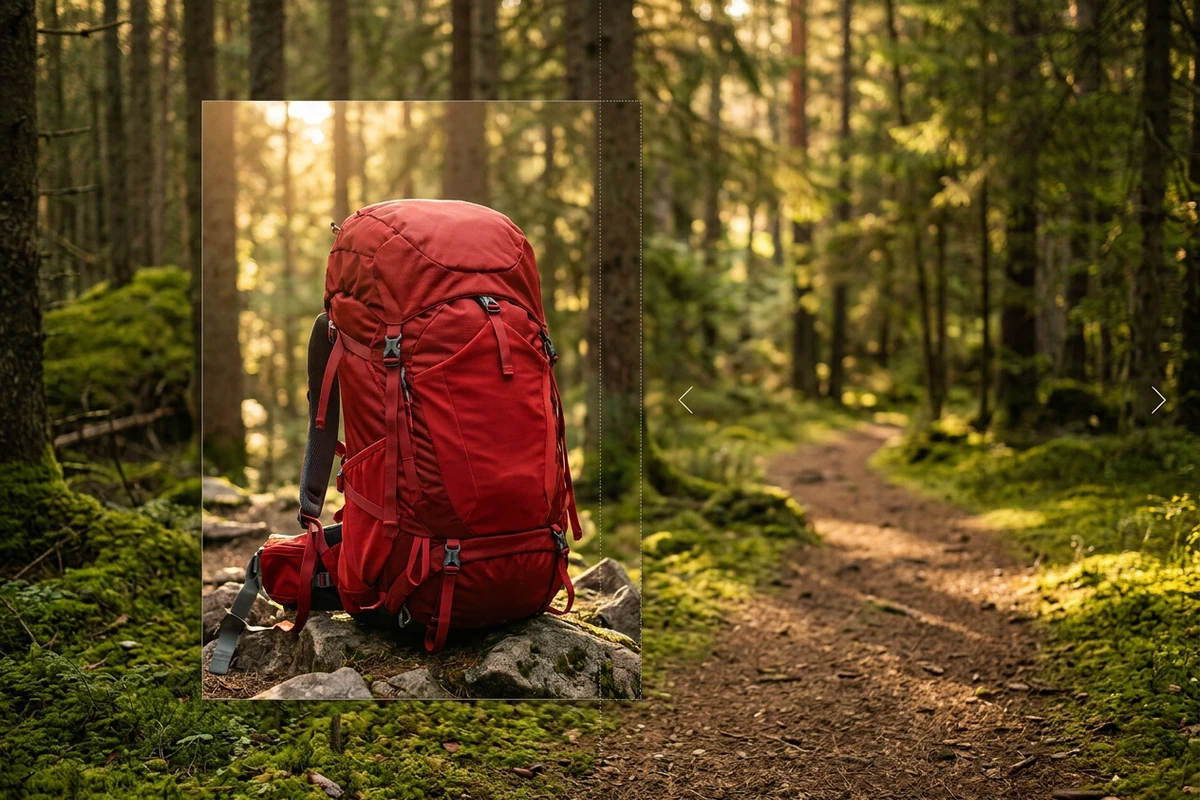
Red hiking backpack framed by an expanded forest trail with outward arrows at the generated edges.

Uncrop Images Online

Upload an image, describe the space you need beyond its edges, and send an uncrop brief to Ottermind Studio. Extend the canvas and rebalance composition without claiming to recov

Red hiking backpack framed by an expanded forest trail with outward arrows at the generated edges.
Claude
GitHub
Google
Linear
Microsoft
Monday
Netlify
Notion
OpenAI
Sentry
Slack
Stripe
Supabase
Claude
GitHub
Google
Linear
Microsoft
Monday
Netlify
Notion
OpenAI
Sentry
Slack
Stripe
Supabase

Extend the Canvas, Not the Facts

An AI image uncropper expands the visible canvas beyond the source frame and generates plausible edge content to support a new composition. It is useful when a portrait needs more headroom, a product image needs a square layout, or a landscape needs negative space for type. Ottermind lets you describe the target ratio, where to add room, and what visual language should continue. The result is a creative extension, not a reliable reconstruction of details that were truly outside the original photo. Use the AI Image Resizer when you only need new pixel dimensions.

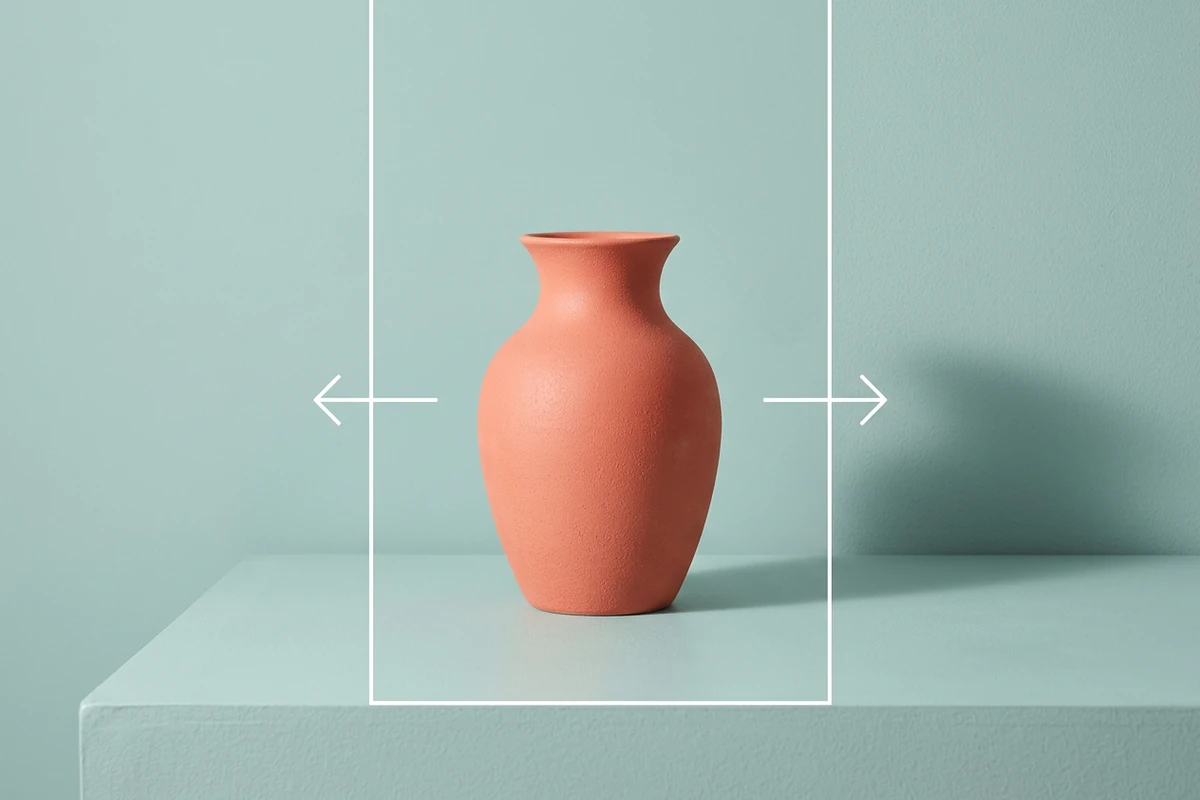
Coral vase centered inside a wider teal studio canvas with arrows marking the added space.

Choose the New Frame First

Name the destination ratio or layout before asking for extra canvas. A 4:5 portrait, square product tile, and wide hero each need room in different directions. Say where the subject should remain and where the added breathing room belongs so Studio can balance the frame.
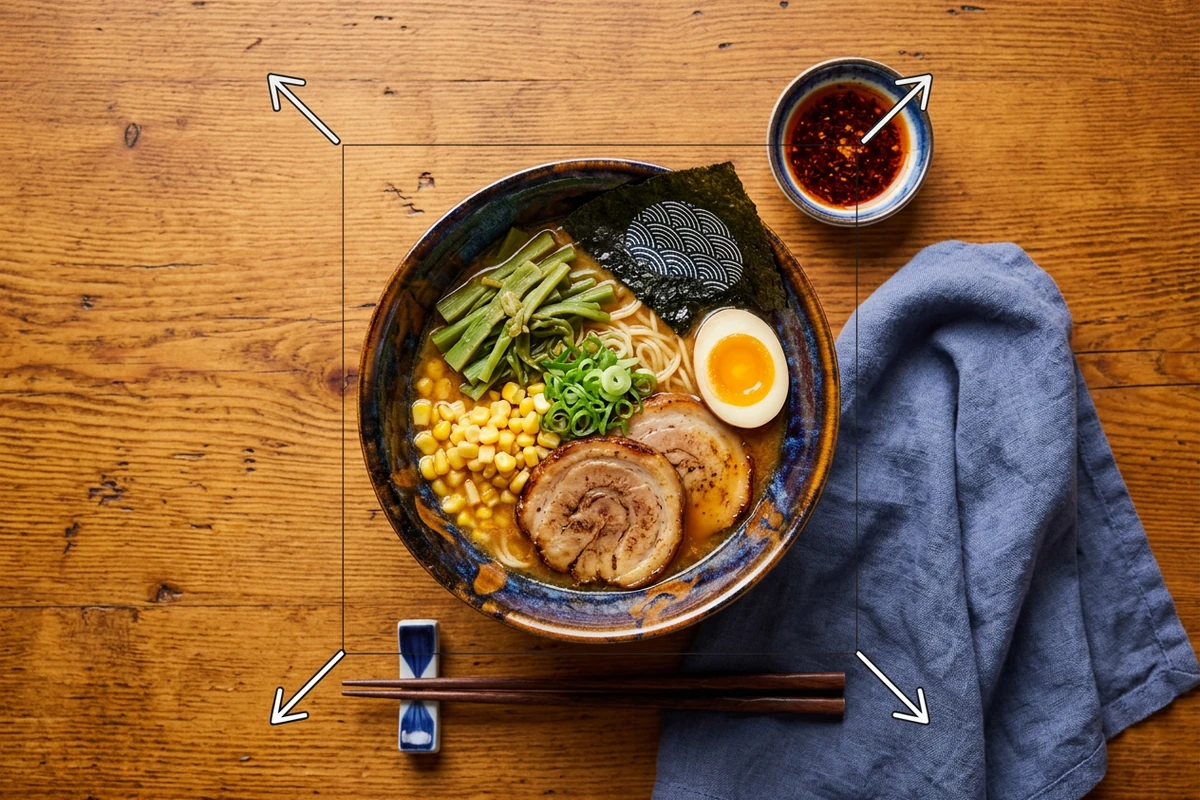
Overhead ramen bowl on a wooden table with visible arrows showing the canvas extended around it.

Describe Continuity at the Edges

Give the brief a visual rule for the extension: a soft wall, open sky, tabletop, foliage, or another repeatable texture. Ask for matching light, depth, grain, and perspective. Keep the request grounded in what is visible; the generated border should support the scene without pretending to reveal hidden facts.

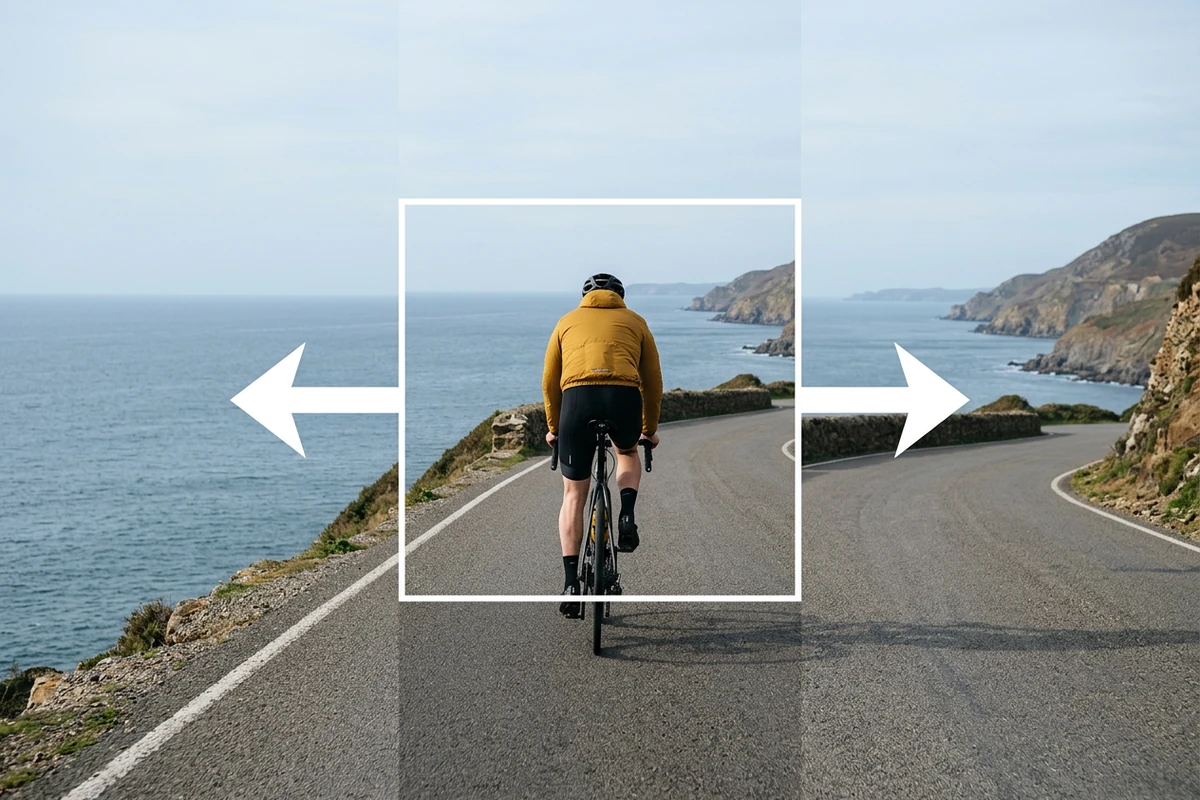
Cyclist in a yellow jacket inside a white original crop frame, with arrows pointing into the expanded coastal road and sea.

Review the Expanded Area as New Work

Inspect seams, shadows, repeated patterns, and the relationship between the original subject and generated space. If a hand, logo, face, or product edge looks uncertain, revise the brief or crop the result. Approve the composition at the size where it will be published.

What you can do with Ottermind

Turn a portrait into a social format

Extend headroom and side space to move a tight portrait into a 4:5 or 9:16 composition while keeping the person anchored and the background visually consistent.

Create breathing room for campaign copy

Uncrop a landscape or product scene toward the side where a headline will sit. Describe a calm continuation of the visible background so the new space supports readable type.

Adapt product photos to square tiles

Expand a packshot to a square marketplace or catalog frame, preserving the object scale, surface contact, and lighting while adding only plausible surrounding context.

Widen a scene for a website hero

Add horizontal canvas to a travel, interior, or lifestyle image and specify the safe area for a logo or call to action. Review generated edges before publishing the hero.

How to Uncrop an Image Online

Step 01

Upload and Set the Frame

Upload the source image and state the target aspect ratio, output size, and direction of the added canvas. Mark the subject or object that must stay anchored.

Step 02

Send an Edge Continuity Brief

Describe the background, lighting, perspective, and amount of negative space you want. Ask Studio to extend visible visual cues and label any area that should remain simple for text.

Step 03

Check the New Border

Compare the expanded result with the source. Look closely at seams, geometry, faces, hands, logos, and text. Request a focused revision or crop back if the generated area does not support the intended use.

Why creators choose Ottermind

Context Carries Forward

Your preferred output formats, common print and web dimensions, and review notes stay organized around the same project for future resizes.

Precise Dimension Briefs

Describe exact width and height in pixels, the aspect ratio constraint, and the intended destination instead of asking vaguely for a smaller image.

Focused Revision After Resize

Lock the accepted dimensions before you change format, add styling, or export. This makes unintended edits easier to spot and reverse.

Honest Quality Boundaries

Enlarging beyond the source dimensions adds estimated pixels. A responsible brief labels when upscaling will introduce visible softness rather than hiding it.

Visible Studio Review

Inspect the result at the intended output size and approve it before export. Reject quality changes that do not match the dimension brief.

Frequently asked questions

What does an AI image uncropper do?

It expands the canvas beyond the original image edges and generates plausible continuation of visible colors, textures, lighting, and perspective. The added area is a new creative inference; it cannot reliably recover the exact scene or objects that were cropped away.

Is uncropping the same as resizing?

No. Resizing changes pixel dimensions, while uncropping changes the composition by adding generated canvas outside the source frame. Use the AI Image Resizer when the image already has the right composition and only its size must change.

Can uncrop restore a person or object outside the frame?

It may generate a plausible continuation, but it cannot know the exact hidden details. Treat faces, hands, logos, text, and precise product geometry in the new area as uncertain and review them carefully.

How should I write an uncrop prompt?

State the target ratio, direction and amount of added space, the anchored subject, and the visible background cues to continue. Include lighting, perspective, and a simple safe area when the image will carry text.

What should I check before using the result?

Inspect seams, repeated textures, shadows, perspective, faces, hands, logos, and text at the final publishing size. Crop back or request a revision when the generated border distracts from the subject.

What happens to my original image?

The source remains the reference for the Studio brief and review. Keep the original alongside the expanded version so you can compare the generated canvas and revert to the source when needed.

Discover more

More from the blog

Give Your Image Room to Work

Upload an image, describe the target frame and edge continuity, then review the expanded canvas in Studio before you export.

Uncrop in Studio