Upload image

JPEG · PNG · WebP · 20 MB · 4096 × 4096 px

Settings
Scale
Private image
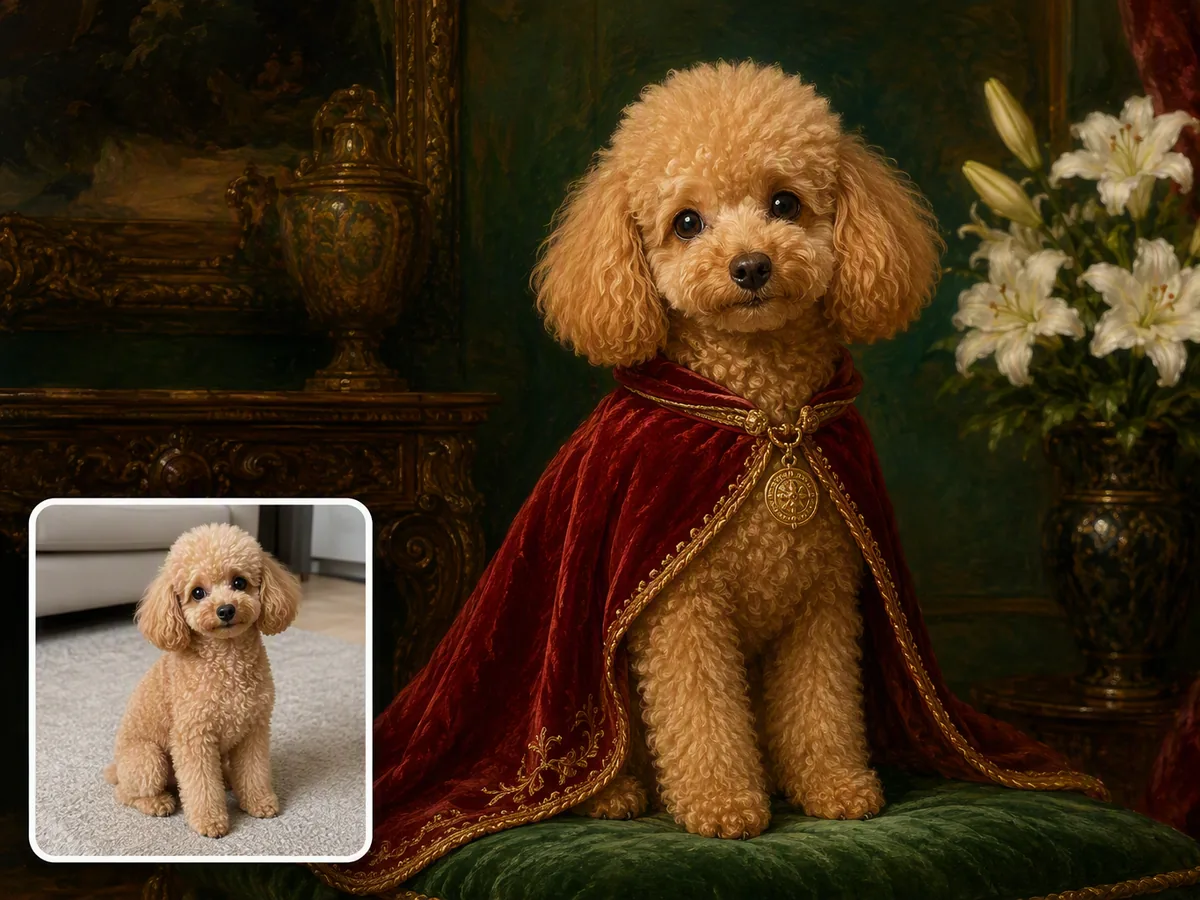
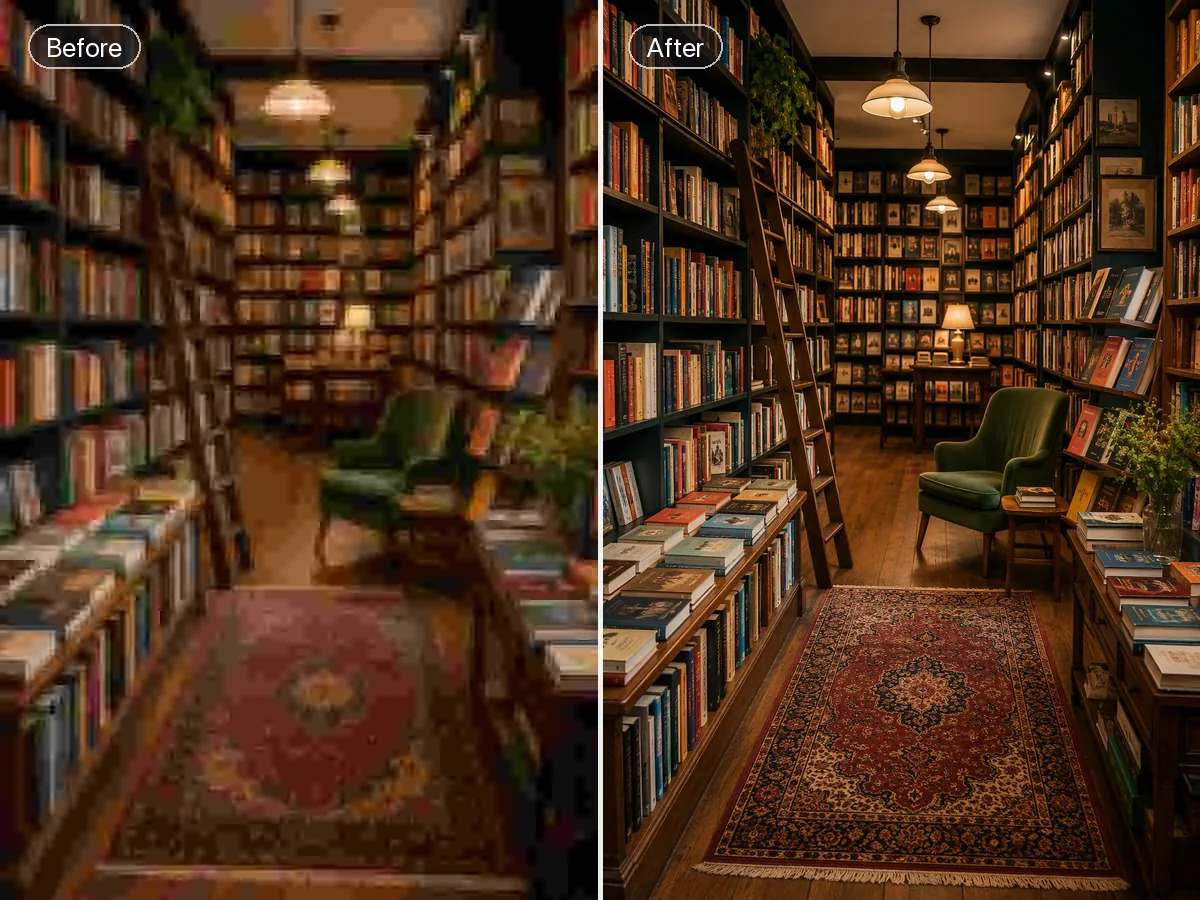
Sample photo: Enlarge photos and illustrations to 2x or 4x with optional face restoration.
Sample photo

Enlarge photos and illustrations to 2x or 4x with optional face restoration.

Make a Small Image Fit a Larger Space

Use this AI image upscaler online when your photo or illustration has too few pixels for its next use. Choose 2x or 4x to enlarge both width and height, then check whether the extra detail holds up in your layout. If the image is already large enough but needs general quality improvement, start with Image Enhancer.

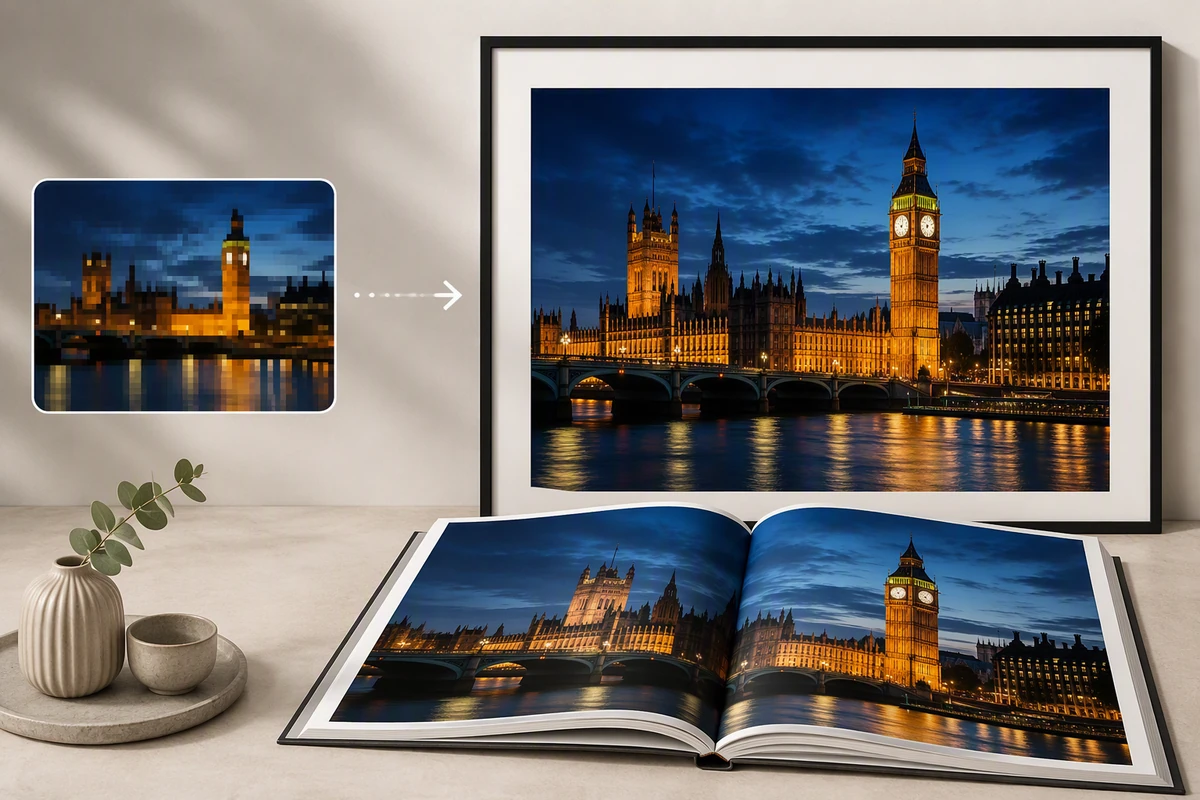
Illustration of a small London night photograph beside a framed print and an open photo book showing the same scene.

Choose the Size Your Photo Needs

A photo-book spread and a framed print may need different pixel dimensions. A 1200 × 800 image requests 2400 × 1600 at 2x, or 4800 × 3200 at 4x. Choose the smaller scale that meets your layout, then inspect a print proof. The illustration shows possible uses, not a measured output. For a broader conversion brief, see HD Photo Converter.
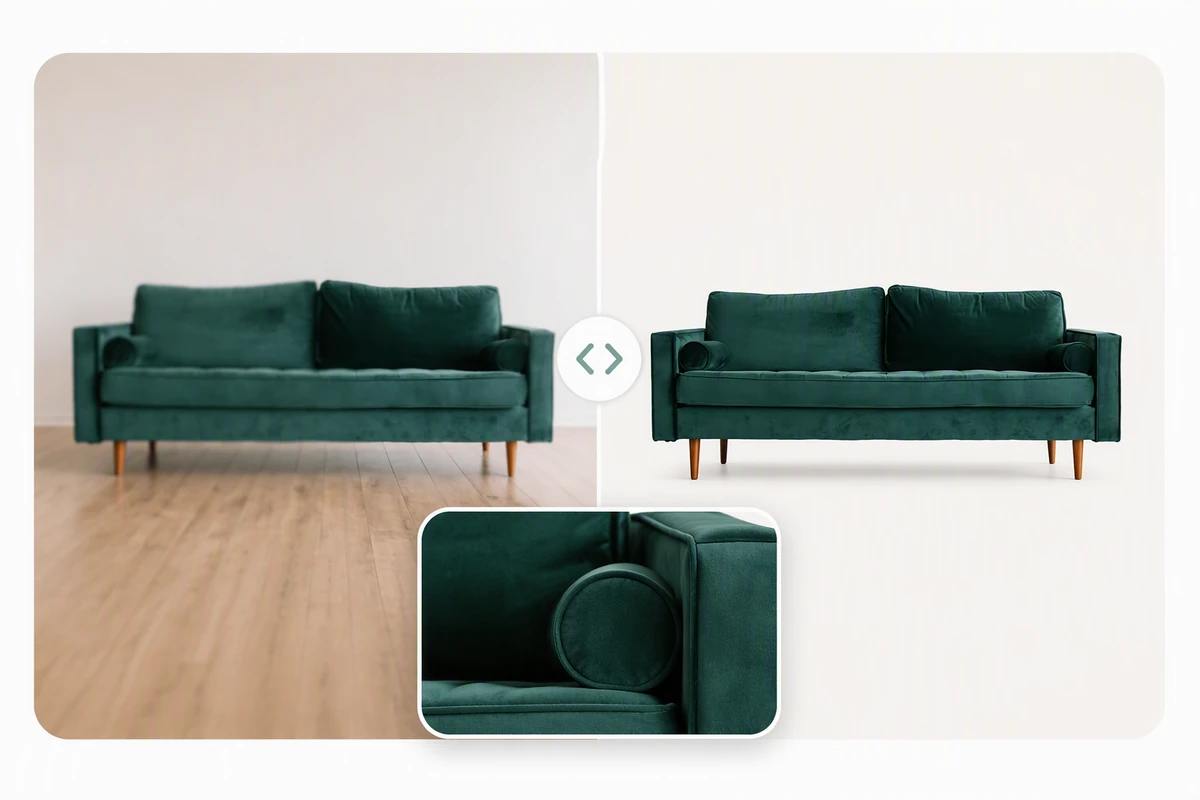
Illustrative green sofa comparison with a softer room image, a sharper isolated view, and a close-up of the rounded arm and upholstery.

Make Product Details Easier to Inspect

A larger listing image gives shoppers more room to examine a product, so inspect the details they will rely on. For upholstery like this sofa, compare seams, fabric patterns, and curved edges against the original. Reject invented stitching or changed shapes even when the result looks sharper. This illustrative comparison does not guarantee the same improvement for every source.

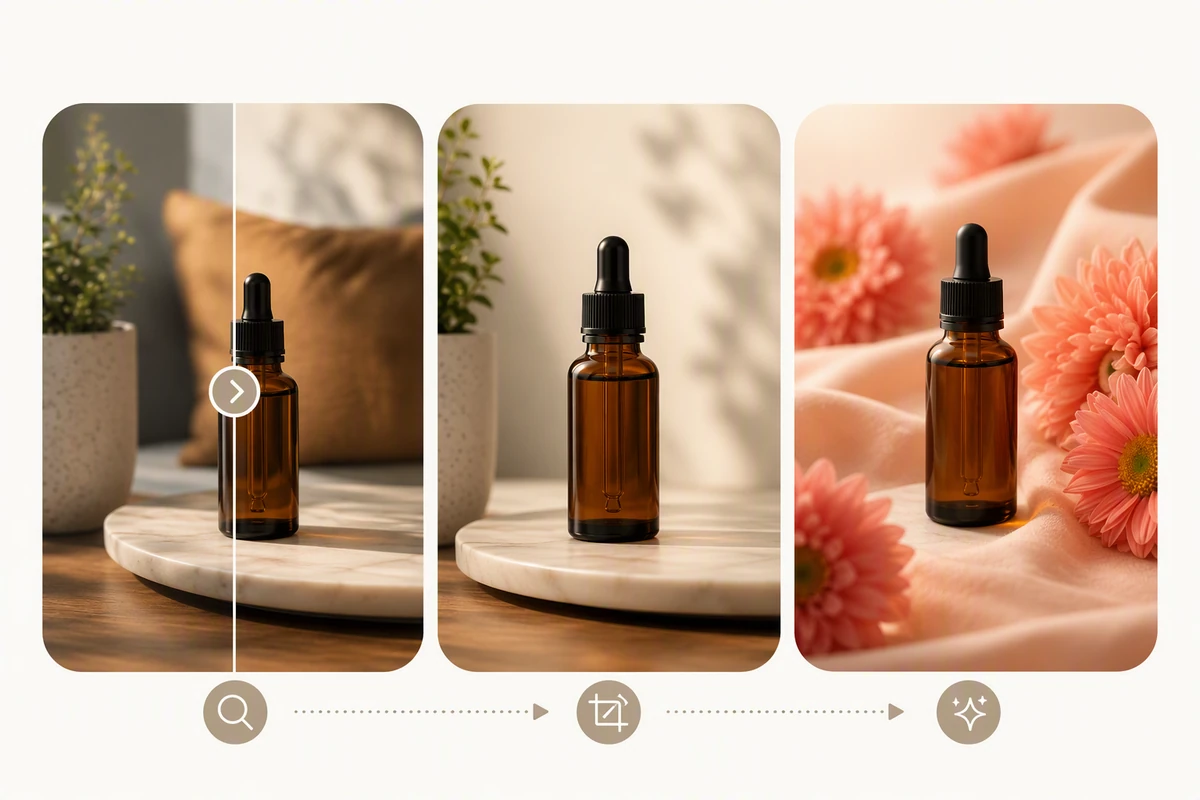
An amber dropper bottle shown in a split clarity comparison, a tighter crop, and a separate floral-background composition.

Size Each Finished Crop for Its Destination

A tight product crop needs its own size check: pixels outside the crop cannot help fill the final placement. Finish the composition first, then calculate the enlargement from the remaining image. The bottle illustration includes cropping and a floral background change; those are separate edits, not effects of the upscaler. Enlargement adds pixels within the existing frame, not new space around it.

What you can do with Ottermind

Prepare a Product Zoom Image

Start with a small supplier photo and enlarge it for a product detail view. Check stitching, dimensions, and packaging against the source before listing it. If the backdrop also needs work, use AI Background Remover as a separate step.

Fill a Photo-Book Spread

Give a travel photo enough pixels for a larger page placement. Use the printer's requested dimensions to choose 2x or 4x, then inspect a proof at the intended size rather than judging only a small screen preview.

Enlarge an Illustrated Cover

Prepare a small illustration for a cover or poster layout. Try the Illustration option and examine thin outlines, repeated patterns, and flat-color edges. Keep lettering editable in the layout instead of relying on AI to reconstruct tiny text.

Upgrade a Presentation Photo

Enlarge a small photograph for a wide slide while keeping the original framing. Judge it at presentation size and check faces or building edges before sharing the deck. Rebuild charts and labels from their source files when exact information matters.

How to Upscale an Image Online

1

Upload a JPG, PNG, or WebP and note its pixel dimensions. Use the original file when available; screenshots and repeatedly saved copies can give the upscaler less useful detail.

2

Choose 2x or 4x, then PNG, JPEG, or WebP. A 1200 × 800 source fits either scale within the output limits. Try Face restoration or Illustration only when relevant, and check the displayed credit cost before processing.

3

Sign in to run the upscale. Compare the finished result with your source, checking faces, text, and edges at the intended viewing size. Use Download when the result is acceptable; download access can depend on your plan.

Upscale an Image

Why creators choose Ottermind

Your Choice of Format

Choose PNG, JPEG, or WebP to match the file type your next editing or publishing step accepts.

Visible Credit Cost

Check the workbench's displayed cost before processing, so you can decide which enlargement is worth running.

Compare Before Accepting

Use the source and result views to judge whether larger pixels also produce a useful image.

Return to Past Results

Use account history to revisit completed jobs when you need to compare or download an earlier version.

Separate Quality Adjustments

Use Image Enhancer when quality adjustment is the next task, rather than adding another enlargement.

Keep Editing a Result

Continue editing results up to 4096 pixels per side in the workbench; download larger outputs for your next step.

Frequently asked questions

Does 4x upscaling always produce a 4K image?

No. 4x multiplies the source width and height by four; 4K describes an output size. A 960 × 540 image requests 3840 × 2160 at 4x, while a 500 × 500 image requests 2000 × 2000. Check the dimensions your destination needs rather than choosing a multiplier by its name.

Why does the workbench ask for a lower scale?

The requested output must stay within 16,777,216 total pixels and 8192 pixels on either side. For example, a 2400 × 1600 source at 4x would become 9600 × 6400 and exceeds both limits. Choose 2x for 4800 × 3200, which fits. Both limits apply together, even if one side is below 8192.

Which image files can I upload and download?

Upload JPG, PNG, or WebP files up to 20 MB, with neither side longer than 4096 pixels. Choose PNG, JPEG, or WebP for the result. Convert unsupported sources such as HEIC before uploading. The chosen enlargement must also fit the output limits; an accepted upload is not automatically eligible for every scale.

Can AI upscale an image without losing quality?

It can make a small image more usable at a larger size, but cannot guarantee faithful recovery of missing information. A plausible letter or face detail is not proof of what was originally there. Compare critical details with a better source whenever possible. For deliberate local corrections, treat Photo Retouching as a separate task.

Is this a free image upscaler without signup?

This workbench requires sign-in to process an image and uses account credits. Check the displayed credit cost and your balance before running it. Download access can also depend on your plan. Do not assume that browsing the page or loading a local preview includes free processing or unrestricted downloads.

When should I enable Face restoration or Illustration?

Try Face restoration for photographs where facial detail needs attention, and Illustration for drawn artwork. They are optional controls, not promises that identity or linework will remain exact. Start with a plain upscale for comparison; keep a mode enabled only if its result suits your image. For lettering or logos, prefer the original artwork when available.

Discover more

More from the blog

Give Your Image the Pixels It Needs

Load your best source, choose 2x or 4x for the final placement, and compare the result before you use it. Start with one image in the workbench above.

Upscale an Image