Upload image

JPEG · PNG · WebP · 20 MB · 4096 × 4096 px

Settings
Private image
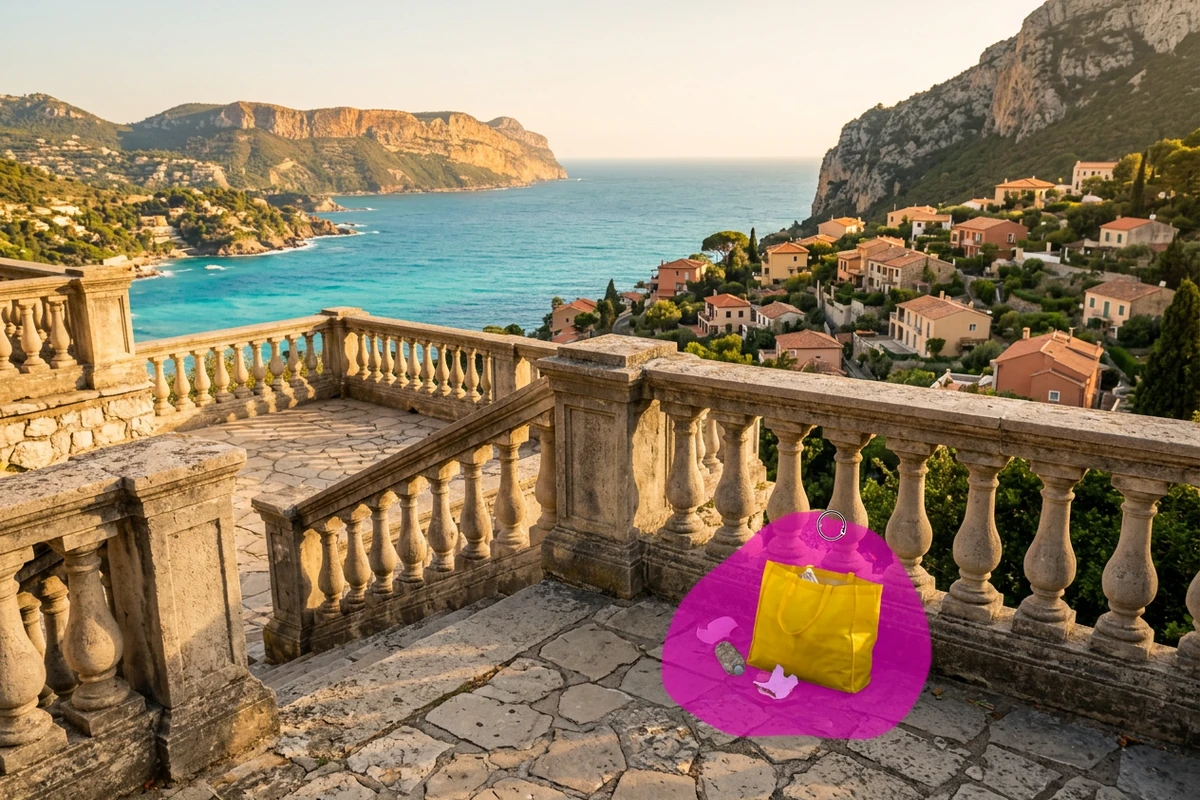
Sample photo: Brush over unwanted objects and reconstruct the background inside your selection.
Sample photo

Brush over unwanted objects and reconstruct the background inside your selection.

Keep the Photo. Clear the Distraction.

An object remover lets you edit an unwanted item out of a photo while keeping the composition you chose. Brush over the distraction and let AI attempt to fill the selected area to fit its surroundings. The hidden background is estimated, so review the repair before saving. To isolate a subject from its entire backdrop, use AI Background Remover. The comparisons below illustrate editing scenarios rather than measured results from this tool.

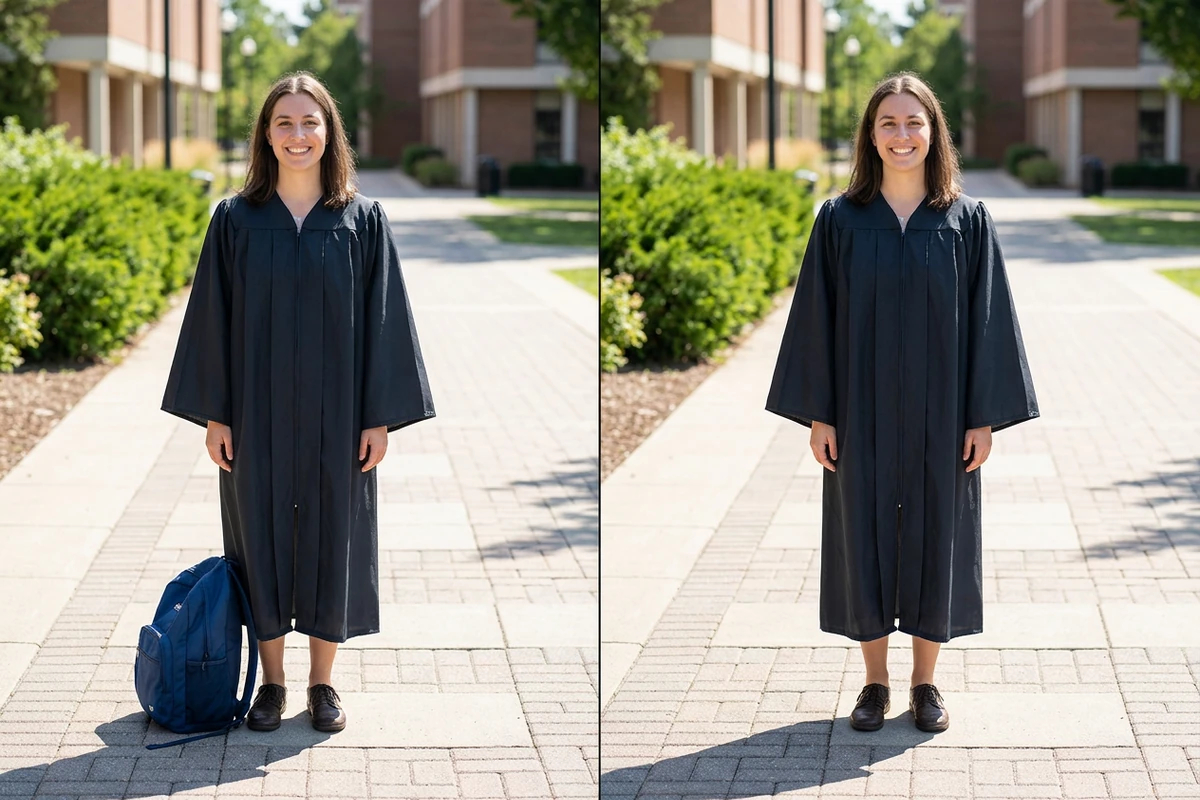
Illustrative side-by-side graduation portrait with a blue backpack beside the graduate on the left and the backpack removed on the right.

Mark the Object, Protect the Subject

A bag beside someone's shoes needs a more careful selection than an object on an empty wall. Adjust Brush size to cover the bag, then use Erase selection to subtract any paint that overlaps the person. That control changes your selection; it does not erase photo pixels. Generate applies the removal. This gives you a clear boundary to review before spending credits.
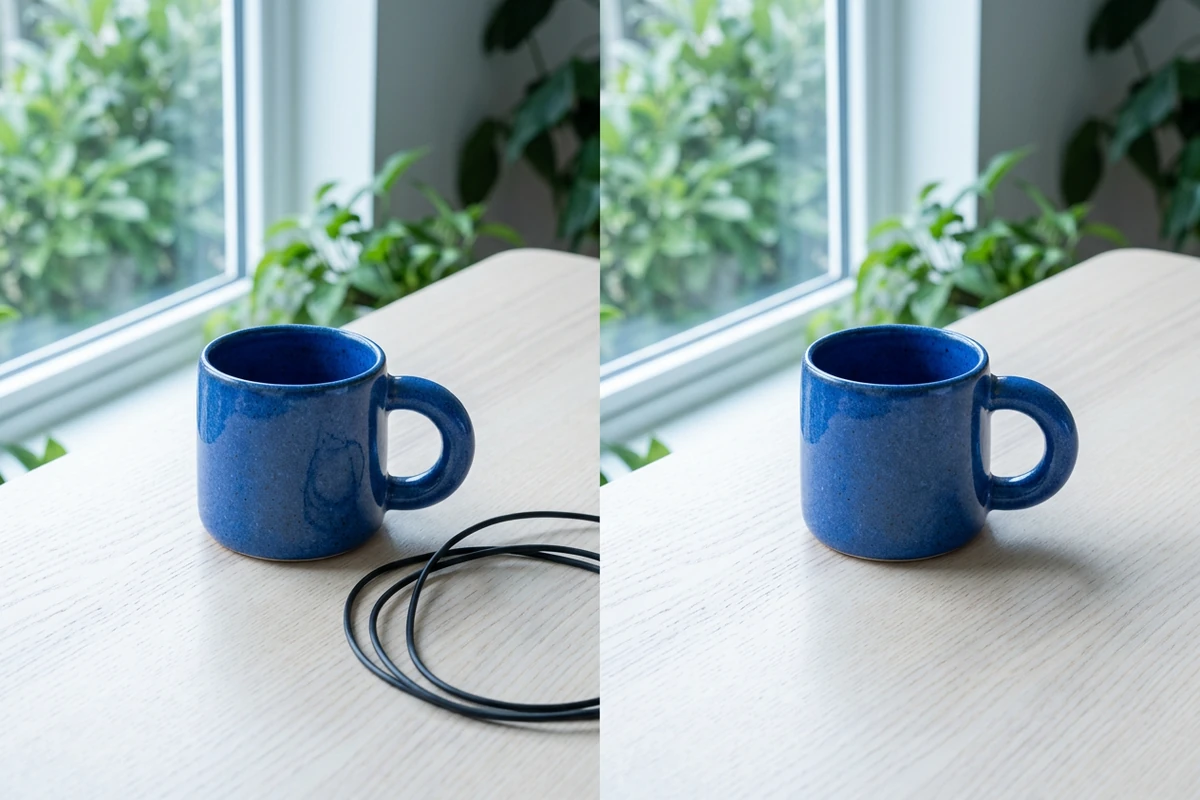
Illustrative comparison of a blue ceramic mug on a pale wood table by a leafy window, with a black cable on the left and the cable removed on the right.

Clear Clutter Without Cutting the Frame

A charging cable across a tabletop can draw attention away from a carefully arranged mug. Removing it lets you attempt a cleaner composition without cropping away the table edge or changing the subject's position. Cover the full cable and inspect any shadow it leaves behind. Keep the selection focused: including more of the scene gives the repair more space to reinterpret.

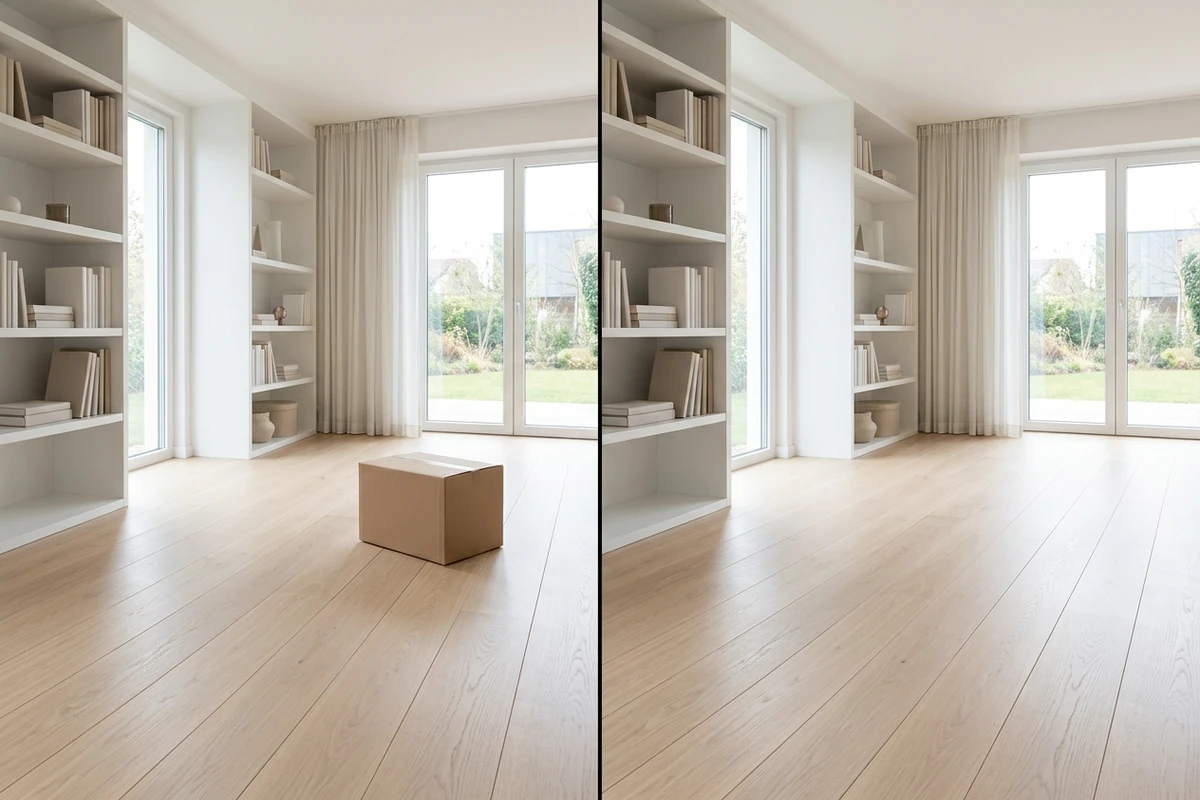
Illustrative side-by-side bright interior with a cardboard box on the left and the box removed from the wood floor on the right.

Check What Replaces the Missing Object

A successful cleanup needs more than an absent object. Use Original, Result and Compare to check whether a shelf stays straight, floor joints connect, and the filled area matches nearby texture. A large object can hide details the photo cannot reveal; AI may invent a plausible replacement. If you want a specific new element in that space, choose AI Image Inpainting.

What you can do with Ottermind

Clean Up a Graduation Portrait

Remove a discarded cup beside a graduate before making a family print. Keep the gown hem and shoes outside the selection, then check the paving around the repair. Preserve the expression and framing that made the photo worth keeping.

Prepare a Craft Product Photo

Remove packing scraps beside a handmade bowl before posting it to your shop. Keep the glaze, rim and actual condition visible. For a separately styled setting, continue with AI Product Image Generator.

Recover a Travel Composition

Try removing litter from an overlook photo while retaining the foreground that gives the landscape depth. Review the repaired ground and railing lines before sharing. If an obstruction covers most of the view, a different source photo may be a better choice.

Simplify a Recipe Photo

Clear a stray wrapper from beside a finished dish for a recipe card. Leave the food and serving utensils intact, and inspect the table grain where the wrapper used to be. The aim is a focused meal photo with a believable surface around it.

How to Remove Objects from a Photo

Upload JPEG, PNG or WebP up to 20 MB, with each side no larger than 4096 pixels. Convert HEIC or RAW files to a supported format first.

1

Select Upload image and open the photo you want to clean. Identify the unwanted item and the nearby detail you want to keep. Sign in to generate an edit.

2

Paint over the unwanted object with Brush. Adjust Brush size for its edges, use Erase selection to subtract spillover, or Undo a stroke. Cover the object rather than drawing only its outline. No text prompt is needed.

3

Choose PNG, JPEG or WebP in Settings, review the credit cost, and select Generate. Compare the repaired area with the original before keeping it. Downloading the generated image requires a paid plan.

Remove an Object

Why creators choose Ottermind

Choose the Exact Distraction

Paint the item you want removed instead of asking automatic detection to decide which parts of the scene matter.

Correct a Stray Stroke

Undo lets you back out of a selection mistake before it becomes part of a generated edit.

Check the Cost First

Review the required credits before generating, so you can decide whether the proposed cleanup is worth another attempt.

Choose Your File Format

Save the accepted edit as PNG, JPEG or WebP to fit the next place you plan to use the photo.

Return to an Earlier Job

Open History to revisit processing tasks saved to your account and find a result you want to review again.

Keep Framing Tasks Separate

If the photo also needs space beyond its borders, AI Image Uncropper handles expansion as a separate edit.

Frequently asked questions

Is this object remover free?

Generating an edit requires an account and sufficient credits. Review the displayed cost before processing your selection; downloading AI-generated images requires a paid plan. A different selection or another attempt can require a new generation. The page does not offer unlimited free object removal.

Can I remove a person from a photo?

You can brush over an unwanted person as the area to remove. Results depend on what they overlap: a passerby against open ground leaves a different repair task from someone covering another person's face. Inspect the remaining subjects carefully. Hidden facial or architectural details cannot be reliably recovered from the photo.

Why is there a blurry patch or a leftover edge?

The fill may not match a detailed background, or the selection may have missed part of the object. Check for a remaining outline, shadow or reflection and adjust the mask before another attempt. Avoid enlarging it across important details just to hide an imperfect repair. Keep the original if the revised result still looks distracting.

Does object removal increase image resolution?

No enlargement control is provided in this removal mode. Its job is to edit the selected region. If the cleaned photo needs larger pixel dimensions, use AI Image Upscaler afterward. Inspect the repair first: making the image bigger can also make an inconsistent texture or bent line more noticeable.

Is my photo processed only in my browser?

No. The browser lets you choose the photo and draw the selection, but generating an edit uploads the image and its mask to the service for processing. Keep a separate copy of your original. Browser-based editing should not be interpreted as an offline or local-only privacy guarantee.

Can this tool remove objects from a video?

This workbench is for still images in JPEG, PNG and WebP formats. It does not accept a video clip for object removal. Editing a single exported frame also does not remove the object from the rest of a clip or maintain its appearance across moving frames.

Discover more

More from the blog

Give the Subject Your Full Attention

Bring the photo you want to keep, mark the object that distracts from it, and review the repaired area. Save the cleanup that fits your scene.

Remove an Object