
Upload image

JPEG · PNG · WebP · 20 MB · 4096 × 4096 px

Settings
Background
Private image
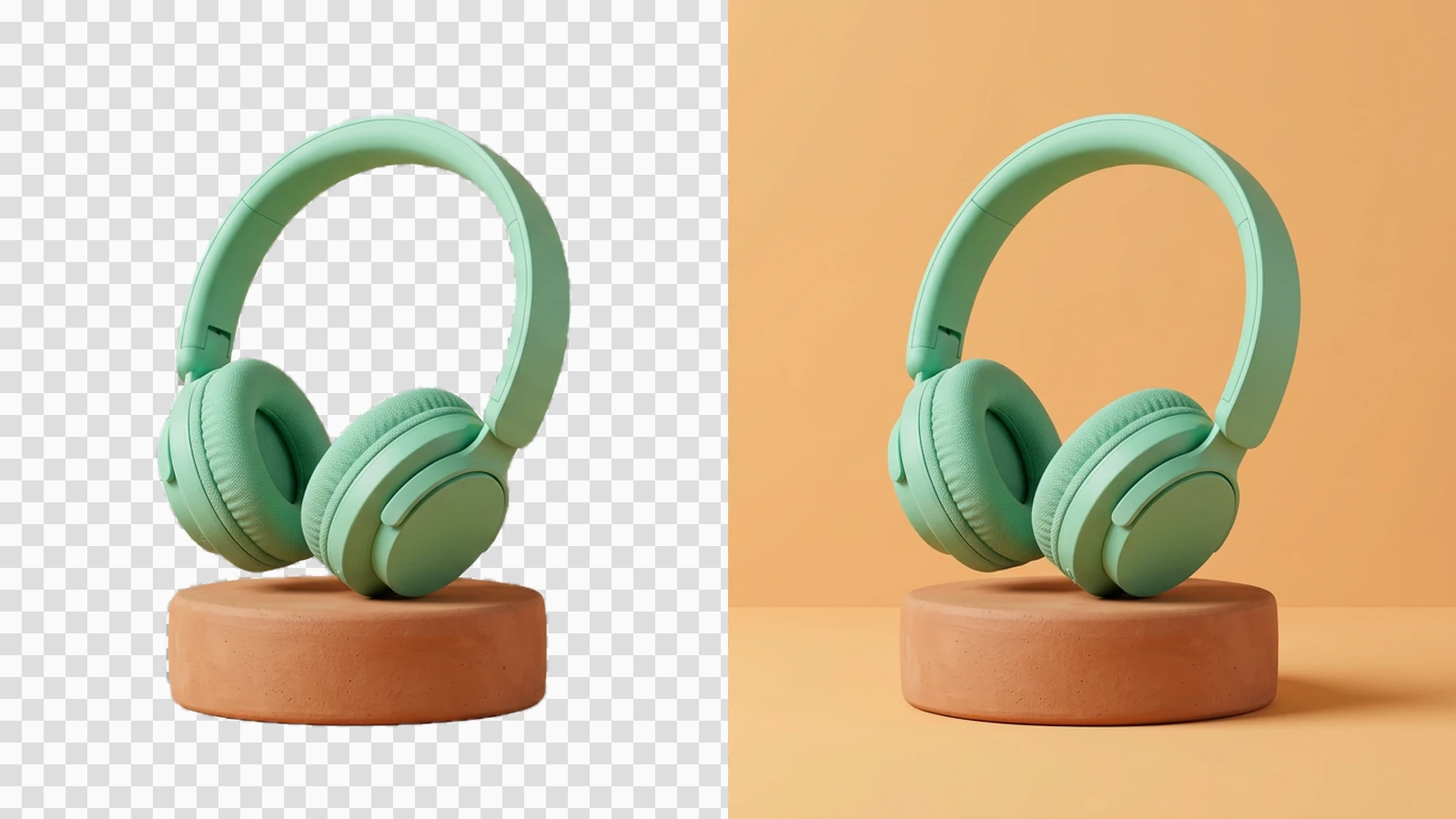
Mint headphones on a terracotta pedestal, shown against checkerboard and apricot backgrounds.

Keep the subject. Give it a new setting.

A background remover separates the main subject from the surrounding photo so you can reuse it in a layout. Start with one clear still image, choose transparency or a solid color, and check the cutout before placing it. Use AI Image Resizer when the finished asset needs different dimensions.

Curly-haired woman in a lavender blouse holding a coral flower against a checkerboard background.

Bring a portrait into your next design

Turn a portrait into a subject you can place beside a headline or on a presentation slide. Keep the face, clothing, and accessories in view when reviewing the result. Fine curls and flower petals deserve a closer look: a neat outer silhouette can still hide missing detail between strands.
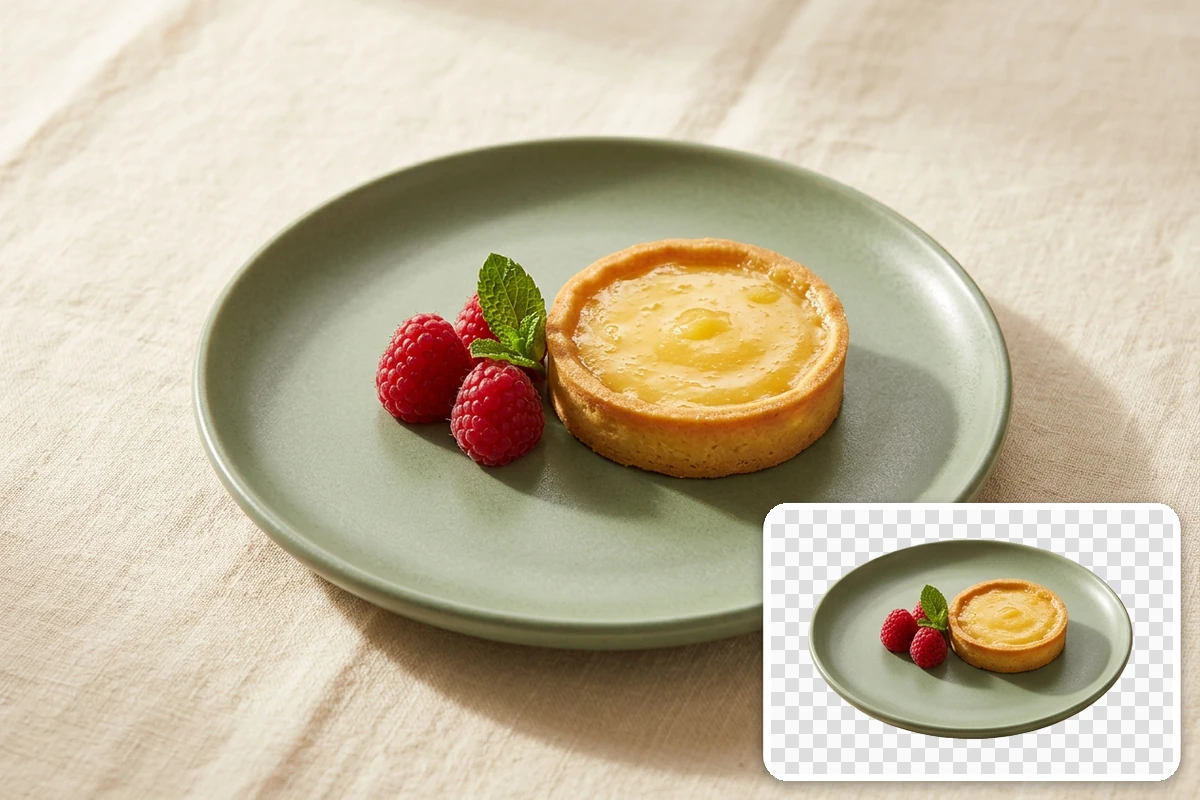
Lemon tart and raspberries on a sage plate, with an inset of the plate isolated against checkerboard.

Build a layout around the cutout

A dish photographed for a menu can become an ingredient in a new design once its surroundings are removed. The illustration shows a cutout alongside a separate composed scene. Choose a solid color here, or continue scene design through AI image generation; background removal alone does not add table settings or match lighting.

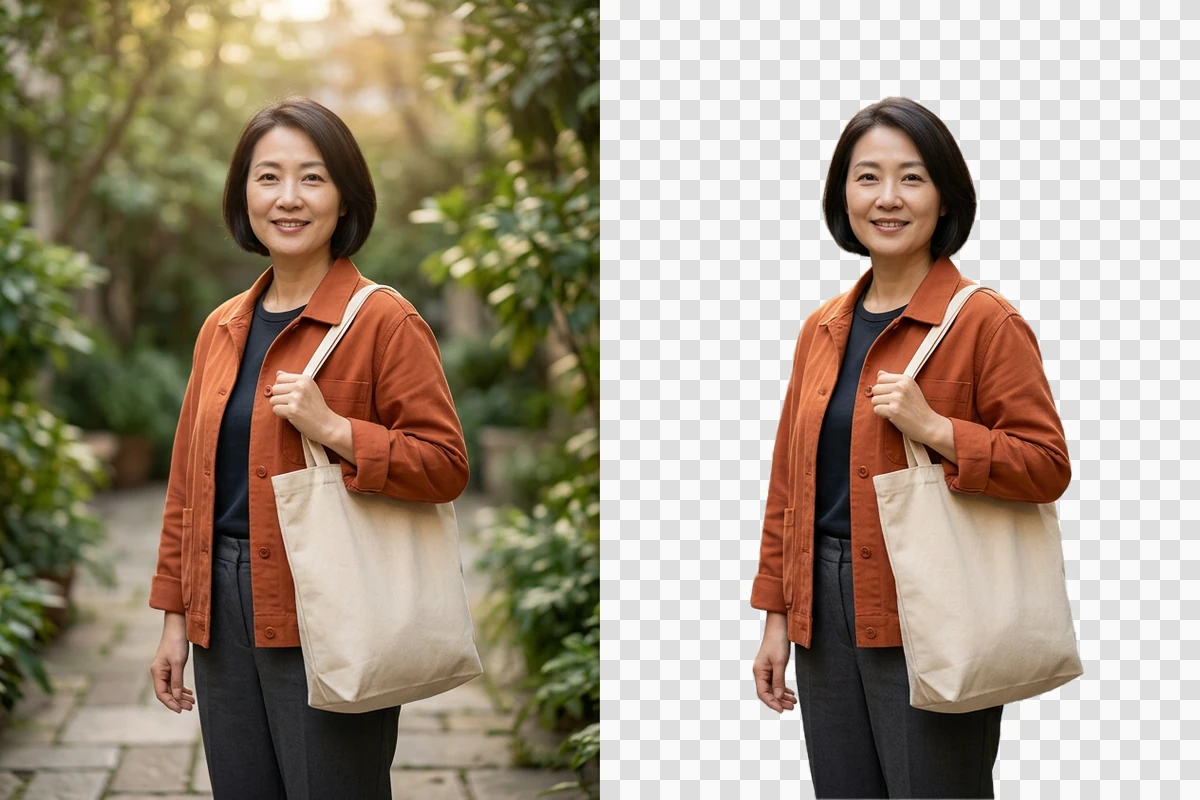
Woman in a rust jacket with a canvas tote, shown in a leafy courtyard and isolated against checkerboard.

Leave the location behind, keep the details

An outdoor portrait may have the right expression but distracting scenery. Review the person against the original after removal, checking jacket edges, hands, and the tote strap as well as the face. Place the downloaded cutout on a contrasting background to reveal leftover color or missing openings before using it in a collage.

What you can do with Ottermind

Clean up a product listing

Separate a mug, bag, or handmade item from a cluttered tabletop and choose a white background. Compare handles, labels, and surface detail with the source before adding the image to a listing; background removal should not change what you are selling.

Prepare a speaker portrait

Cut a speaker out of an office photo for an event slide or announcement. Leave room for the name in your final layout and check hair, glasses, and clothing against the slide color so the portrait feels intentional rather than pasted in.

Reuse a menu photo

Isolate a plated dessert for a seasonal menu or promotional graphic. Keep the plate rim intact and carry the cutout into a separate AI image generation task when you need text, scenery, or a coordinated campaign composition.

Assemble a maker's collage

Extract an individual ceramic piece or craft object from its surroundings for a mood board. Check interior gaps and thin handles, then place the approved cutout beside materials and color references in your design editor.

How to remove a photo background

Start with a clear source, choose the right background and format, then inspect the downloaded result.

1

Choose a JPG, PNG, or WebP photo up to 20 MB, with neither dimension above 4096 pixels. Use a clear subject and keep a copy of the original.

2

Select transparency for a reusable cutout or pick a solid color. Use PNG or WebP for transparency; JPEG is excluded in transparent mode. Review the displayed credit requirement before generating.

3

Compare the result with the source, then download when available for your account. Test the file on light and dark surfaces in your editor; visible checkerboard pixels are not actual transparency.

Remove Background

Why creators choose Ottermind

Familiar photo inputs

Start from JPG, PNG, or WebP without converting a supported photograph to a special project format.

A deliberate background choice

Choose transparency, a preset swatch, or a custom color according to where the subject will appear.

Compatible format choices

Transparent mode offers PNG and WebP and excludes JPEG, helping you avoid an opaque export choice.

A review before reuse

Inspect the generated image before placing it in your design, with the original as your detail reference.

Visible generation cost

Check the selected model's displayed credit requirement before you run the background-removal request.

A next step for sizing

Continue with AI Image Resizer when a cutout needs to fit a specific layout.

Frequently asked questions

Will my downloaded PNG always be transparent?

No. PNG can contain transparency, but the file extension alone does not prove that it does. Select transparent background, then place the downloaded file over another color in an editor. If a white rectangle or checkerboard remains visible, those pixels are part of the image and the cutout needs correction.

Can I use a white or custom-colored background?

Yes. The background controls include white, black, two pale color presets, and a custom color picker. Choose a solid background when the destination calls for an opaque image. A white backdrop is useful for many layouts, but it does not by itself establish compliance with a marketplace's image rules.

Why do hair and glasses look different after removal?

Fine strands, reflections, and translucent surfaces can mix subject and background information in the same pixels. Low contrast or a blurry source makes separation harder. Compare those areas with the original at the size you will use, and correct a flawed cutout in an editor rather than assuming every detail survived.

Does this page remove backgrounds from animated GIFs?

This workbench is for static photos and images, with JPG, PNG, and WebP uploads. It does not provide a GIF timeline or a review of every animation frame. See GIF Background Remover for the separate animation workflow and its motion and loop considerations.

Is background removal the same as erasing an object?

No. Background removal isolates the main subject by clearing its surroundings. Object removal instead erases a selected distraction while keeping and reconstructing the surrounding scene. Choose the task according to what you want to retain: a reusable subject cutout or an otherwise complete photograph.

Do generation and downloads have the same access rules?

Not necessarily. Check the credit requirement shown before generation and any account or plan message when downloading. A visible preview does not guarantee unrestricted downloads. Use the current workbench messages for your access conditions rather than assuming background removal is unlimited or every export is free.

Discover more

More from the blog

Make your photo ready for its next layout

Upload a still image, choose transparency or a solid color, and review the subject's details before using the downloaded cutout in your design.

Remove Background